CDPedia
CDPedia is an amazing database application that just knows everything about your discs. It even lets you import your data from Excel!! Wow!
To use an Excel spreadsheet with kJams
First you'll need to convert the spreadsheet into a text file:
- In excel, make sure your spreadsheet has labels on the top including Name, Artist, Album, Track #. If you don't have all these fields, it won't work. You may optionally include genre. Extra fields are ignored.
- Export your spreadsheet to text, using tab separated values, looks like this (ignoring "date added" field):
Title	Artist	Album	Track #	Date Added
You've Got A Friend	James Taylor	1106G	1	6/29/06
How Sweet It Is To Be Loved By You	James Taylor	1106G	2	6/29/06
Smiling Face	James Taylor	1106G	3	6/29/06
Handy Man	James Taylor	1106G	4	6/29/06
etc…
Now that you've got the text file, the rest is easy:
- run CDPedia
- in the preferences -> General, set "Custom Field 1" to "Album", and "Custom Field 2" to "Track #". NOTE: if you're already using these fields for something else, please let me know, and I'll let you know what to do.
- File -> Import Collection, and pick your text file, you should get a dialog that looks like this:
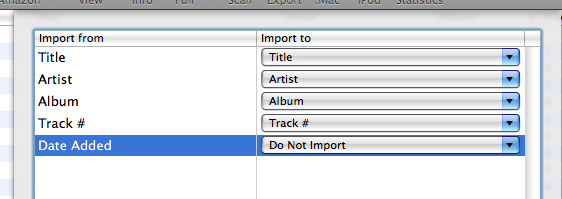
- click "Import"
- Follow the steps below for using CDPedia with kJams
Using your CDPedia Database with kJams
- Run CDPedia
- making sure the collection you want to use is selected, click the Export icon (or File->Export)
- select the ".cdpedia" format, and click "Export"
- save it into your kJams folder (in your music folder).
Next time kJams starts up, it will also open that database (inside kJams). Then, when you stick in a CD, if the data can be automatically gathered, it will "just work". If not, kJams will ask you for the CDPedia album name. Simply type the name of the album (or copy and paste it from CDPedia), and that's it!