Coupon/Mac
- If you haven't already, download the proper file:
kJams Lite
kJams Pro
Burning Plugin - Install it
- In the Finder, Go to the Downloads folder

- If there is a kJamsPro.zip or kJamsLite.zip file, double click the Zip file that has been downloaded. This will unzip the contents of the zip file.
- If it is the Plugin
- Run the installer "kJams Burner Plugin.pkg", follow the instructions to the end.
- trash the "kJams Burner Plugin.pkg" and "Burner.zip" from the Downloads folder (you do keep your downloads folder clean, don't you?)
- If it is the Application
- Drag the application (Lite or Pro) from the downloads folder to the Applications folder

- trash the kjams app zip file from the Downloads folder (you do keep your downloads folder clean, don't you?)
- Drag the application (Lite or Pro) from the downloads folder to the Applications folder
- In the Finder, Go to the Downloads folder
- Run kJams from the Applications folder
- If it is the Plugin:
- Go to the "kJams" application menu (Lite or Pro) in the menu bar and pick "Preferences…"

- Click on the "Burning" icon
- Click the "Purchase" button (this is NOT a purchase, it is an activation, you will NOT be charged)
- When it asks "Are you sure?" click the "Yes" button, because you're sure.
- Go to the "kJams" application menu (Lite or Pro) in the menu bar and pick "Preferences…"
- If it is the Application
- Go to the "Help" menu and pick "Purchase…"
- Click "Start" on the "Software Delivery Wizard" page
- paste or type the coupon code
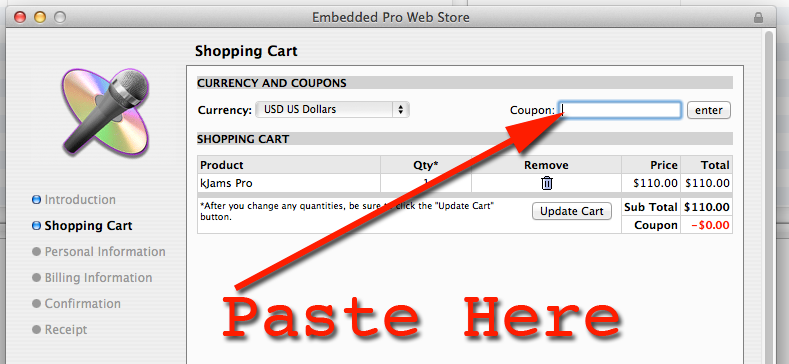
- click the "Enter" button
- you should see the "Sub Total" go to ZERO. If you do not, something went wrong. If you can't figure it out, contact me and i'll help.
- complete the steps until you see the Receipt window
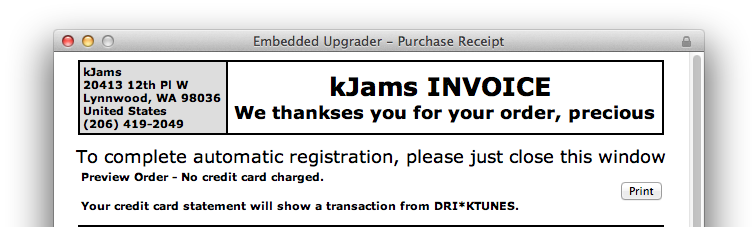
- close the receipt window (click the little red dot in the top left) (do NOT hide it, do not minimize it, but CLOSE it)
- you're all set!