Server
In the Pro version, and in kJams2, kJams allows the KJ to enable a web server that is built right into kJams, which allows singers to use a web browser (even from a mobile phone) or the iJams or wtkJams application to manage their queues. Basically it will allow singers to log in and manage their "Tonight", "Favorites", and "History" playlists. They can search the Library or any of their singer lists to find songs they can then put into their "Tonight" list. They can reorder their "Tonight" list so the songs come in the order in which they want to sing them. (FIXME: Did not seem to be able to do this in Opera/Android; no controls on Tonight page to reorder; bug?)
Note: Internet Explorer is not supported. If you use Windows to access kJams, you must use FireFox, Safari, or, with a little work, Chrome.
Take Note
Singers created by the host in kJams (rather than thru the web interface or thru an iPhone) do not have a password. Singers without passwords will NOT show up in the list of singers that can be logged into. To assign a password to a singer so they can log in, in kJams context click the singer and pick "Get Info", then type a password.
Playlist used for Server Search
By default, the playlist that is searched by the server is the Library. However, the host can change this to any other playlist if desired, by context-clicking the playlist and choosing "Playlist used for Server Search".
This is handy if, for example, you have every song in the world in your Library, but only want a subset to be visible for user searches when they use the web server. This setting is remembered per-venue. (FIXME: Can it be only one playlist? Good use cases exist for being able to select the union of multiple lists. If you care, I'll write a bug and describe them.)
How To Turn It On
- To enable existing singers for remote login, right click on each singer and pick "Get info..." and enter a password.
- go to "Preferences"
- Click "Server". (Note that in kJams versions 2.0d61 and earlier, if you change to another application while the Preferences dialog is open, you will have to explicitly refocus it by clicking its title bar when you come back; see Bug 4)
- Check "Enable kJams Web Server"
- Keep the default port number (80) unless you're already running a web server. If you are, try 12345 as your port.
Testing the Web Server
The web server will be on port 80 (or whatever other port you've configured it to) on the IP address which your computer or laptop is set to on the local network, whether wireless (usually) or wired.
To make it easier to find, both for wtkJams and for users accessing it with a standard web browser on their phone, tablet, or laptop, kJams uses Apple's 'Bonjour' service discovery protocol. Client-side support for this is built into OS/X on Apple laptops, into iOS on iPhones and iPads, and into Safari for Windows. (FIXME: Does even Safari require the client library installation on Windows?) If your singers are using other browsers on Windows or Linux, including Android phones and tablets, they will have to find the server to log in in other ways, which we'll describe below.
If you're using Windows
- Required install Bonjour for Windows (it says "Print Services" but it's the real Bonjour)
- You *should* install Safari (All other browsers do not support Bonjour)
- You *may* use FireFox or Chrome, but there is no support for Bonjour (see "Not Safari?" below)
- Note that "Internet Explorer" is not supported at all by the Server
Using Safari?
- Run Safari on any computer on your LAN
- go to Preferences->Bookmarks, and turn on Bonjour (both "Bookmarks Bar" and "Menu")
- browse your Bonjour sites for "kJams: <Venue Name>" and pick it! (The default <Venue Name> is "Singers")
- For example if your venue is called "Prancing Pony", then you'll look in safari for "Bookmarks->Bonjour->kJams: Prancing Pony"
[ Work In Progress Here ]
Not Safari?
You must find out the "sharing name" of your server machine
- Mac: in System Preferences->sharing, eg: "bree.local"
- Windows:
- start menu->control panels->system->computer name. That plus ".local" is your "sharing name". eg: if your "computer name" is "bree" then your "sharing name" is "bree.local"
- If the above doesn't work: start->control panels->network and sharing->change adapter settings->double click the LAN adapter->details->IPv4 address: that set of four numbers is your "sharing name", go figure.
- to get the full address, you must append ":<port number>" to the sharing name unless it is 80. eg: if your port number is 12345, and your "sharing name" is "bree.local", the full address will be "bree.local:12345". if the port is 80, you do not need to append anything.
- Go to any computer on your LAN, and in the web browser, enter the full address.
As an example of what the server looks like: https://karaoke.kjams.com:12345 (un: dave, pw: a)
Send me some feedback on what works and what doesn't, and what you need to make it better. Thanks!
If you don't have wireless
If you are hosting a show in a venue which doesn't have Wifi available to patrons -- don't laugh, there are still a few of those -- you can set up an Ad-Hoc network.
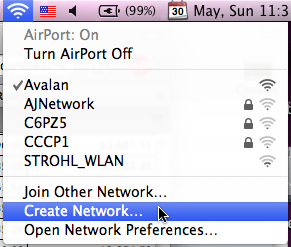
- Create a new network
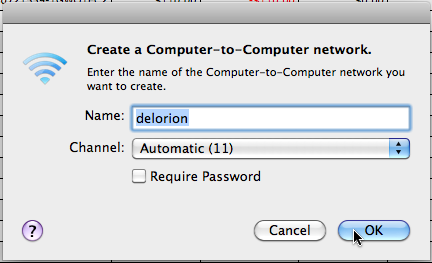
- name the network
- run kJams
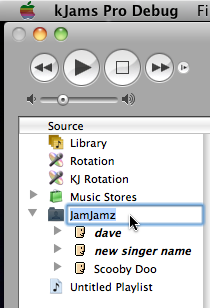
- click on the folder "Singers", this is actually the venue name
- click it again without moving the mouse, this will let you rename the folder
- name the venue
- go to preferences->server
- turn on the server (see above "How To Turn it On" for more info)
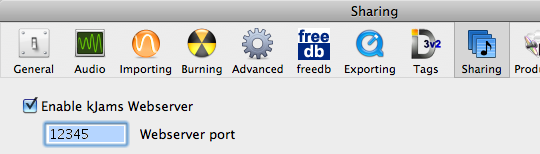
- you can set the Port to 80 or just leave it at 80
- if you're using a web browser:
- make sure the web browser computer is on the same network as the kJams computer
- in your web browser, find the kJams Venue name in the Bonjour list (see Step 7 Above), then click it! You're in!
- if you're using an iPhone:
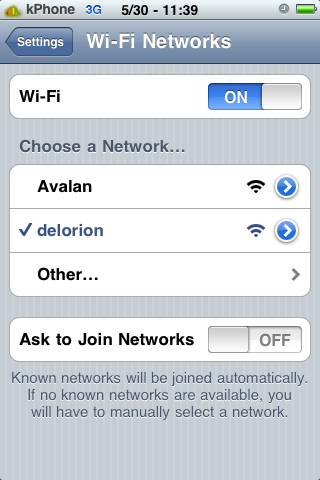
If you're hyper savvy
You can put this on a *public* IP address under some domain, and use port 80 (provided there's no other web server on that address). that way people can *from home* enter something like:
https://karaoke.kjams.com:12345/
and then set up their tonight list, before they even get to the venue! isn't that spiffy? We will, at some point, have a checklist for how to set this up, including some thoughts on security.
Known Issues
- Any list (singers or songs) with more than 200 items will say "too many hits, refine your search" or something like that. ("200" is a secret pref you can change)
- A failed login (i.e., bad password) will not display an error; it will just display the login page again.
- The album selector doesn't actually do anything (yet).
- Updates made in kJams don't show up in the web UI until the playlist is refreshed. This will be addressed after 1.0.
Updates to the Server Resources
When there is an update to the server resources, you have to manually update them.
Code
if you're a code monkey and stuff you can look here