IChat/Chrome
Chrome Remote Desktop is great, secure, and easy to set up.
If you don't have Chrome yet
- install chrome
- run it
- i pick "google" as my search engine
- skip to step 2 in the next section
If you have Chrome but don't have the "Remote Desktop" app
- Run Chrome
- paste this URL in: https://karaoke.kjams.com/wiki/IChat/Chrome and continue this list from within Chrome
- now from within Chrome, click here to get to the App page Remote Desktop App
- if that doesn't work do these sub-steps:
- Click Here
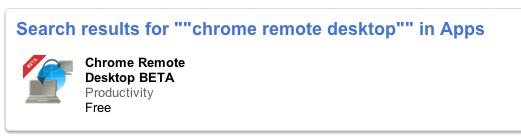
- then search for "chrome remote desktop" INCLUDING the quotes

- click the app
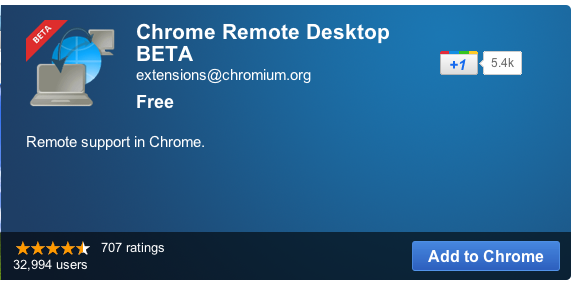
- click "Add to Chrome"
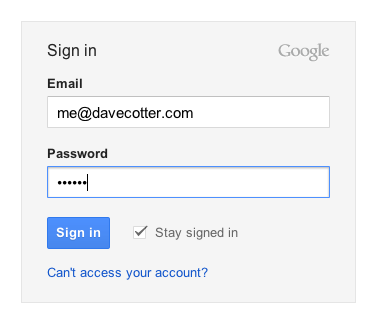
- it may ask you to Sign In, if so, follow these sub-steps:
- Sign in to google if you need to
- go to step 3
- Sign in to google if you need to
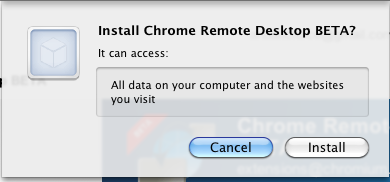
- google will ask if you really want to install the plugin, click "install":
- you'll now have a new App. Click it.
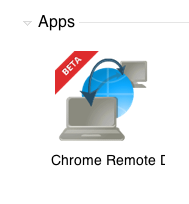
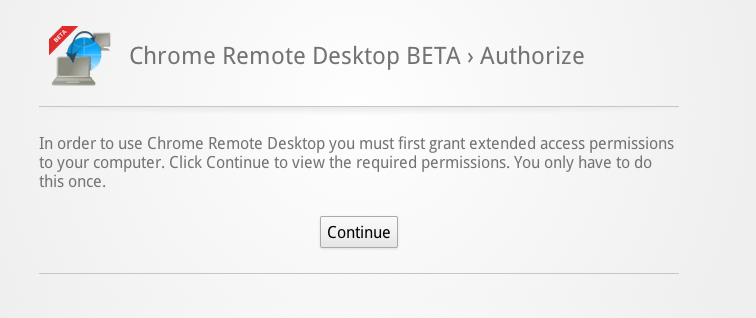
- it will ask you to authorize the remote desktop app, click "Continue"
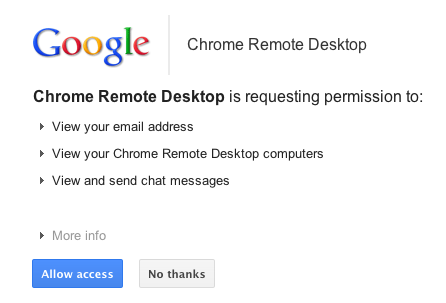
- it will ask if you are totally serious about this, click "Allow access"
- skip to step 4, below
If you have Chrome and the "Remote Desktop" app
- Run Chrome
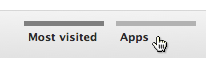
- create a new tab, then at the bottom, click the "Apps" section button
- click the "Chrome Remote Desktop" App.
- now you're ready, click "Share This Computer"
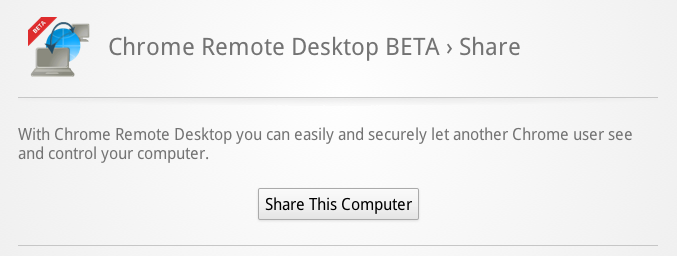
- it will initiate a code generation
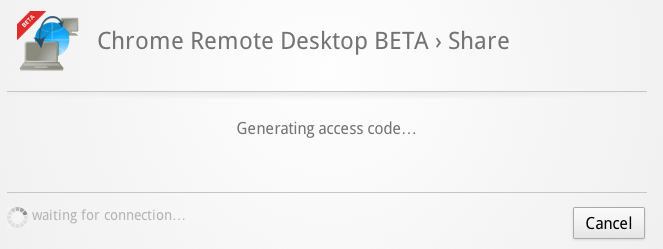
- it then show you the generated code
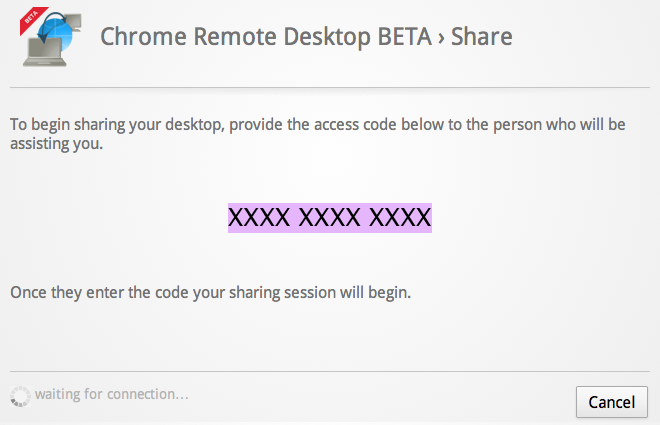
- select the code so it is hilited (see pic above) then copy it (command/ctrl-C), and paste it into an email to me (or the chat if we're chatting), and send it