Reinterpret
This page discusses how to reinterpret your song names to extract meta data out of them to get it in the right columns. After you do this for your entire library you probably want to attempt to get Perfect Metadata.
After you "Add to Library…" your songs, they may show up with ALL the meta data glommed into the "Song Name" field. Hopefully each bit of data is delimited by a dash character "-", which will allow kJams to automatically extract each bit and distribute it to the proper column. That way you can sort by those columns (eg: name, artist, album).
First you must understand the idea of name templates. A name template is a specification for the format of the file name. A popular example would be "L-T - R - S", this is a template specification, it literatlly means "album name dash track number space dash space artist name space dash space song name". Note that the spaces are significant. Since Artist and Album both begin with A, i don't use the letter A, i use R for aRtist and L for aLbum. Another valid template letter is "I" which stands for "ignore". This lets you skip over un-interesting parts of the name. Also valid are parentheses ( ), the letter "V" for "Rendition" (think "Version"), the rendition field is for something like "has lead vocals" or "has backing vocals" or "explicit" or any other textual info that distinguishes this song from another version of the same song. Then there's a period ".", and finally the path separator "/". The path separator is used when the meta info is distributed within the containing folders of the song. eg: if the artist name is in the containing folder, and the Song name is inside the folder you'd use "/R/S" as the template.
One you understand templates, you then must gather the songs that would be interpreted with the EXACT same template style into a single playlist. eg: gather all the songs that follow the pattern "L-T - R - S" into a playlist. Then, sort that playlist by # or Song ID. The point of that is do NOT sort that playlist by name, artist or album, because those things are about to change and you want to optimize the process (otherwise it will take longer as kJams attempts to keep the list stored *while* names are changing).
Now select all the songs in that playlist and pick "Reinterpret Names" from the context menu or from Advanced. You'll get the Reinterpret dialog:
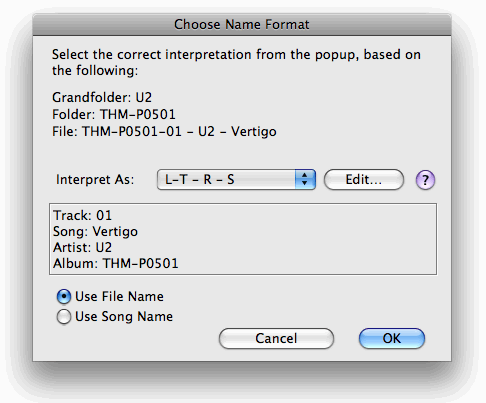
Now pick from the popup the template that the songs follow. In the box below, kJams will show you how it would interpret the first song. Verify that all the info is correct, then press OK. In some cases the template you expect to use will not be available, grayed out. This is because 1: the template does not *actually* fit the song like you thought it did or 2: the dashes in the song have been replaced by em-dashes or 3: a bug. If it is 1, you'll have to examine closely the song name to see where your understanding went wrong, and figure out which template it really is. If there is no template for what the name really is, you can make one by hitting the Edit… button and typing it in (one per line), then save that file and switch back, your new template will then be available. If it is 2: then use this secret method: click "use Song Name", then click back to "Use File Name", that should free it up to interpret em-dashes as actual dashes. In some cases you may slightly edit the song name in kJams before you go to reinterpret names, in order to massage the name into one of the template formats. In that case you want to pick "Use Song Name" since the file has not been renamed yet. If it is 3: then just hit cancel and reinterpret again, that should fix it.
You may need NameChanger to pre-process your files in order to ensure they fall into a template that can be supported by the Reinterpret Names function. For example if your files use an underscore instead of a dash as the meta data delimiter, eg: "L_T _ R _ S", the underscore is not picked up by kJams, in fact all underscores are turned into spaces by kJams. So use NameChanger to convert underscores to dashes, THEN add the songs to the library, THEN reinterpret and you should be good to go.