Xcode: Difference between revisions
Jump to navigation
Jump to search
No edit summary |
|||
| Line 1: | Line 1: | ||
==Downloads== | |||
[https://karaoke.kjams.com/downloads/xcode.dmg Xcode 3.2.6 Installer]<br> | |||
[https://karaoke.kjams.com/downloads/xcode_libs.zip Command Line Tool libs]<br> | |||
[https://karaoke.kjams.com/downloads/xcode_lipo.zip liposuction tool]<br> | |||
==MacOS 10.7== | ==MacOS 10.7== | ||
| Line 46: | Line 49: | ||
## eg: libsvn_client looks like this: <br>https://karaoke.kjams.com/screenshots/xcode/libsvn.png | ## eg: libsvn_client looks like this: <br>https://karaoke.kjams.com/screenshots/xcode/libsvn.png | ||
## do the same to the rest of the "libsvn" symlinks | ## do the same to the rest of the "libsvn" symlinks | ||
# | # unzip the "lipo" tool, drop it in /usr/bin | ||
# delete "Python.framework" from /developer/SDKs/ <all three: 10.4, 10.5, 10.6> /System/Library/Frameworks | # delete "Python.framework" from /developer/SDKs/ <all three: 10.4, 10.5, 10.6> /System/Library/Frameworks | ||
Revision as of 06:09, 27 February 2014
Downloads
Xcode 3.2.6 Installer
Command Line Tool libs
liposuction tool
MacOS 10.7
Mount the installer, then in Terminal, copy and paste these lines:
export COMMAND_LINE_INSTALL=1
open "/Volumes/Xcode and iOS SDK/Xcode and iOS SDK.mpkg"
MacOS 10.8 and later
You have to be paying VERY close attention during the install, or you will bluescreen your mac. Yes, a kernel panic so you can't even boot! See below about "kernel panic" if you get stuck there. Read the entire list BEFORE starting so you know the steps AHEAD of time.
- copy the "Kernel Panic" section below to a plain text file on your desktop. You'll be glad you did if things go south.
- Mount the installer
- Go to /System/Library/CoreServices
- Get info on "Installer"
- check "Open in 32-bit mode"
- Go to /System/Library/Extensions
- start to type "AppleProfileFamily.kext", and your selection will then land on the existing .kext by that name, OR the next file alphabetically.
- if it exists, trash it. you may need to enter your PW for that.
- Quit iTunes if it's running
- open "Activity Monitor" and kill anything relating to "iTunes"
- memorize this: During installation you must watch for the file "AppleProfileFamily.kext" appearing and IMMEDIATELY delete it. If you wait too long and it starts to run, you will get a kernel panic. (see below in case of kernel panic)
- Paste this into terminal:
export COMMAND_LINE_INSTALL=1
open "/Volumes/Xcode and iOS SDK/Xcode and iOS SDK.mpkg"
- even though you switched "Installer" to run in 32bit mode, it will ask you to allow it to quit and re-open, click OK
- the cert has expired, continue anyway
- when you get to the "Installation Type" screen, click "customize"
- turn OFF "System Tools"
- turn ON "Mac OS X 10.4 SDK"
- Twirl down "Essentials" and turn off "iOS SDK"
- start the install
- part way thru, the "installd" needs your permission to "control your computer"
- do this very quickly:
- click the "open prefs" button (i forget the name) (not the "deny" button)
- click the lock icon, enter your password
- scroll down to "installd"
- check it
- close the prefs window
- watch the Extensions folder like a hawk, do not take your eyes off of it: the instant you see "AppleProfileFamily.kext", select it and do command-delete! note you may need to type your password real fast too!
- empty the trash! QUICK!!
- relax, and wait for the install to finish
- switch "Installer" back to NON-32-bit mode
- download and install PathFinder or SymbolicLinker
- unzip the "xcode_libs.zip" file
- drag all the contents into /usr/lib (you must authenticate)
- Using PathFinder or SymbolicLinker, select all the libs you just dropped (inside /usr/lib ) and make symlinks for them
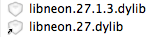
- rename them all to not have " symlink" (note the leading SPACE must be removed!) and remove the last 2 digits of version numbers (you can use ABFR for this)
- eg: libneon looks like this:
- eg: libsvn_client looks like this:
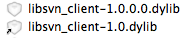
- do the same to the rest of the "libsvn" symlinks
- eg: libneon looks like this:
- unzip the "lipo" tool, drop it in /usr/bin
- delete "Python.framework" from /developer/SDKs/ <all three: 10.4, 10.5, 10.6> /System/Library/Frameworks
In case of kernel panic
- hold down the power button to shut down
- power on and immediately hold the SHIFT key (safe mode)
- when you get to the finder, go to /System/Library/Extensions
- trash the file "AppleProfileFamily.kext"
- if you accidentally also installed the "System Tools" or if CHUD somehow got installed, then you'll need to throw that stuff out too. eg search for "com.apple.iokit.ChudKernLib" and chuck all the stuff with "chud" in it that's nearby.
- empty trash
- reboot
- you're good!