Music Store: Difference between revisions
| Line 33: | Line 33: | ||
==Sync Previous Purchases== | ==Sync Previous Purchases== | ||
Some stores enable you to re-sync any previously purchased songs. | Some stores enable you to re-sync any previously purchased songs. Just right click the store name, and pick "Sync Previous Purchases". | ||
Alternately, in the Store Preferences panel, just click "Edit Music Store Settings…" then pick the store you want. If you see the button "Sync Previous Purchases", click it. This will download and install all previously purchased songs. | |||
Revision as of 22:55, 16 February 2014
Music Store
<iimg> </iimg> </iimg>
|
<iimg> </iimg> </iimg>
|
Take Note: iTunes does not sell karaoke!
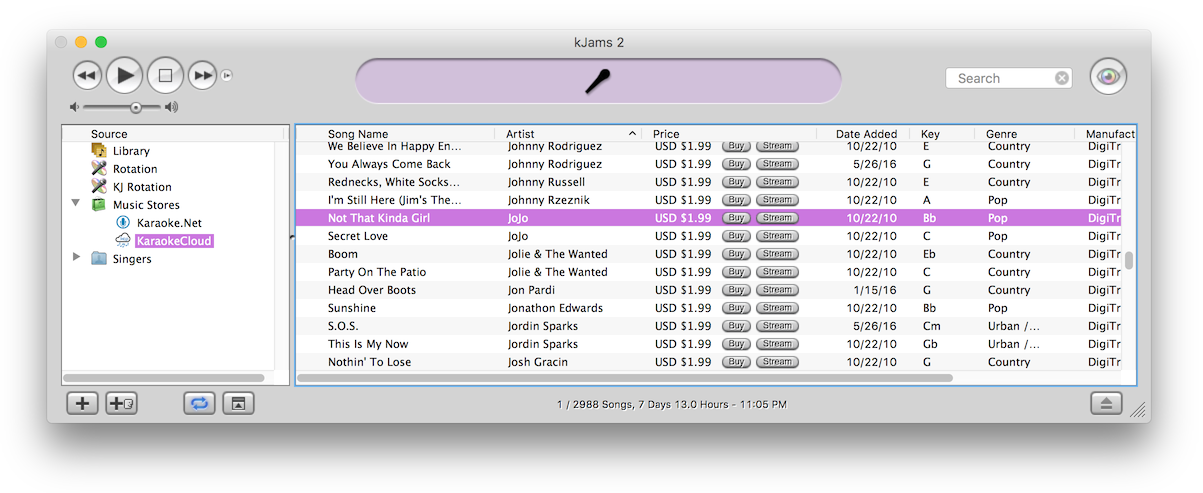
First, click the "disclosure triangle" (twirly arrow) on the "Music Stores" icon. Then click one of the music store icons to see what's in the store. Search the store. To purchase, click the "Buy Song" button :) On lots of songs! Okay you do have to fill out your "One Click Settings" (see below) in the preferences. If you want true one click with no questions asked, then also turn off the "Confirm All Purchases" check box. To buy songs you can also just drag them to your library, that is how you can buy multiple songs at once, select them all and drag them to your library. You can hear a sample (no video) by double clicking the song.
To stream a song, click "stream song". Note if you get taken to the web site for an audio-only preview, it's cuz you haven't purchased a streaming subscription or streaming time. Just go to prefs->stores to get that set up.
Note: Show your Tasks window just after start up. The *first* time you start with no music store, kJams must download and parse the store, only AFTER that will the store appear in the list on the left. Watch the tasks window to see when these tasks complete.
If you select the "Music Stores" little shopping bag icon, you'll get info about each store, and a double click on the store will show you the songs in the store.
The music store will ask you to update it once per month. If you decline to update it, it will wait another month to ask you. You can udpate the store any time however, by context clicking it's playlist icon and picking "Reload Music Store".
Your Credit Card will be declined once
Take note that your credit card will work perhaps the first couple times, but then will be declined. You will have to call your credit card company and tell them to allow microtransactions at the music store vendor (you may have to call once for each store). For more info, see Credit Card Declined.
Available Stores
Karaoke Locker NOT FOR PUBLIC PERFORMANCE!
TriceraSoft <<- Allows streaming (10k song streaming library!)
KaraokeCloud <<- Allows streaming and for KJ: pre-download ENTIRE library so you can "stream", even when offline
Preferences
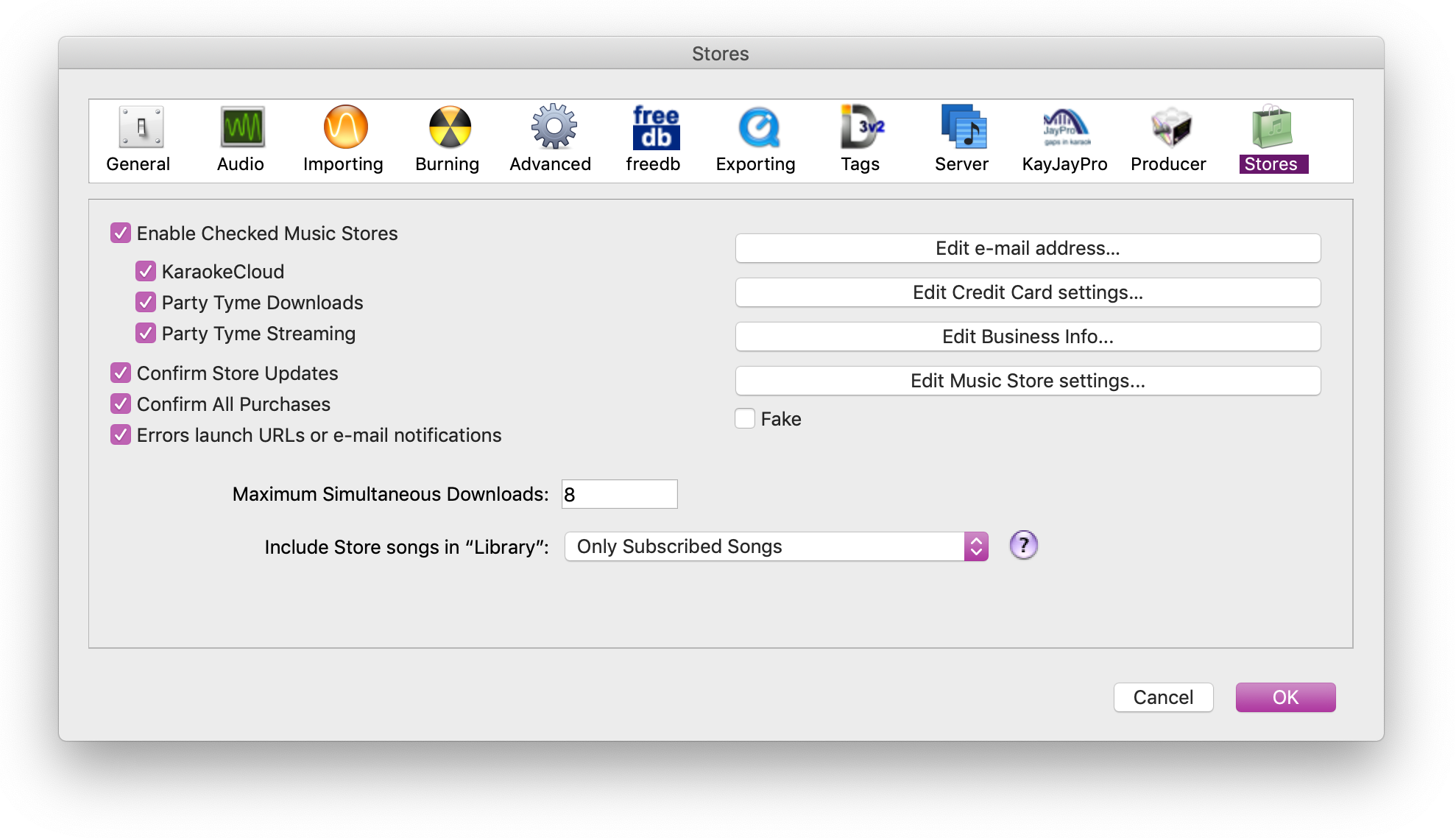
- "Include music store songs in Library": This popup lets you decide what types of music store songs you want to show up in the "Library" playlist. When songs are in the "Library", you can search it to find all songs from both your personal set of songs and any you've included from music stores, at the same time. This is handy for streaming songs, but potentially dangerous for purchase-only songs if you have "Confirm All Purchases" turned off. For example, you can scroll to any purchasable music store song and press play, and it will happily purchase the song for you without asking. And then without asking will purchase the next one, then the one after that etc. etc. But it can be very useful if you are a KJ and you want singers to be able to search for and submit songs that are in your music stores (which you gladly purchase for them). Another danger is if you have "Pre-cacheing" turned on in the General prefs, this will not only purchase the song you play, but will also purchase and download the NEXT song in the playlist.
Sync Previous Purchases
Some stores enable you to re-sync any previously purchased songs. Just right click the store name, and pick "Sync Previous Purchases".
Alternately, in the Store Preferences panel, just click "Edit Music Store Settings…" then pick the store you want. If you see the button "Sync Previous Purchases", click it. This will download and install all previously purchased songs.