Export Pro/x264: Difference between revisions
Jump to navigation
Jump to search
No edit summary |
No edit summary |
||
| Line 22: | Line 22: | ||
## turn OFF "Deinterlace Source Video" | ## turn OFF "Deinterlace Source Video" | ||
# now go to [http://byteful.com/blog/2010/07/how-to-fix-the-h264-gamma-brightness-bug-in-quicktime/ this web site] | # now go to [http://byteful.com/blog/2010/07/how-to-fix-the-h264-gamma-brightness-bug-in-quicktime/ this web site] | ||
# scroll down | # scroll down or search to see "Under Video, click “Settings” button" | ||
# follow the rest of the steps there | # follow the rest of the steps there | ||
# Back at Preferences, click "Duplicate" | # Back at Preferences, click "Duplicate" | ||
Latest revision as of 19:44, 27 January 2014
On the Macintosh, you may notice a gamma shift when you export to QuickTime's built-in H.264 encoder (whether thru "QuickTime Movie" or "MPEG4" encoders). This is an Apple bug that they seem reluctant to fix. However, there is a work-around.
- this works only for the Pro version of kJams
- quit kJams
- download this free x264 encoder (link to original page)
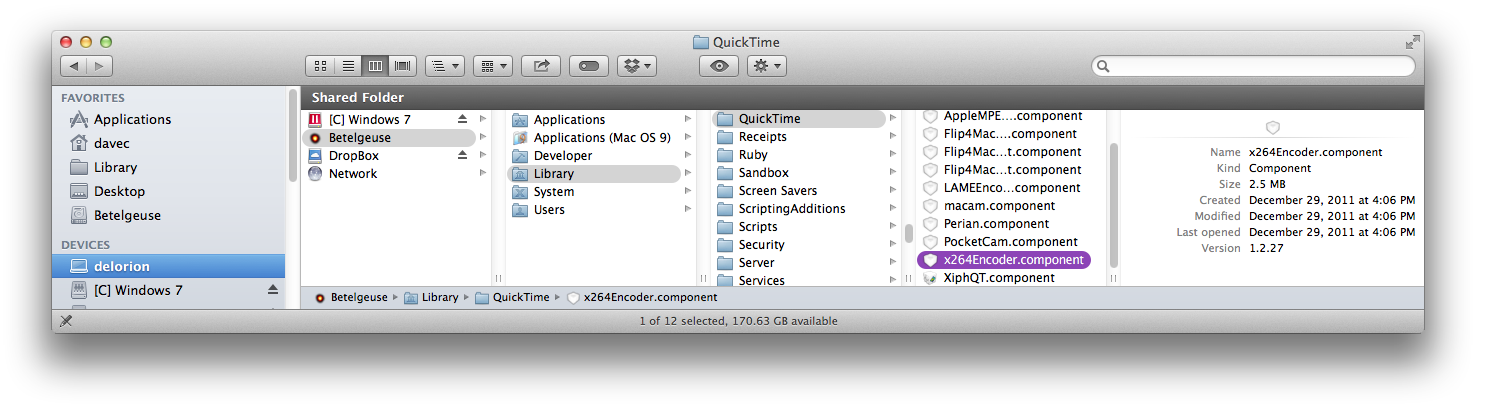
- from the Downloads folder, drag "x264Encoder.component" into /Library/QuickTime, so it looks like this:
- run kJams
- go to preferences->exporting
- for "Movie Encoder" pick "QuickTime Movie"
- click the "New" button
- enter "x.264", click OK, then click "Edit"
- Make sure “Video”, “Sound”, and “Prepare for Internet Streaming” are all checked.
- under “Prepare for Internet Streaming”, choose “Fast Start”.
- Under Sound, click “Settings” button, Change the settings to this:
- Format: AAC
- Rate: Recommended
- Render Settings: Quality: Normal
- MPEG 4 AAC LC Encoder Settings: Target Bit Rate: 160kbps
- Click “OK”
- Under Video, click “Size” button
- set "Dimensions" to "Current"
- turn OFF "Deinterlace Source Video"
- now go to this web site
- scroll down or search to see "Under Video, click “Settings” button"
- follow the rest of the steps there
- Back at Preferences, click "Duplicate"
- rename it so it says exactly "x264 HD". The Space and the "HD" are important!
- click "Edit" then click "Size"
- under Dimensions: pick "HD 1280 x 720 16:9"
- click OK all the way out
- you're all set!