Messenger: Difference between revisions
No edit summary |
No edit summary |
||
| Line 17: | Line 17: | ||
https://karaoke.kjams.com/screenshots/messenger/mic.png | https://karaoke.kjams.com/screenshots/messenger/mic.png | ||
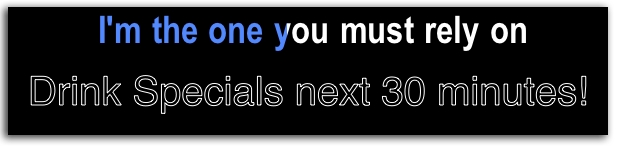
You can also send a customized message, either a one-shot message, or you can set up a message then send it over and over whenever you want (eg: "Tip your waitress!" or "Drink Specials for the next hour!"). To show a one-shot message, pick Video->Messenger Message, then type your message and it will immediately be shown. Alternately, you can pick "Video->Enter Custom Messenger Message" to enter a message that will be saved for later. Then, at any time you can pick "Video->Show Custom Messenger Message" to show that message. | You can also send a customized message, either a one-shot message, or you can set up a message then send it over and over whenever you want (eg: "Tip your waitress!" or "Drink Specials for the next hour!"). To show a one-shot message, pick Video->Messenger Message, then type your message and it will immediately be shown. Alternately, you can pick "Video->Enter Custom Messenger Message" to enter a message that will be saved for later. Then, at any time you can pick "Video->Show Custom Messenger Message" to show that message.<br> | ||
https://karaoke.kjams.com/screenshots/messenger/custom.png | https://karaoke.kjams.com/screenshots/messenger/custom.png | ||
Revision as of 18:58, 15 January 2013
The “Messenger” is the bit of code that manages the scrolling text overlays in the Video window. Currently this includes things like indicating what song is playing, eg:

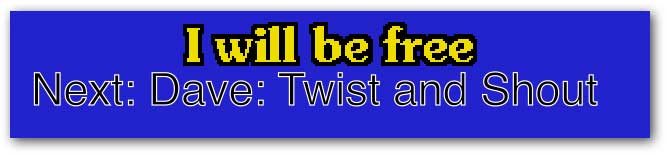
If you have a rotation going, it will say who is singing the next song. You can cause this to happen at any time by picking from the menu: Video->Messenger Rotation:
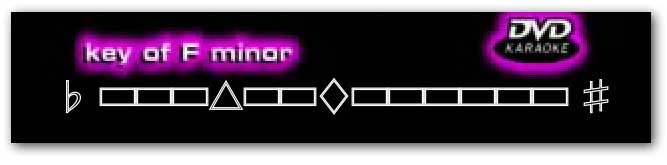
It will show when you change the pitch:
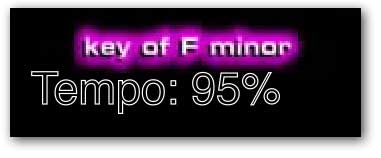
And also shows when you change the tempo:
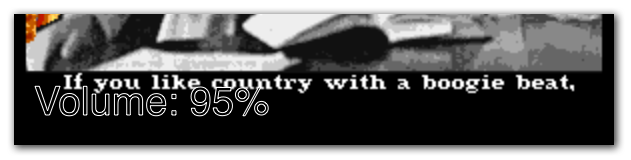
And when you change the volume:
And the mic gain:

You can also send a customized message, either a one-shot message, or you can set up a message then send it over and over whenever you want (eg: "Tip your waitress!" or "Drink Specials for the next hour!"). To show a one-shot message, pick Video->Messenger Message, then type your message and it will immediately be shown. Alternately, you can pick "Video->Enter Custom Messenger Message" to enter a message that will be saved for later. Then, at any time you can pick "Video->Show Custom Messenger Message" to show that message.
You can also loop the messenger messsage (option in the Video menu).
You can turn OFF the messenger in the General Preferences "Show Messages in the Video window".