Windows/Microphone: Difference between revisions
Jump to navigation
Jump to search
No edit summary |
No edit summary |
||
| Line 11: | Line 11: | ||
http://kjams.com/screenshots/windows/audio/input/3-line-listen.png<br> | http://kjams.com/screenshots/windows/audio/input/3-line-listen.png<br> | ||
Now click "Apply" and you will hear sound coming | Now click "Apply" and you will hear sound coming from your microphone. | ||
Latest revision as of 16:14, 17 September 2012
It's possible to have a microphone play thru your Windows 7 computer. First, plug your microphone into your "Line in" jack, or if you have a USB mic, just plug it in.
Then, go to Start->Control Panels->Sound
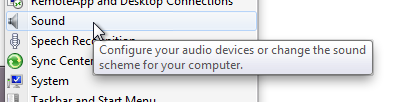
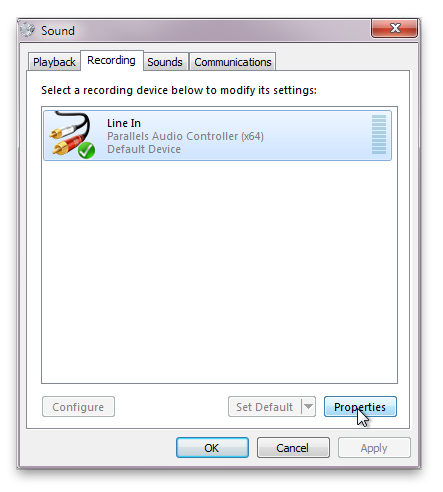
Then click the "Recording" tab
Then, click the "Line in" (or your USB mic), and click "Properties"
Then, click the "Listen" tab, then check the "Listen to this device" check box.
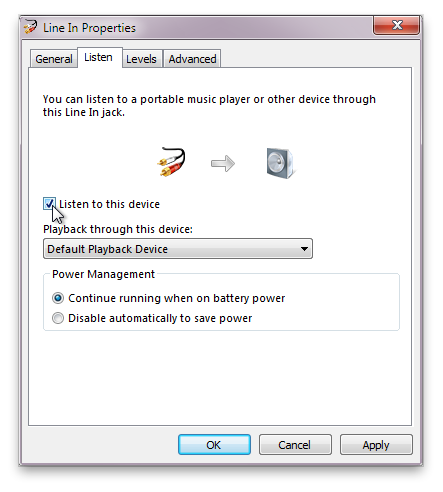
Now click "Apply" and you will hear sound coming from your microphone.