Messenger: Difference between revisions
No edit summary |
No edit summary |
||
| Line 1: | Line 1: | ||
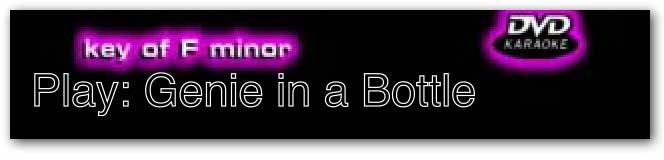
The “Messenger” is the bit of code that manages the overlays in the graphics window. Currently this includes things like indicating what song is playing, eg:<br> | The “Messenger” is the bit of code that manages the overlays in the graphics window. Currently this includes things like indicating what song is playing, eg:<br> | ||
https://karaoke.kjams.com/screenshots/messenger/song_name.jpg | |||
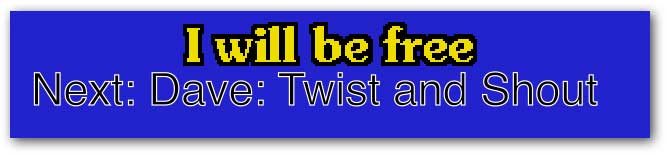
If you have a rotation going, it will say who is singing the next song. You can cause this to happen at any time by picking from the menu: Video->Messenger Rotation:<br> | If you have a rotation going, it will say who is singing the next song. You can cause this to happen at any time by picking from the menu: Video->Messenger Rotation:<br> | ||
https://karaoke.kjams.com/screenshots/messenger/next_singer.jpg | |||
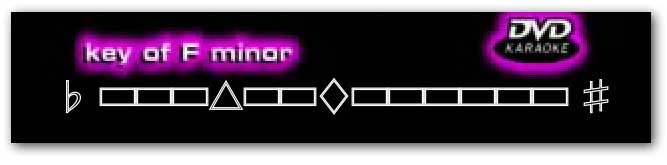
It will show when you change the pitch:<br> | It will show when you change the pitch:<br> | ||
https://karaoke.kjams.com/screenshots/messenger/pitch_change.jpg | |||
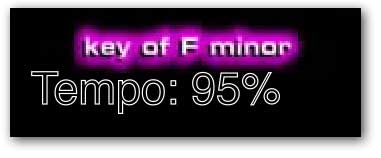
And also shows when you change the tempo:<br> | And also shows when you change the tempo:<br> | ||
https://karaoke.kjams.com/screenshots/messenger/tempo_change.jpg | |||
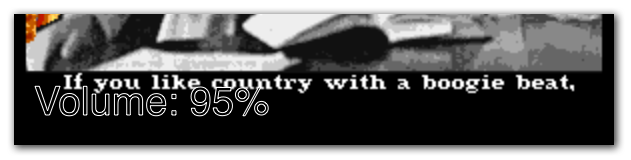
And when you change the volume:<br> | And when you change the volume:<br> | ||
https://karaoke.kjams.com/screenshots/messenger/volume.png | |||
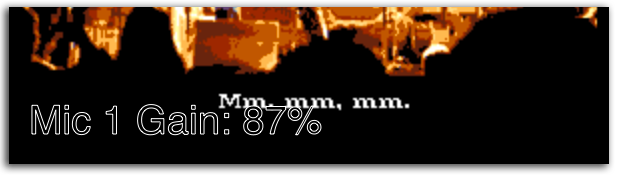
And the mic gain:<br> | And the mic gain:<br> | ||
https://karaoke.kjams.com/screenshots/messenger/mic.png | |||
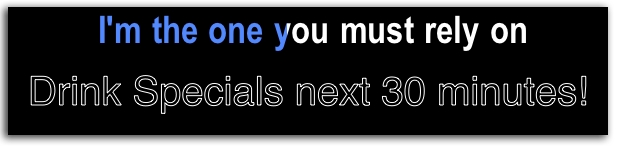
You can also send a customized message, either a one-shot message, or you can set up a message then send it over and over whenever you want (eg: "Tip your waitress!" or "Drink Specials for the next hour!"). To show a one-shot message, pick Video->Messenger Message, then type your message and it will immediately be shown. Alternately, you can pick "Video->Enter Custom Messenger Message" to enter a message that will be saved for later. Then, at any time you can pick "Video->Show Custom Messenger Message" to show that message.<br> | You can also send a customized message, either a one-shot message, or you can set up a message then send it over and over whenever you want (eg: "Tip your waitress!" or "Drink Specials for the next hour!"). To show a one-shot message, pick Video->Messenger Message, then type your message and it will immediately be shown. Alternately, you can pick "Video->Enter Custom Messenger Message" to enter a message that will be saved for later. Then, at any time you can pick "Video->Show Custom Messenger Message" to show that message.<br> | ||
https://karaoke.kjams.com/screenshots/messenger/custom.png | |||
Revision as of 21:10, 11 February 2012
The “Messenger” is the bit of code that manages the overlays in the graphics window. Currently this includes things like indicating what song is playing, eg:
If you have a rotation going, it will say who is singing the next song. You can cause this to happen at any time by picking from the menu: Video->Messenger Rotation:
It will show when you change the pitch:
And also shows when you change the tempo:
And when you change the volume:
And the mic gain:
You can also send a customized message, either a one-shot message, or you can set up a message then send it over and over whenever you want (eg: "Tip your waitress!" or "Drink Specials for the next hour!"). To show a one-shot message, pick Video->Messenger Message, then type your message and it will immediately be shown. Alternately, you can pick "Video->Enter Custom Messenger Message" to enter a message that will be saved for later. Then, at any time you can pick "Video->Show Custom Messenger Message" to show that message.