Music Store: Difference between revisions
No edit summary |
No edit summary |
||
| Line 3: | Line 3: | ||
Note: Show your Tasks window just after start up. The *first* time you start with no music store, kJams must download and parse the store, only AFTER that will the store appear in the list on the left. Watch the tasks window to see when these tasks complete. | Note: Show your Tasks window just after start up. The *first* time you start with no music store, kJams must download and parse the store, only AFTER that will the store appear in the list on the left. Watch the tasks window to see when these tasks complete. | ||
If you select the "Music Stores" little shopping bag icon, you'll get info about each store (only one for now), and a double click on the store will | If you select the "Music Stores" little shopping bag icon, you'll get info about each store (only one for now), and a double click on the store will show you the songs in the store. | ||
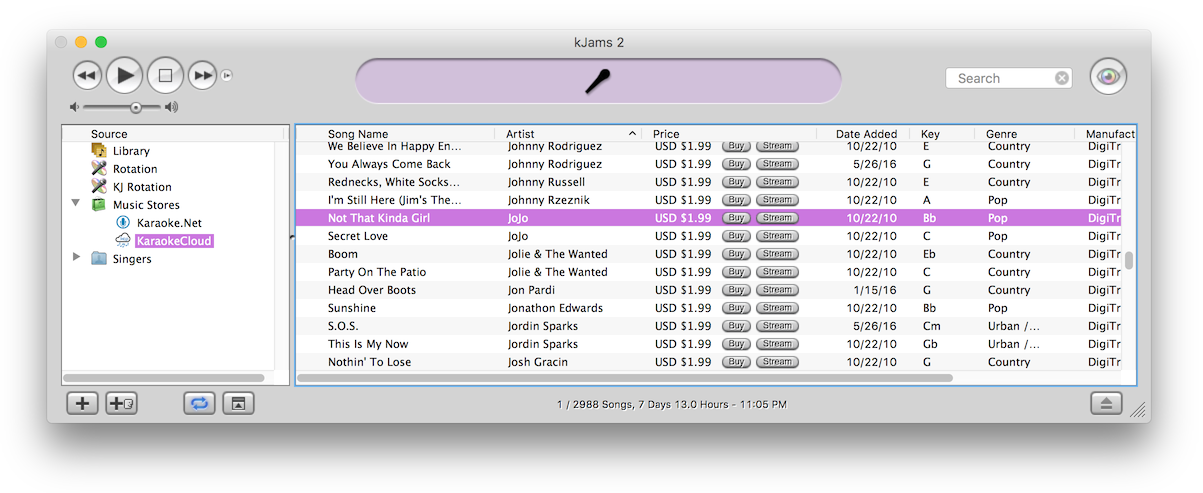
http://karaoke.kjams.com/screenshots/music_store.png | http://karaoke.kjams.com/screenshots/music_store.png | ||
==If your store ever disappears for some reason== | ==If your store ever disappears for some reason== | ||
Revision as of 22:38, 7 October 2008
First, click the "disclosure triangle" (twirly arrow) on the "Music Stores" icon. Then click the music store icon itself (only TriceraSoft for now) to see what's in the store. Search the store. Click the "Buy Song" button :) On lots of songs! Okay you do have to fill out your One Click settings in the preferences. If you want true one click with no questions asked, then also turn off the "Confirm All Purchases" check box. To buy songs you can also just drag them to your library, that is how you can buy multiple songs at once, select them all and drag them to your library. You can hear a sample by double clicking the song.
Note: Show your Tasks window just after start up. The *first* time you start with no music store, kJams must download and parse the store, only AFTER that will the store appear in the list on the left. Watch the tasks window to see when these tasks complete.
If you select the "Music Stores" little shopping bag icon, you'll get info about each store (only one for now), and a double click on the store will show you the songs in the store.
If your store ever disappears for some reason
Just quit, then delete the file ~/Music/kJams/kJams Library/Music Stores/TriceraSoft.xml and run again, it should rebuild.
One Click Settings
In the Preferences->Store you can fill out your credit card info or Gift Card info. Note that due to a bug right now, if you use Gift Card you still have to fill out some fake credit card credential info. It won't be used at all but kJams still checks to see that it's there. This will be fixed shortly. Use a 16 digit number for the fake CC.