Add To Library…: Difference between revisions
No edit summary |
|||
| Line 2: | Line 2: | ||
== But First == | == But First == | ||
"Importing" in this context refers to "Add to Library", which is very much NOT the same thing as [[Ripping]].<br> | "Importing" in this context refers to "Add to Library", which is very much NOT the same thing as [[Ripping]].<br> | ||
<br> | |||
When you use the "Add to library..." function, presently kJams does NOT copy the files into your library. That means, you MUST have your songs stored where you want them to permanently reside. You can NOT move your songs once kJams imports them (unless you [[Consolidating|know what you are doing]]). They can be on an external volume, but the volume must be online for kJams to be able to play them.<br> | |||
<br> | <br> | ||
If the songs you are importing are tagged (eg: they have ID3 data, Vorbis Comments, or QuickTime Metadata (or if you've used kJams to [[Xattr]] tag them) then you need not concern yourself with pre-sorting, pre-organizing, or renaming them prior to importing, and you may safely skip this section. You may simply go "File->Add to Library…" and navigate to the root folder, kJams will import everything and you're ready to go. <br> | If the songs you are importing are tagged (eg: they have ID3 data, Vorbis Comments, or QuickTime Metadata (or if you've used kJams to [[Xattr]] tag them) then you need not concern yourself with pre-sorting, pre-organizing, or renaming them prior to importing, and you may safely skip this section. You may simply go "File->Add to Library…" and navigate to the root folder, kJams will import everything and you're ready to go. <br> | ||
<br> | <br> | ||
However if you are importing untagged music, and you hope to glean some meta-data out of the file names directly (and optionally the enclosing folder names) then please read the next section. | However if you are importing untagged music, and you hope to glean some meta-data out of the file names directly (and optionally the enclosing folder names) then please read the next section. | ||
== Importing pre-existing Audio+G, Zipped Audio+G, QuickTime, MPEG, kar, midi == | == Importing pre-existing Audio+G, Zipped Audio+G, QuickTime, MPEG, kar, midi == | ||
In the following explanation, I am going to use these conventions:<br> | In the following explanation, I am going to use these conventions:<br> | ||
R - artist name<br> | R - artist name<br> | ||
Revision as of 08:30, 16 February 2007
But First
"Importing" in this context refers to "Add to Library", which is very much NOT the same thing as Ripping.
When you use the "Add to library..." function, presently kJams does NOT copy the files into your library. That means, you MUST have your songs stored where you want them to permanently reside. You can NOT move your songs once kJams imports them (unless you know what you are doing). They can be on an external volume, but the volume must be online for kJams to be able to play them.
If the songs you are importing are tagged (eg: they have ID3 data, Vorbis Comments, or QuickTime Metadata (or if you've used kJams to Xattr tag them) then you need not concern yourself with pre-sorting, pre-organizing, or renaming them prior to importing, and you may safely skip this section. You may simply go "File->Add to Library…" and navigate to the root folder, kJams will import everything and you're ready to go.
However if you are importing untagged music, and you hope to glean some meta-data out of the file names directly (and optionally the enclosing folder names) then please read the next section.
Importing pre-existing Audio+G, Zipped Audio+G, QuickTime, MPEG, kar, midi
In the following explanation, I am going to use these conventions:
R - artist name
S - song name
L - album name
T - track number
/x/ - stands for "folder named <x>" (without the brackets), eg: "/R/" is a folder who's name is the artist's name, or "/L/" is a folder who's name is the album name.
Okay. As you know, pre existing songs can be named a variety of ways. eg:
LEG086-07 - U2 - Hold Me, Thrill Me, Kiss Me, Kill Me.zip
SC8397-13.zip
AH2003-03 - Pink Floyd - Time.zip
BL21-04_-_Every_Breath_You_Take_-_Police,_The
Adams, Bryan - Cuts Like A Knife - SC-1.zip
Now, the problem is, it takes a human to interpret these names. Some are laid out "L-T - S - R.xxx", some are "L-T - R - S.xxx", some could be "T S.xxx. Some songs have "pretty" names in the names of the folders enclosing the song! For kJams to "get it" about how to interpret them, you will need to pre-sort your song files into folders where the names have a similar format. EG: put all the files who's names are "L-T - S - R.xxx" in one folder, and all those with "L-T - R - S.xxx" in a separate folder. See, the kJams "Add to Library" function assumes that all files in a folder have the same name format, otherwise it would ask you to interpret every single file. By pre-sorting, you're saving yourself the hassle (later) of interpreting every single file, you only have to interpret folders. So just pre-sort your library into sub folders.
Another convention is to use the folder hierarchy to store meta info. EG: "/R/S/L-T.cdg" is common, or even "/R/S/L-T - S - A.cdg" or "/R/S/L-T - A - S.cdg". This means there is a folder who's name is the artist name, inside that is a folder who's name is the song name, inside that are the MP3+G files or the zip files that match that artist/song (could be more than one type).

Here are examples from my library: In the above picture, I've created a "More Music" folder. This could be your external HD filled with songs. But inside that, i've created a folder called "zip standard", could be called anything, it just separates the zip files from the unzipped files. Inside "zip", here's the big secret: make new folders that correspond to the types of songs in your library. I found that I had these three types of names: LTRS, LTSR, and RSLT, I then sorted my entire library into these three folders. The following show examples of the other two folders:

Above is the "Album-Track-Song-Artist" group of songs

And finally, above shows songs with names like "Artist-Song-Album-Track"
Below, you can see I've also created a folder for unzipped files. The format should be similar to what you see here.

After you have sorted your library like the above, if you only have four types of songs, it should only take four interpretations to import your entire library. You may want to trash your "kJams Library" folder to start fresh. Then launch kJams and go "File->Add to Library..." and navigate to where your external music lives. Next you'll see:
Song Name Interpretation Dialog
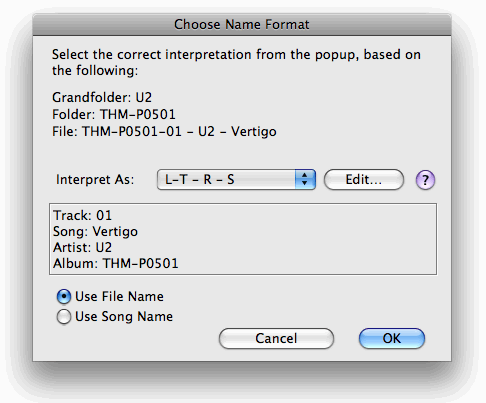
The dialog shows the file name to be interpreted (labeled "File:"), plus the two enclosing folders ("Folder" and "Grandfolder"). The interpretations that are available for the file are shown in the "Interpret As:" popup. The box shows what happens when applying the interpretation to the file (and possibly it's enclosing folders). If there is no interpretation that makes the meta info as shown in the box come out correctly, you can edit what appears in the menu by pressing the Edit... button, which will launch your default text editor (likely TextEdit).
The format of the text file is just the interpretation styles, one per line. The ONLY things you should type into a style are the letters "R", "S", "L", "T", the separator " - " (that's a "space dash space"), or just a plain space " ", or a dash "-", or parentheses: "(" or ")". That's it. If you need something more, let me know. I won't try to predict what will happen if you type something else, you might crash. Anyway, add your new style, then save the file and switch back into kJams, which will update the menu, now you can select the new format you added.
I recommend against using the radio buttons, unless you know what you're doing.