KJams Cue: Difference between revisions
No edit summary |
|||
| Line 9: | Line 9: | ||
{| | {| | ||
|bgcolor="red" | <font color="white"> Take Note! </font> | |bgcolor="red" | <font color="white"> Take Note! </font> | ||
|} | |} This app used to be named "wtkJams".<br> | ||
The iOS version of "wtkJams KE" (the Kiosk version), and BOTH Android versions are currently unavailable, but will be back soon! The original author, "Reality Check, Inc." has ceased developement, but has turned the code over to yours truly. This means that when it is ready, | The iOS version of "wtkJams KE" (the Kiosk version), and BOTH Android versions are currently unavailable, but will be back soon! The original author, "Reality Check, Inc." has ceased developement, but has turned the code over to yours truly. This means that when it is ready, “kJams Cue” for singers will finally be FREE! The app “kJams Kiosk” will still cost money, to fund development. | ||
== Features == | == Features == | ||
* [http://www.facebook.com/pages/wtkJams/358571210875383 for the latest news and updates, go here] | * [http://www.facebook.com/pages/wtkJams/358571210875383 for the latest news and updates, go here] | ||
| Line 19: | Line 19: | ||
* View your song history. | * View your song history. | ||
* Organize your favorite songs into your personal "Favorites" list. | * Organize your favorite songs into your personal "Favorites" list. | ||
* Here is [https://karaoke.kjams.com/forum/viewtopic.php?t=2459 how to lock your iPad] into "Kiosk Mode" for JUST running | * Here is [https://karaoke.kjams.com/forum/viewtopic.php?t=2459 how to lock your iPad] into "Kiosk Mode" for JUST running “kJams Kiosk” | ||
'''Note:''' Works only with kJams Pro and 2. | '''Note:''' Works only with kJams Pro and 2. | ||
If you're looking for a karaoke '''Player''' for your pod, check out [http://www.karaokeanywhere.net/ KaraokeAnywhere]. | If you're looking for a karaoke '''Player''' for your pod, check out [http://www.karaokeanywhere.net/ KaraokeAnywhere]. | ||
== Using | == Using “kJams Cue” == | ||
The following steps will setup kJams to allow connections from | The following steps will setup kJams to allow connections from “kJams Cue” running on your iOS device. | ||
# From kJams, [[Server|enable the web server]]. | # From kJams, [[Server|enable the web server]]. | ||
# [http://itunes.apple.com/us/app/wtkjams/id494844875 Download | # [http://itunes.apple.com/us/app/wtkjams/id494844875 Download “kJams Cue”] from the Apple iOS app store. | ||
# The first time | # The first time “kJams Cue” starts up, it will search the local wifi network for a kJams server. If a kJams server is found, “kJams Cue” will automatically connect to it and show the [[kJams Cue#Singers View|Singers View]]. | ||
# If no kJams server is found on the local wifi network, then the [[ | # If no kJams server is found on the local wifi network, then the [[kJams Cue#Venues View|Venues View]] will be appear. | ||
# when | # when “kJams Cue” logs into a venue, it shows only Singers who have passwords. If you create a singer using “kJams Cue” this is automatic. But if the singer was created with kJams, then no password is automatically assigned. To assign a password to an existing singer, in kJams, right click the singer, and go "Get Info", then enter the new password. After that, the singer will show up in the list of singers inside “kJams Cue” (you may need to refresh the page) | ||
== Venues View == | == Venues View == | ||
Revision as of 16:35, 28 April 2022

| Take Note! |
This app used to be named "wtkJams".
The iOS version of "wtkJams KE" (the Kiosk version), and BOTH Android versions are currently unavailable, but will be back soon! The original author, "Reality Check, Inc." has ceased developement, but has turned the code over to yours truly. This means that when it is ready, “kJams Cue” for singers will finally be FREE! The app “kJams Kiosk” will still cost money, to fund development.
Features
- for the latest news and updates, go here
- View the current Rotation
- Search the kJams library right from your iOS device.
- Submit songs for you to sing "Tonight".
- Re-order Tonight's cue
- View your song history.
- Organize your favorite songs into your personal "Favorites" list.
- Here is how to lock your iPad into "Kiosk Mode" for JUST running “kJams Kiosk”
Note: Works only with kJams Pro and 2.
If you're looking for a karaoke Player for your pod, check out KaraokeAnywhere.
Using “kJams Cue”
The following steps will setup kJams to allow connections from “kJams Cue” running on your iOS device.
- From kJams, enable the web server.
- Download “kJams Cue” from the Apple iOS app store.
- The first time “kJams Cue” starts up, it will search the local wifi network for a kJams server. If a kJams server is found, “kJams Cue” will automatically connect to it and show the Singers View.
- If no kJams server is found on the local wifi network, then the Venues View will be appear.
- when “kJams Cue” logs into a venue, it shows only Singers who have passwords. If you create a singer using “kJams Cue” this is automatic. But if the singer was created with kJams, then no password is automatically assigned. To assign a password to an existing singer, in kJams, right click the singer, and go "Get Info", then enter the new password. After that, the singer will show up in the list of singers inside “kJams Cue” (you may need to refresh the page)
Venues View
Use the Venues View to connect to any of your previous venues or add new venues. Venues which have been found on the local wifi network will also be displayed in this view.

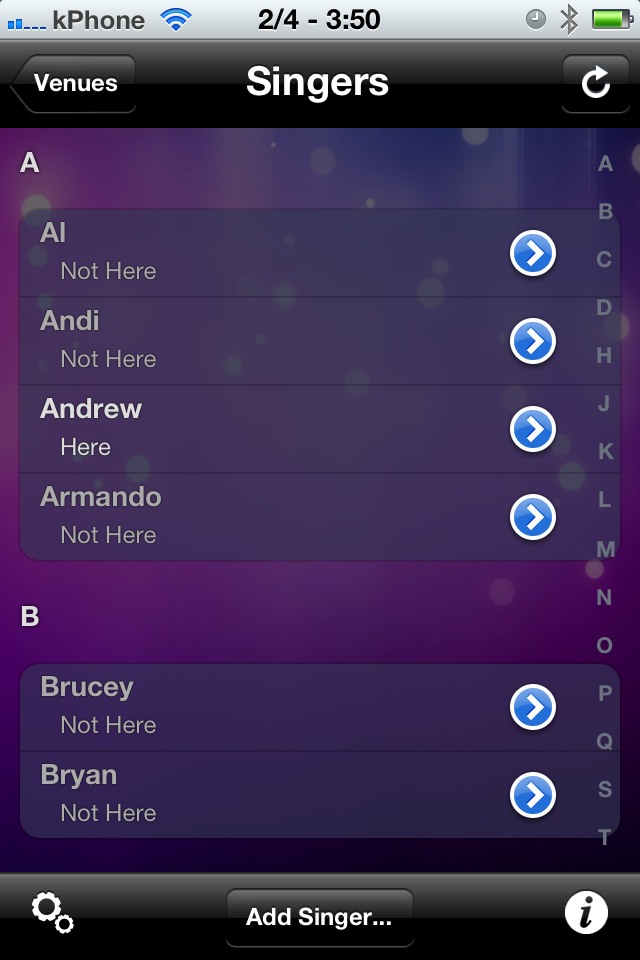
Singers View
After connecting to a venue, the Singers View will appear. Login to the venue as an existing singer by selecting your name from the list and entering the password, or add yourself as a new singer in this venue by touching "Add Singer".
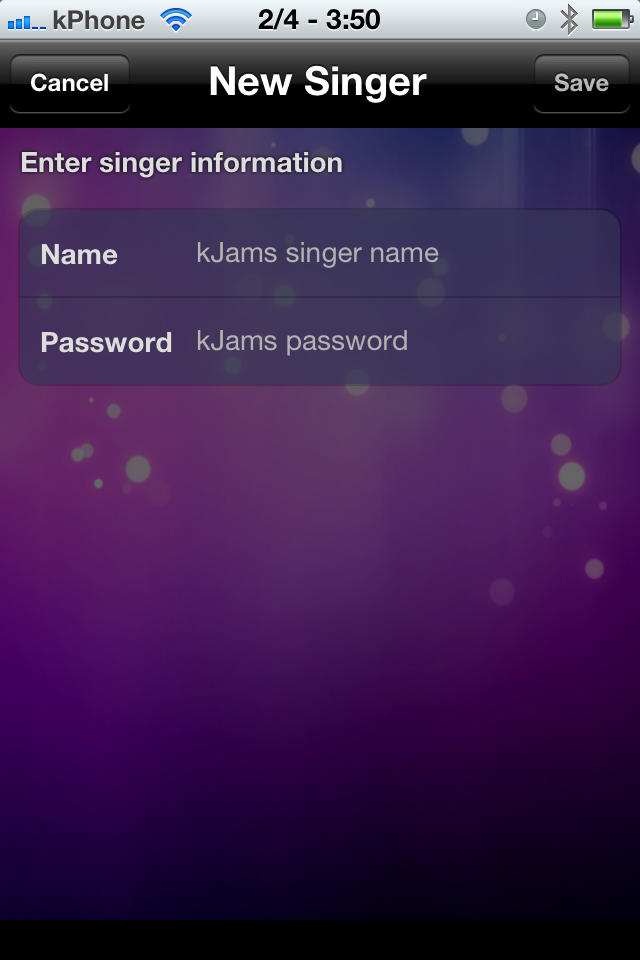
New Singer View
In the Venue view, if you tap the "New Singer" button you can create a new singer:
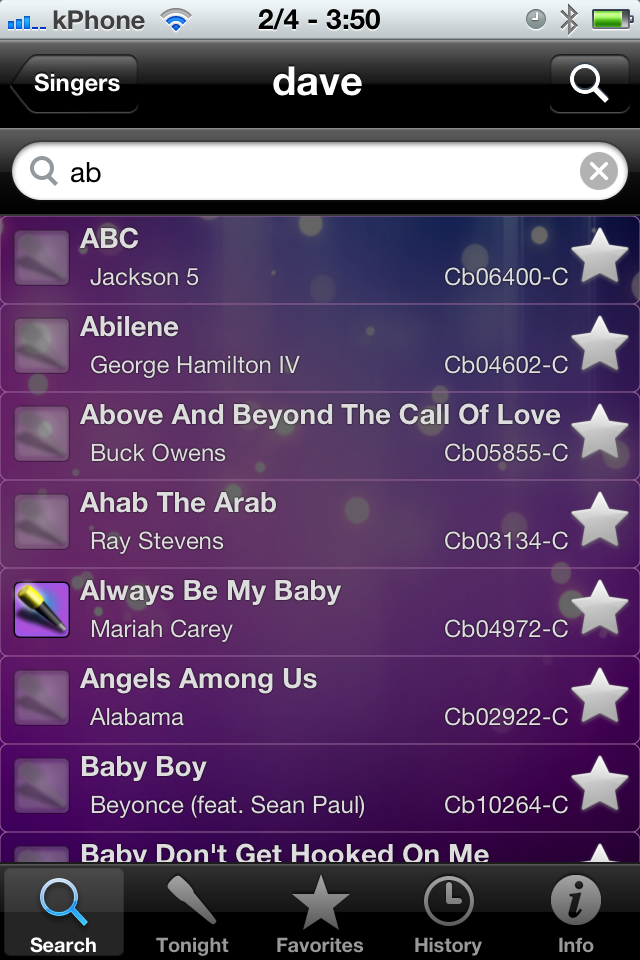
Search
Search for songs you can sing at this venue by touching the "Search" button in the upper right.
Tonight
View, remove, or re-order the songs you have selected to sing tonight. (Similar view to Favorites, see below)
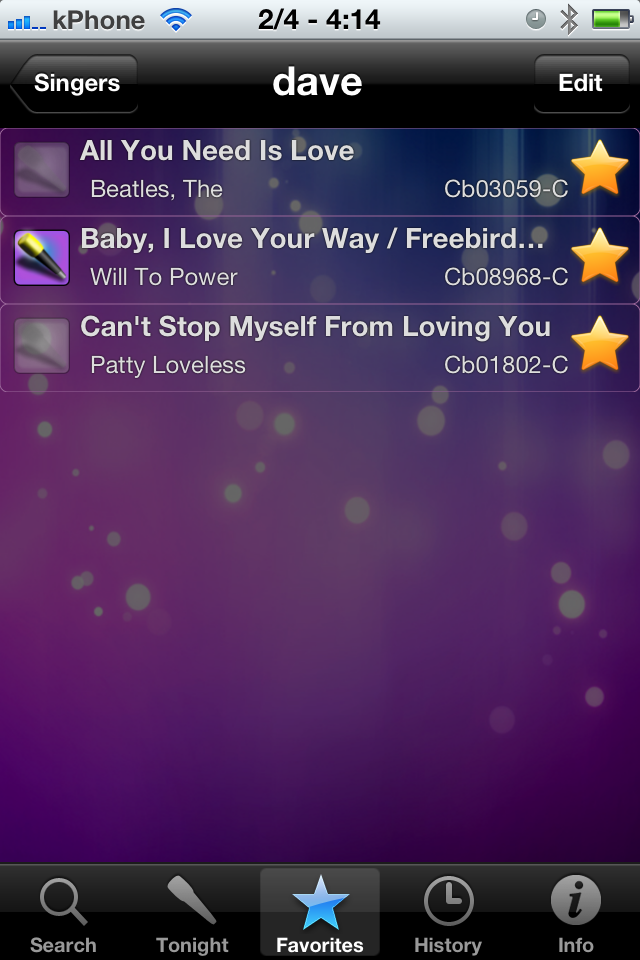
Favorites
Organize songs into your own personal "Favorites" list, and easily add them to your "Tonight" list.
History
View the songs you have previously sung at this venue. You can easily add them to your Tonight or Favorites list.