Downloads/Rogues/Win: Difference between revisions
Jump to navigation
Jump to search
No edit summary |
No edit summary |
||
| Line 1: | Line 1: | ||
Rogue-rogues don't come with an installer. this makes them more of a hassle to use. | Rogue-rogues don't come with an installer. this makes them more of a hassle to use. | ||
There are three editions of kJams: Lite, Pro, and 2. Below, i'll refer to the Edition with XXX, where you substitute the name of the edition you are dealing with. | |||
# [{{SERVER}}/downloads/*rogues/ download the one you need] | # [{{SERVER}}/downloads/*rogues/ download the one you need] | ||
# the file is a ZIP file but it will be displayed in "Windows Explorer" as a folder, do not be confused by this, it is still zipped<br>[[File:rogue_01.png|800px]] | # the file is a ZIP file but it will be displayed in "Windows Explorer" as a folder, do not be confused by this, it is still zipped<br>[[File:rogue_01.png|800px]] | ||
# you have to unzip the "kJams XXX.app" folder to the "Desktop" folder | # you have to unzip the "kJams XXX.app" folder to the "Desktop" folder | ||
# To unzip, just drag "kJams | # To unzip, just drag "kJams XXX.app" to the desktop<br>[[File:rogue_02.png|804px]] | ||
# You'll see a progress bar<br>[[File:rogue_03.png|478px]] | # You'll see a progress bar<br>[[File:rogue_03.png|478px]] | ||
# it will land on the desktop, looking like a folder<br>[[File:rogue_04.png|147px]] | # it will land on the desktop, looking like a folder<br>[[File:rogue_04.png|147px]] | ||
# you may then throw out the zip file | # you may then throw out the zip file | ||
# open the .app folder, and go into Contents, then into Windows | # open the .app folder, and go into Contents, then into Windows | ||
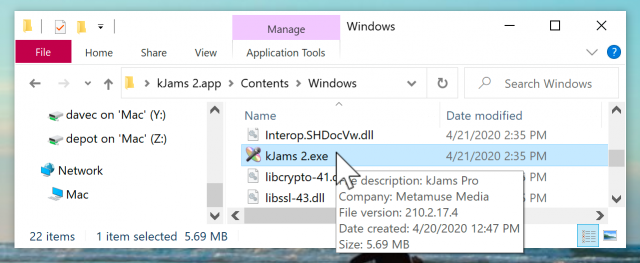
# in there you'll see "kJams XXX.exe" | # in there you'll see "kJams XXX.exe". Note you may NOT see ".exe" if you have file extensions hidden.<br>[[File:rogue_05.png|640px]] | ||
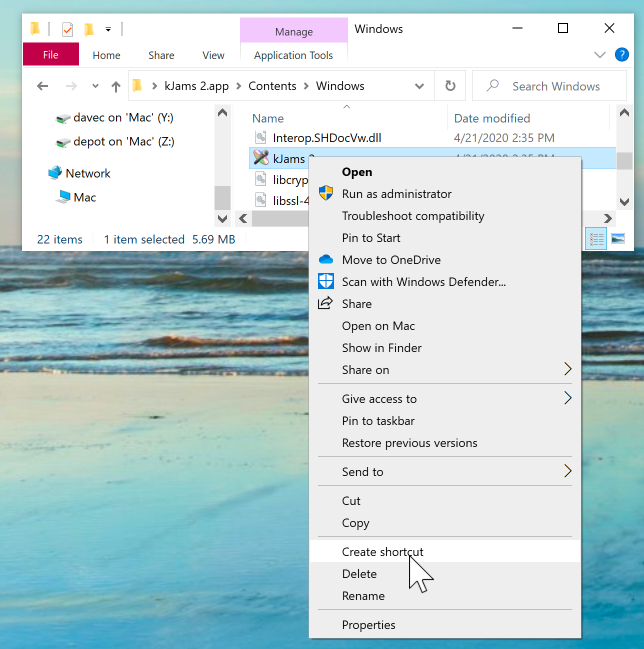
# select that, right click, then pick "make a shortcut"<br>[[File:rogue_06.png|644px]] | # select that, right click, then pick "make a shortcut"<br>[[File:rogue_06.png|644px]] | ||
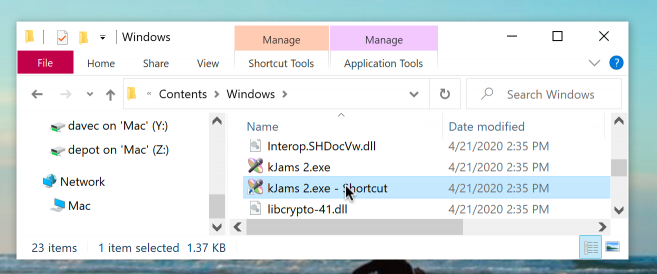
# you'll see the shortcut file<br>[[File:rogue_07.png|657px]] | # you'll see the shortcut file<br>[[File:rogue_07.png|657px]] | ||
Revision as of 23:46, 29 April 2020
Rogue-rogues don't come with an installer. this makes them more of a hassle to use.
There are three editions of kJams: Lite, Pro, and 2. Below, i'll refer to the Edition with XXX, where you substitute the name of the edition you are dealing with.
- download the one you need
- the file is a ZIP file but it will be displayed in "Windows Explorer" as a folder, do not be confused by this, it is still zipped
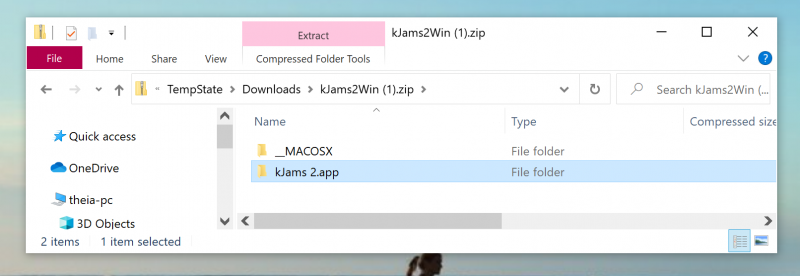
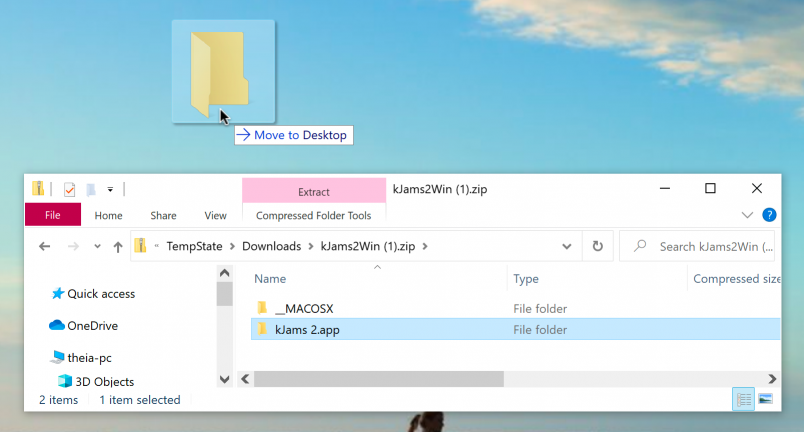
- you have to unzip the "kJams XXX.app" folder to the "Desktop" folder
- To unzip, just drag "kJams XXX.app" to the desktop
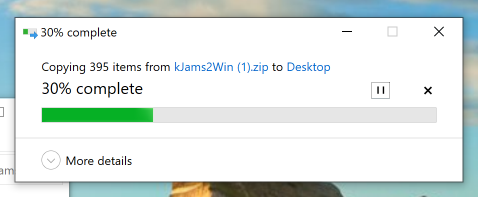
- You'll see a progress bar
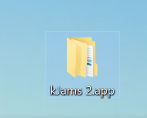
- it will land on the desktop, looking like a folder
- you may then throw out the zip file
- open the .app folder, and go into Contents, then into Windows
- in there you'll see "kJams XXX.exe". Note you may NOT see ".exe" if you have file extensions hidden.
- select that, right click, then pick "make a shortcut"
- you'll see the shortcut file
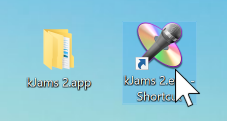
- drag the shortcut top your desktop
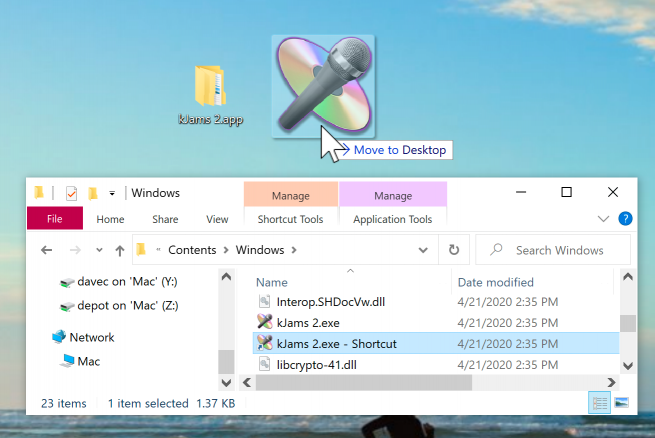
- you'll then see the shortcut file on the desktop
- you can now close the window
- feel free to rename that shortcut, if you like
- use that shortcut to launch kJams


When a new update arrives via installer, just install it like normal, then trash the .app and the shortcut from your desktop. If you go and get another rogue, without getting a new update thru the installer, then you just trash the .app folder, and replace it with the new rogue using the steps above. There is no need to create another short cut, the current one will continue to work.