Defender: Difference between revisions
Jump to navigation
Jump to search
No edit summary |
No edit summary |
||
| Line 5: | Line 5: | ||
<br> | <br> | ||
Click the banner to get details, you'll see this:<br> | Click the banner to get details, you'll see this:<br> | ||
----<br> | |||
https://karaoke.kjams.com/screenshots/defender/shot2.png<br> | https://karaoke.kjams.com/screenshots/defender/shot2.png<br> | ||
This is known to be a "[https://en.wikipedia.org/wiki/False_positives_and_false_negatives false positive]". See the word "Severe" there on the right? See the little downward pointing chevron under it? Click that. "User account control" may (or may not) now show a dialog that asks "Do you want to allow this app to make changes to your device", specifying that the app is "Windows Security". If you see this dialog, click "Yes". | ----<br> | ||
This is known to be a "[https://en.wikipedia.org/wiki/False_positives_and_false_negatives false positive]". See the word "Severe" there on the right? See the little downward pointing chevron under it? Click that. | |||
"User account control" may (or may not) now show a dialog that asks "Do you want to allow this app to make changes to your device", specifying that the app is "Windows Security". If you see this dialog, click "Yes". | |||
Now you should see this:<br> | Now you should see this:<br> | ||
https://karaoke.kjams.com/screenshots/defender/shot3.png<br> | https://karaoke.kjams.com/screenshots/defender/shot3.png<br> | ||
Revision as of 20:17, 3 April 2020
When you run kJams for the first time, Windows Defender may complain, and then kJams crashes (exits unexpectedly).
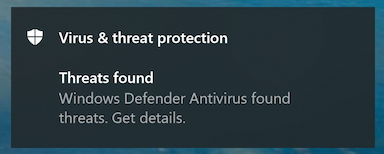
Here is the complaint you'll see:
Click the banner to get details, you'll see this:
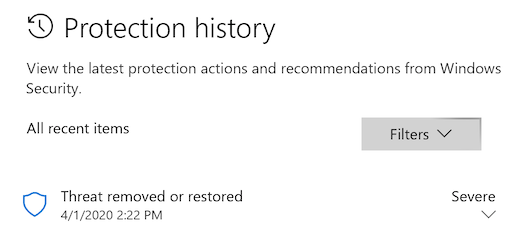
This is known to be a "false positive". See the word "Severe" there on the right? See the little downward pointing chevron under it? Click that.
"User account control" may (or may not) now show a dialog that asks "Do you want to allow this app to make changes to your device", specifying that the app is "Windows Security". If you see this dialog, click "Yes".
Now you should see this:
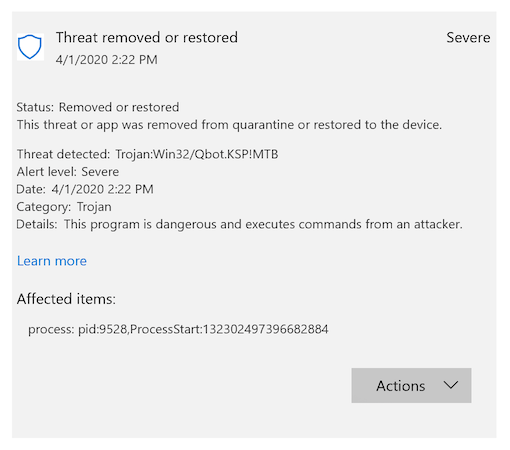
Now click on the "Actions" button and pick "Allow", like this:
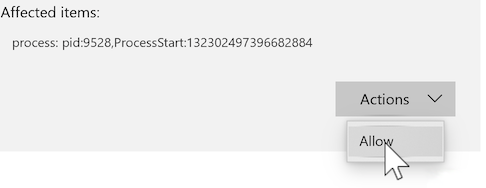
Now run kJams again, and you'll have no problems.