Code/CFLite/CFNetwork: Difference between revisions
Jump to navigation
Jump to search
| Line 9: | Line 9: | ||
## also open CFTest/project/qt/CFTest/CFTest_win.pro | ## also open CFTest/project/qt/CFTest/CFTest_win.pro | ||
## your "Session" should look like this:<br>{{SERVER}}/cflite/screenshots/qt_session.png | ## your "Session" should look like this:<br>{{SERVER}}/cflite/screenshots/qt_session.png | ||
## set CFTest_win to the active project, then set it to depend on and sync with CFLite, like this:<br>{{SERVER}}/cflite/screenshots/ | ## set CFTest_win to the active project, then set it to depend on and sync with CFLite, like this:<br>{{SERVER}}/cflite/screenshots/qt_session_dependencies.png | ||
## below screen shots show 64bit debug as an example, but also set up 32bit debug, and also release of both 32 and 64 | ## below screen shots show 64bit debug as an example, but also set up 32bit debug, and also release of both 32 and 64 | ||
## how CFLite build settings should look: (ignore run settings)<br>{{SERVER}}/cflite/screenshots/qt_build_cflite.png | ## how CFLite build settings should look: (ignore run settings)<br>{{SERVER}}/cflite/screenshots/qt_build_cflite.png | ||
Revision as of 16:33, 12 July 2017
This code available on this page is the results of the CFNetwork project on eLance. I hereby release it under the terms of the "New BSD License".
- Bulleted list item
How to get started
- Install Bonjour Print Services for Windows. (you do not need to run the printer wizard nor set up a printer, this is just a service that CFTest makes use of)
- download CFNetwork and put it in your development tree
- using Qt
- open CF/opencflite-476.17.2/CFLite/CFLite.pro
- also open CFTest/project/qt/CFTest/CFTest_win.pro
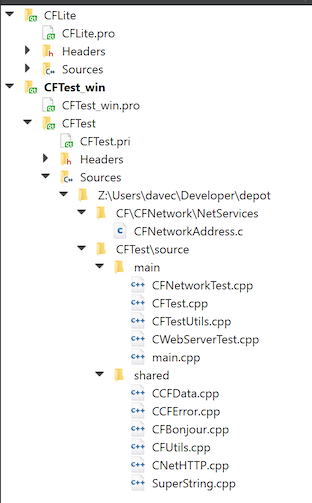
- your "Session" should look like this:
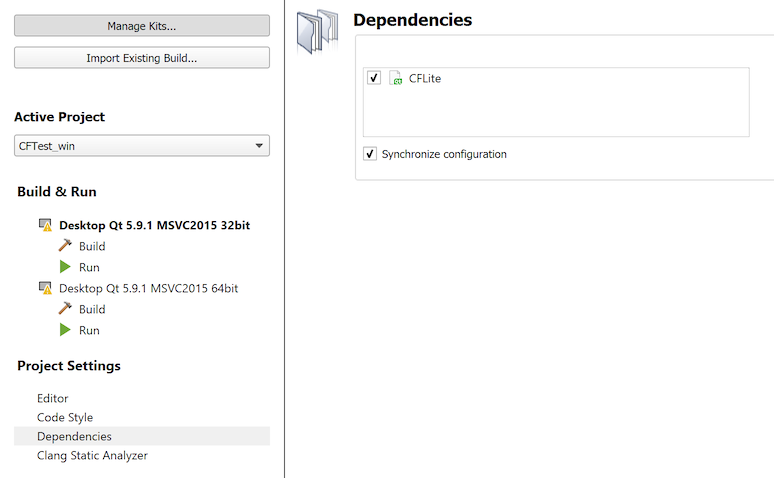
- set CFTest_win to the active project, then set it to depend on and sync with CFLite, like this:
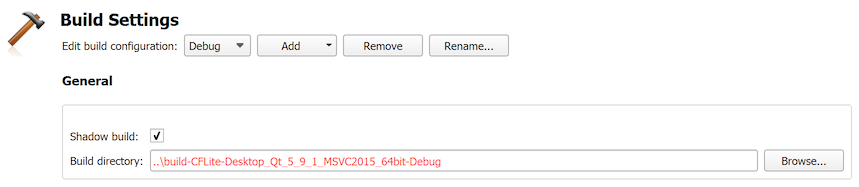
- below screen shots show 64bit debug as an example, but also set up 32bit debug, and also release of both 32 and 64
- how CFLite build settings should look: (ignore run settings)
- how CFTest build settings should look:

- how CFTest run settings should look:

- if you're using Visual Studio
- Open the file "CFNetwork/CFTest/win_vs/CFTest.sln".
- go to "Solution Explorer"
- select "CFTest", right click it and pick "Properties"
- in the "Configuration:" menu, pick "All Configurations"
- go to "configuration properties->debugging"
- set "Command" to "$(SolutionDir)build\$(TargetName).app\Contents\Windows\$(TargetFileName)".
- in VS2010 and later, actually you may need to just specify the full path (in step 4 above), as "$(TargetName)" does not seem to expand correctly for debug vs. release