Screen Shots: Difference between revisions
| Line 18: | Line 18: | ||
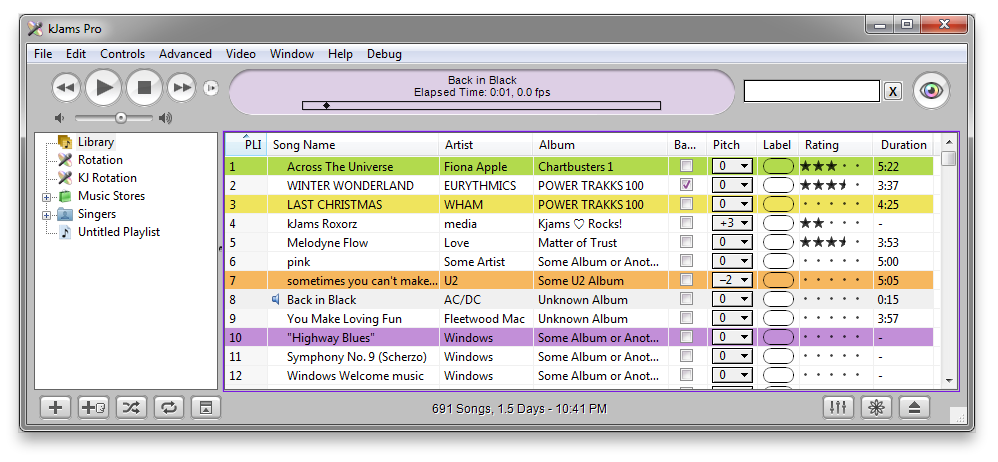
== Music Store == | == Music Store == | ||
https://karaoke.kjams.com/screenshots/music_store.png | https://karaoke.kjams.com/screenshots/music_store.png | ||
== | == Browser UI: Left Side == | ||
https://karaoke.kjams.com/screenshots/left_side.png<br> | https://karaoke.kjams.com/screenshots/left_side.png<br> | ||
Previous Song: ("Left Arrow" key) Will rewind the current song if the current time in the LCD is past four seconds, otherwise it will go to the previous song. Note that in the Rotation, you can't go back to a previous rotation, you can only go back as far as the start of the current rotation. | Previous Song: ("Left Arrow" key) Will rewind the current song if the current time in the LCD is past four seconds, otherwise it will go to the previous song. Note that in the Rotation, you can't go back to a previous rotation, you can only go back as far as the start of the current rotation. | ||
| Line 43: | Line 43: | ||
Show / Hide Artwork: (Pro) Will show or hide the Artwork Panel | Show / Hide Artwork: (Pro) Will show or hide the Artwork Panel | ||
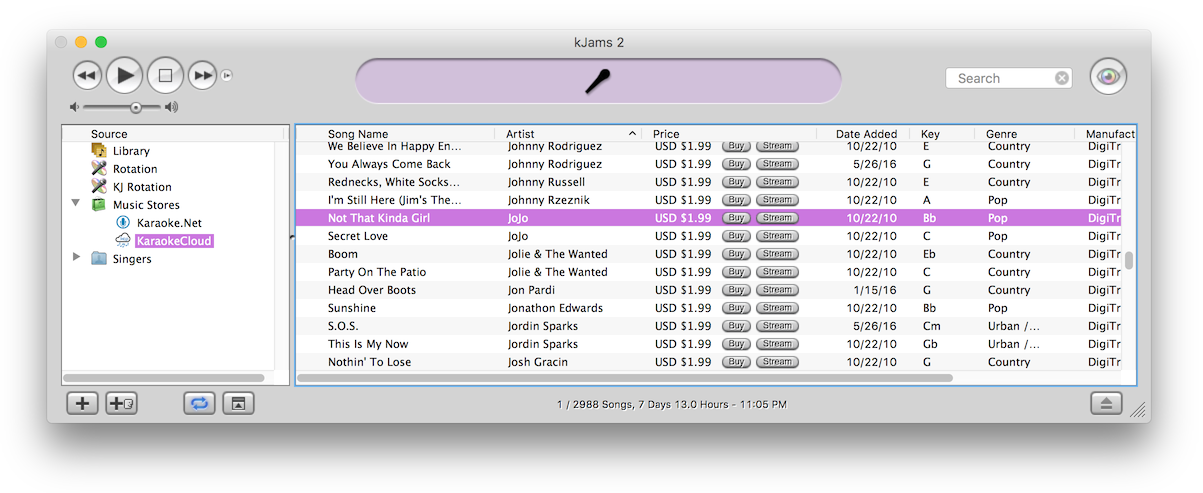
==Browser UI: Right Side== | ==Browser UI: Right Side== | ||
https://karaoke.kjams.com/screenshots/right_side.png | https://karaoke.kjams.com/screenshots/right_side.png | ||
Revision as of 22:22, 31 May 2013
About and Playing
 About kJams |
 Pro: Rotation |
 CDG |
 DVD |
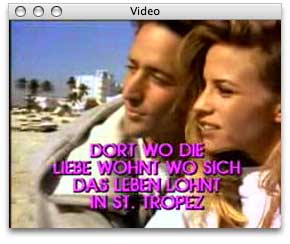 LaserDisc |
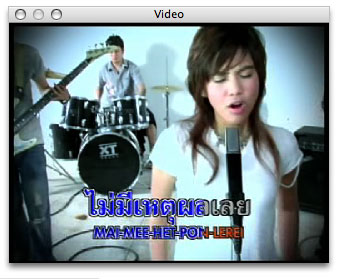 VCD |
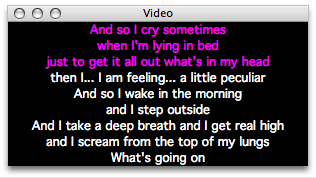 KAR |
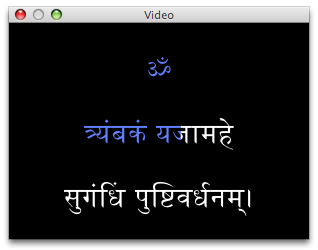 TunePrompter |
 UltraStar |
Browser
Music Store
Browser UI: Left Side
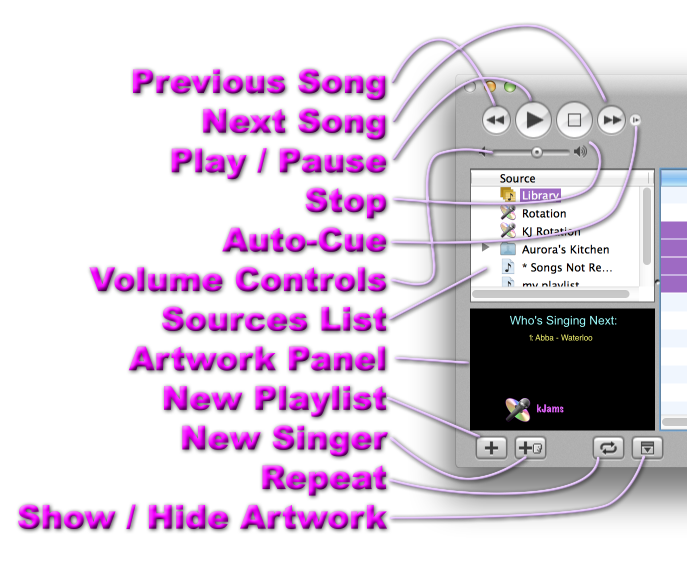
Previous Song: ("Left Arrow" key) Will rewind the current song if the current time in the LCD is past four seconds, otherwise it will go to the previous song. Note that in the Rotation, you can't go back to a previous rotation, you can only go back as far as the start of the current rotation.
Next Song: ("Right Arrow" key) Will skip to the end of the current song. In the Rotation, if the song are past 60% (or if you hold the "alt/option" key), the song will be marked as "Sung" (moved out of the Rotation and into the Singer's history)
Play / Pause: ("Spacebar" key) If there is a song loaded and paused, this will un-pause the song, regardless of what playlist you are currently viewing, and regardless of any selection. If there is a song playing, this will pause the song. Otherwise, it will play the currently selected song.
Stop: ("Escape" key or "command/ctrl-period" keys) Will stop the rotation or the currently playing song. This will NOT mark the song as sung, even if you are near or at the end of a song.
Auto-Cue: ("alt/option-c" keys): Cue the song to the very first sound (the beginning of when the actual audio starts playing). This lets you skip the silence at the start of the song (there is also a preference to always do this)
Volume Controls: ("command/ctrl-Up or Down Arrow") Will change the volume of the song. Clicking on the little speaker icon to the left will turn it down, the right will turn it up.
Sources List: Shows you Library, the Rotation lists, the Music stores, (Pro) the current Venue, and any PlayLists that kJams or you have created.
Artwork Panel: (Pro) Displays another video window embedded within the Browser window
New Playlist: (command/ctrl-N) Will create a new playlist
New Singer: (Pro) (command/ctrl-G) Will create a new singer. You can rename a singer by clicking on the name, then pressing return. Or, click once, don't move the mouse at all and wait a second, then click again
Repeat: Toggle between "Repeat None" (default), "Repeat Playlist", and "Repeat One Song"
Show / Hide Artwork: (Pro) Will show or hide the Artwork Panel
Browser UI: Right Side
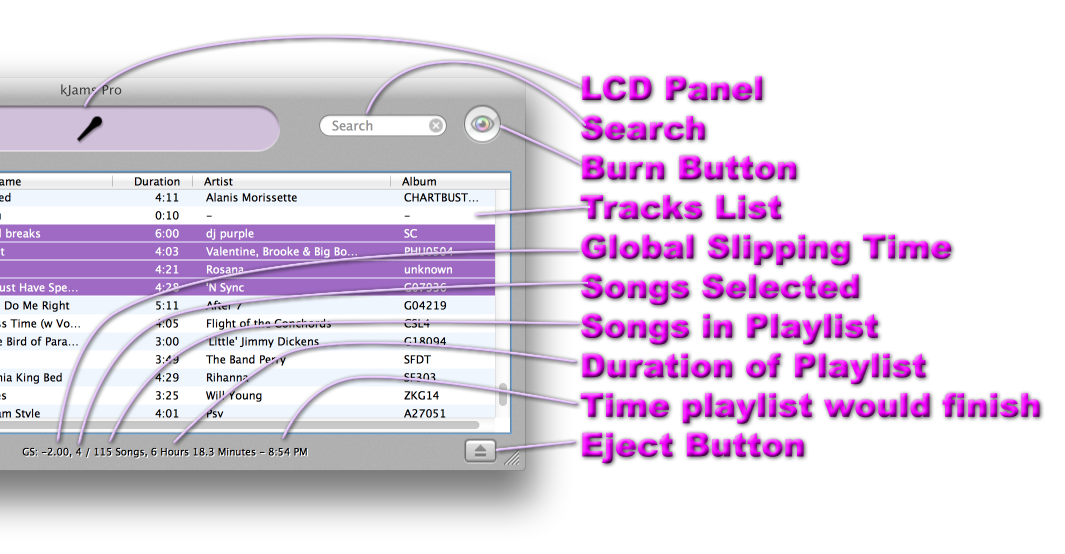
LCD Panel
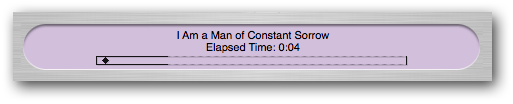
The "LCD Panel", or Liquid Crystal Display Panel, is the area at the top of the browser window which gives you information about the current song. When a song is ripping, it shows the current progress of the rip. While a song is playing, it shows the current time of the song, and shows a little diamond-shaped "play head" that indicates graphically how far into the song you are. Note in the above picture, the "track" on which the playhead moves is partially solid, and partially dashed. The solid area is the area in which you can manually move the play head, like a scroll bar, click in this area to set the position (current time) of the play head, or drag it, this is also called "scrubbing" the play head. The dashed area shows how much of the song yet must be "rendered" in order to gather timing information for scrubbing. (If we didn't "render" the song first, then, when you "scrub", it could throw the timing of the song off, then the onscreen lyrics would no longer line up with the audio)
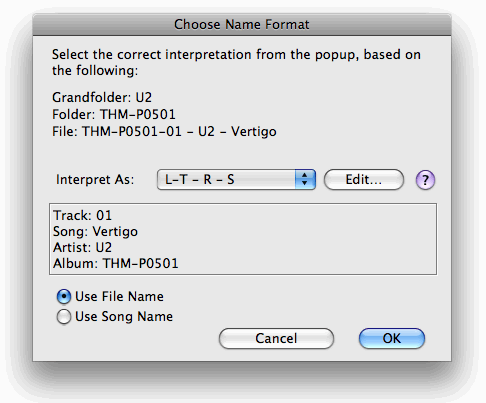
Song Name Interpretation
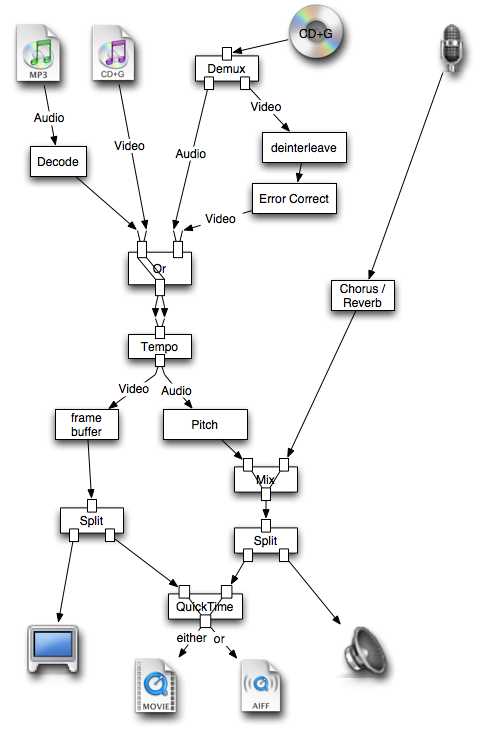
AV Pipe
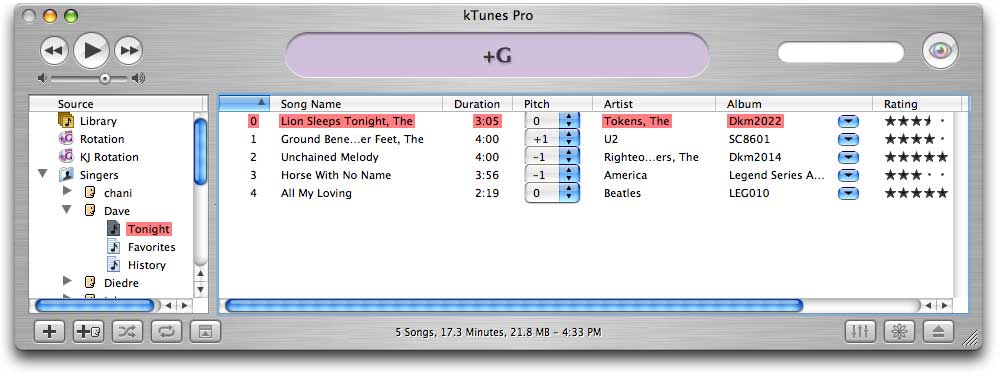
Dave's "Tonight"
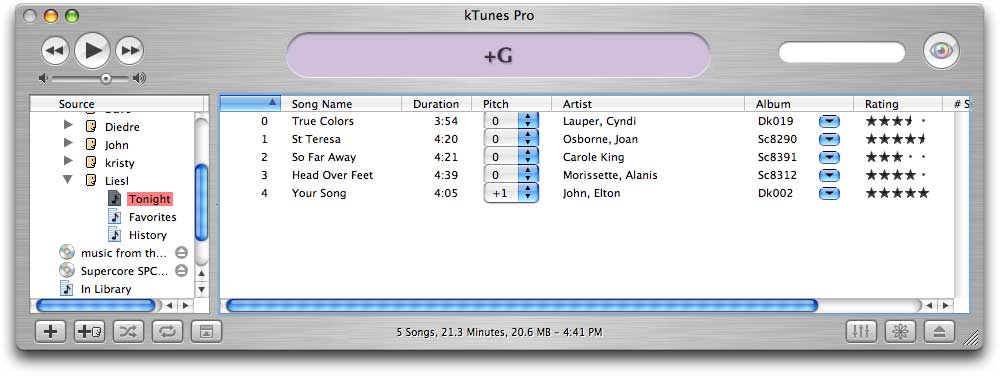
Liesl's "Tonight"
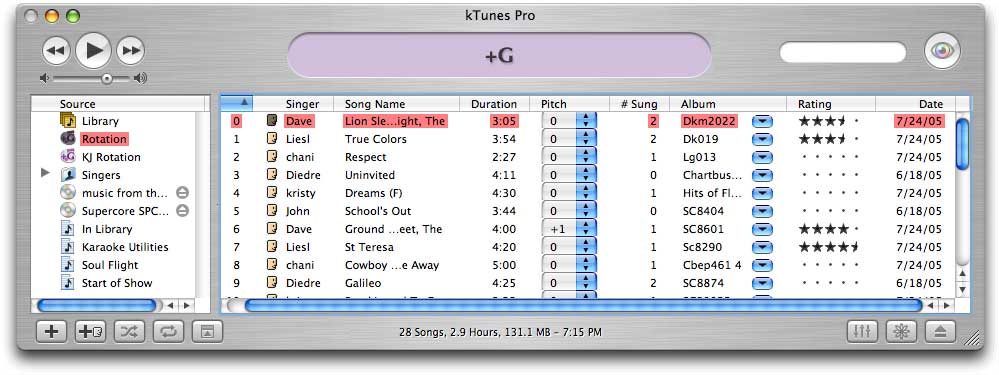
Rotation
More Screen Shots
See Preferences and Producer