Coupon: Difference between revisions
Jump to navigation
Jump to search
No edit summary |
|||
| Line 9: | Line 9: | ||
## for the burning plugin: go to prefs->burning, click "Purchase" | ## for the burning plugin: go to prefs->burning, click "Purchase" | ||
## for the Application: go to Help->Purchase | ## for the Application: go to Help->Purchase | ||
## | ## If you bought through a third party, then this actually is an "Activation" not a "Purchase", so don't worry, there is NO charge even though it says "Purchase". | ||
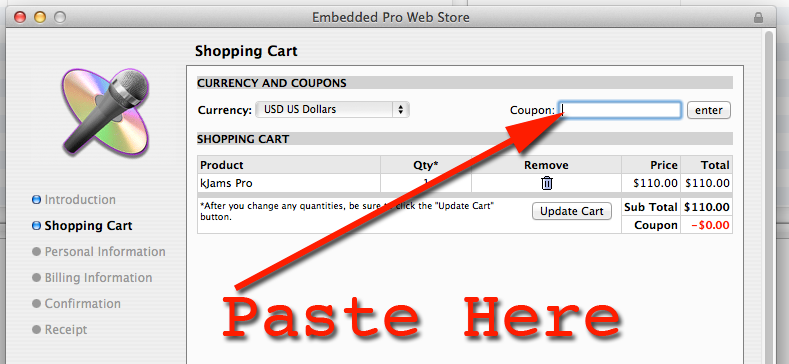
## follow the steps until you get to the "Currency and Coupons" stage, then paste your coupon (Mac: Command-V, Windows: Control-V), then click the "Enter" button. You will see your total go to ZERO<br>https://karaoke.kjams.com/screenshots/paste_coupon.png | ## follow the steps until you get to the "Currency and Coupons" stage, then paste your coupon (Mac: Command-V, Windows: Control-V), then click the "Enter" button. You will see your total go to ZERO<br>https://karaoke.kjams.com/screenshots/paste_coupon.png | ||
## Complete the activation, you will then see a "Receipt" window | ## Complete the activation, you will then see a "Receipt" window | ||
Revision as of 21:10, 15 October 2012
Welcome
Coupons for discounts are ONLY available to the Military, Hospitals, Prisons, Students, School Labs, Places of Worship, and Humanitarian Aid workers.
Coupons are also used when kJams is sold through a third party. In this case, you simply use the coupon to register kJams and obtain an official serial number
How do i use it?
- if you know what you're doing
- Download the app, install it, run.
- for the burning plugin: go to prefs->burning, click "Purchase"
- for the Application: go to Help->Purchase
- If you bought through a third party, then this actually is an "Activation" not a "Purchase", so don't worry, there is NO charge even though it says "Purchase".
- follow the steps until you get to the "Currency and Coupons" stage, then paste your coupon (Mac: Command-V, Windows: Control-V), then click the "Enter" button. You will see your total go to ZERO
- Complete the activation, you will then see a "Receipt" window
- Close the receipt window (do not hide or minimize it)
- you're done!
- If you want detailed step-by-step instructions:
- Click here for Macintosh instructions
- Click here for Windows instructions