KHD: Difference between revisions
Jump to navigation
Jump to search
No edit summary |
No edit summary |
||
| Line 8: | Line 8: | ||
# Back to the "1 TB KAR DJ MV" drive, inside you'll see a folder called "kJams Instructions", inside that you'll see a "Preferences" folder, inside that you'll see a folder called "kJams", looks like this:<br>http://kjams.com/resources/khd_03.png | # Back to the "1 TB KAR DJ MV" drive, inside you'll see a folder called "kJams Instructions", inside that you'll see a "Preferences" folder, inside that you'll see a folder called "kJams", looks like this:<br>http://kjams.com/resources/khd_03.png | ||
# In another window, open your Home folder, and go into your Library folder, you'll see your Preferences folder, looks like this:<br>http://kjams.com/resources/khd_04.png | # In another window, open your Home folder, and go into your Library folder, you'll see your Preferences folder, looks like this:<br>http://kjams.com/resources/khd_04.png | ||
# Drag that kJams folder and drop it onto that Preferences folder | # Drag that kJams folder and drop it onto that Preferences folder (replace if it asks) | ||
# Launch kJams, it will load the library (taking a few seconds) | # Launch kJams, it will load the library (taking a few seconds) | ||
# if it asks you to update, go ahead and update | # if it asks you to update, go ahead and update | ||
YAY! That's it! | YAY! That's it! | ||
Revision as of 00:01, 30 May 2009
How to install kJams with a Karaoke Hard Drive
- Open the "1 TB KAR DJ MV" drive, inside you'll see a folder called "kJams"
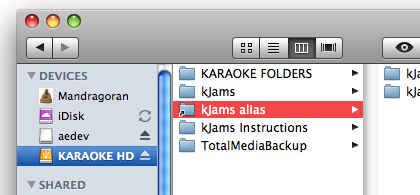
- Select that folder and go to the File menu and pick "Make Alias", looks like this:
- In another window, open your Home folder, and go into your Music folder
- Drag the "kJams alias" from step 2 and drop it into your Music folder
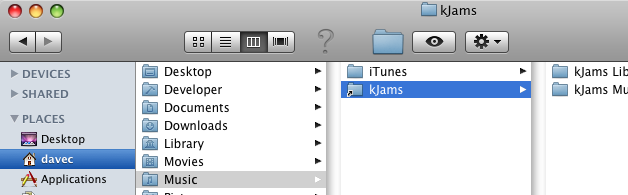
- Rename the alias so that it does NOT have the word "alias" on the end, also delete the space, such that the alias is called exactly "kJams", looks like this:
- Back to the "1 TB KAR DJ MV" drive, inside you'll see a folder called "kJams Instructions", inside that you'll see a "Preferences" folder, inside that you'll see a folder called "kJams", looks like this:

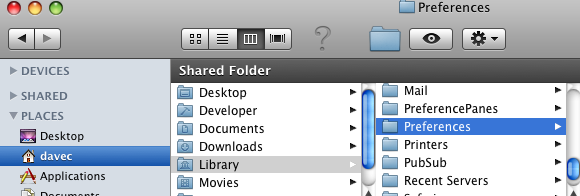
- In another window, open your Home folder, and go into your Library folder, you'll see your Preferences folder, looks like this:
- Drag that kJams folder and drop it onto that Preferences folder (replace if it asks)
- Launch kJams, it will load the library (taking a few seconds)
- if it asks you to update, go ahead and update
YAY! That's it!