Windows: Difference between revisions
Jump to navigation
Jump to search
Created page with "A Visual Tutorial on getting kJams for Windows installed. # click the download link that you want (lite, pro, or 2) # at the bottom left of the browser window, you'll see thi..." |
No edit summary |
||
| Line 4: | Line 4: | ||
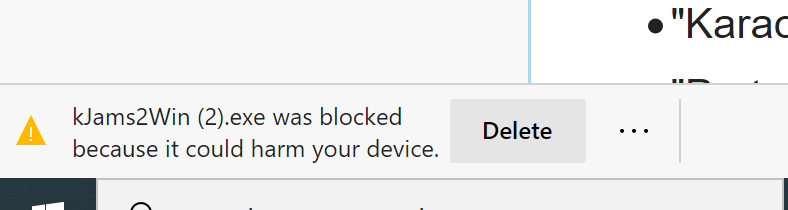
# at the bottom left of the browser window, you'll see this:<br><img src="https://karaoke.kjams.com/screenshots/install/win/install_01.png" width="394pix"> | # at the bottom left of the browser window, you'll see this:<br><img src="https://karaoke.kjams.com/screenshots/install/win/install_01.png" width="394pix"> | ||
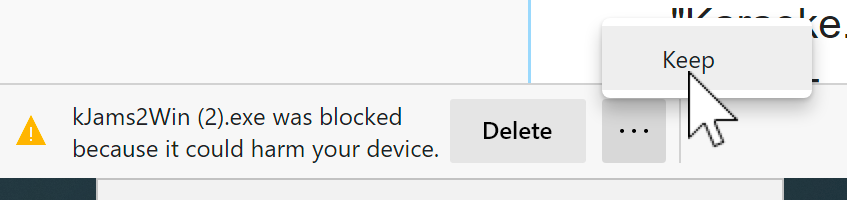
# To the RIGHT of the "'''Delete'''" button, do you see the three little dots ("...")? Click that!<br><img src="https://karaoke.kjams.com/screenshots/install/win/install_02.png" width="423pix"> | # To the RIGHT of the "'''Delete'''" button, do you see the three little dots ("...")? Click that!<br><img src="https://karaoke.kjams.com/screenshots/install/win/install_02.png" width="423pix"> | ||
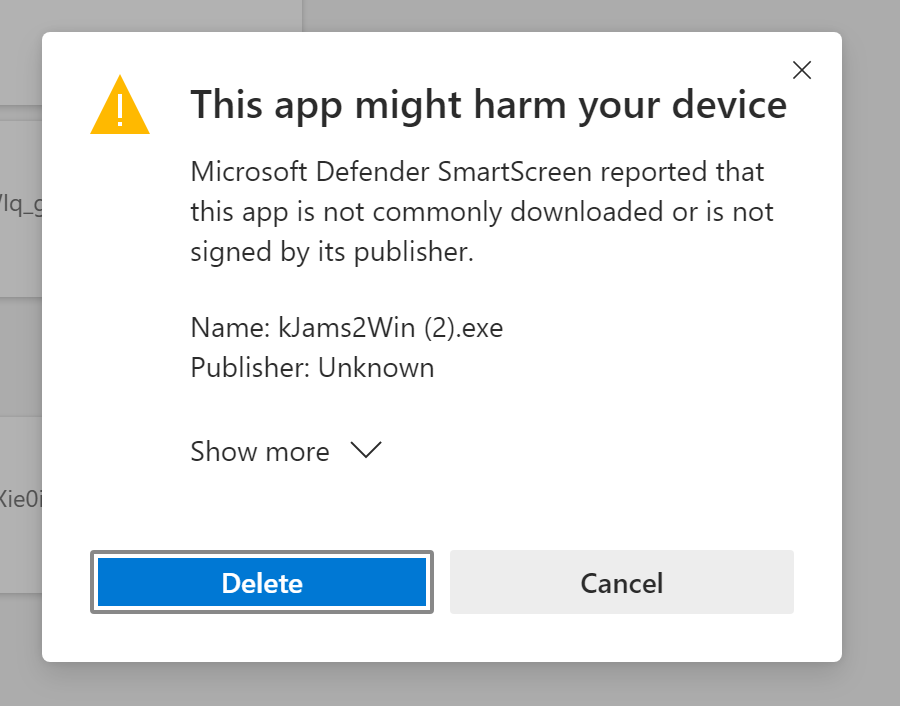
# click the "'''Keep'''" button, and you'll see this dialog:<br><img src="https://karaoke.kjams.com/screenshots/install/win/install_03.png" width="450pix"> | |||
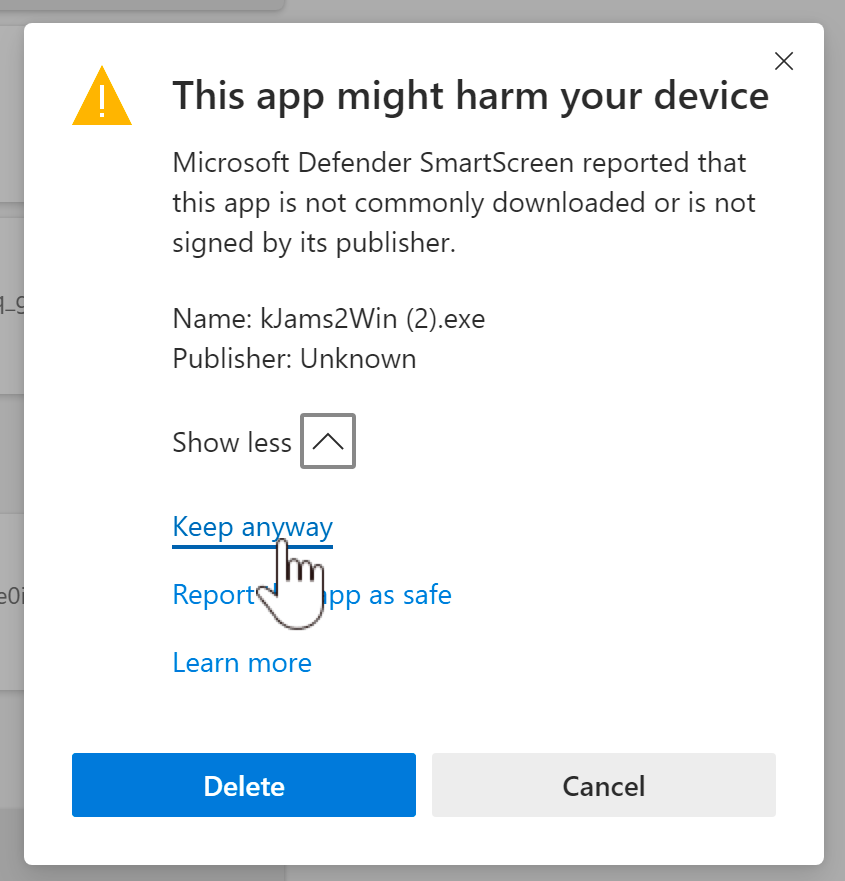
# click the downward pointing chevron next to the "'''Show More'''" text, and you'll see this:<br><img src="https://karaoke.kjams.com/screenshots/install/win/install_04.png" width="422pix"> | |||
# click the "'''Keep anyway'''" text, then you'll see something like this:<br><img src="https://karaoke.kjams.com/screenshots/install/win/install_05.png" width="359pix"> | |||
# click the "'''kJams.exe'''" file name at the top of the list, then you'll see this:<br><img src="https://karaoke.kjams.com/screenshots/install/win/install_06.png" width="556pix"> | |||
# click the "'''More Info'''" text, and you'll see this:<br><img src="https://karaoke.kjams.com/screenshots/install/win/install_07.png" width="555pix"> | |||
# click the "'''Run Anyway'''" button! Now you'll see a '''User Account Control (UAC)''' shield blinking in your task bar at the bottom of your screen:<br><img src="https://karaoke.kjams.com/screenshots/install/win/install_08.png" width="121pix"> | |||
# click that, and you'll now see a "(UAC) Do you want to allow..." dialog:<br><img src="https://karaoke.kjams.com/screenshots/install/win/install_09.png" width="492pix"> | |||
# click the "'''Yes'''" button, and FINALLY you can install kJams!<br><img src="https://karaoke.kjams.com/screenshots/install/win/install_10.png" width="528pix"> | |||
# click the "'''Next'''" button a few times, and you'll see another '''UAC''' dialog<br><img src="https://karaoke.kjams.com/screenshots/install/win/install_11.png" width="480pix"> | |||
# click the "'''Yes'''" button on that, then any other "'''Next'''" buttons until you get to the end!<br><img src="https://karaoke.kjams.com/screenshots/install/win/install_12.png" width="530pix"> | |||
# click the "'''Close'''" button | |||
# now launch kJams | |||
Revision as of 22:12, 8 June 2020
A Visual Tutorial on getting kJams for Windows installed.
- click the download link that you want (lite, pro, or 2)
- at the bottom left of the browser window, you'll see this:
- To the RIGHT of the "Delete" button, do you see the three little dots ("...")? Click that!
- click the "Keep" button, and you'll see this dialog:
- click the downward pointing chevron next to the "Show More" text, and you'll see this:
- click the "Keep anyway" text, then you'll see something like this:
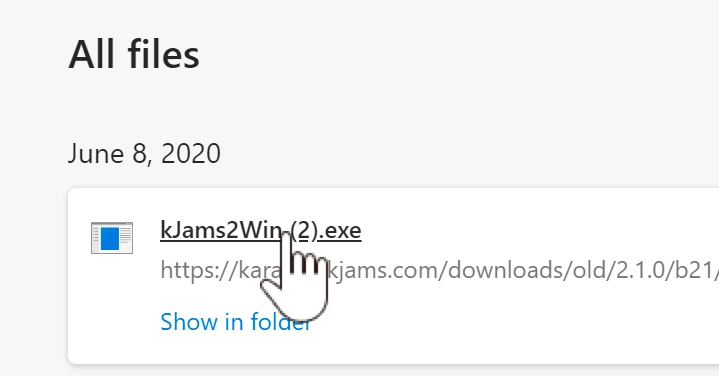
- click the "kJams.exe" file name at the top of the list, then you'll see this:
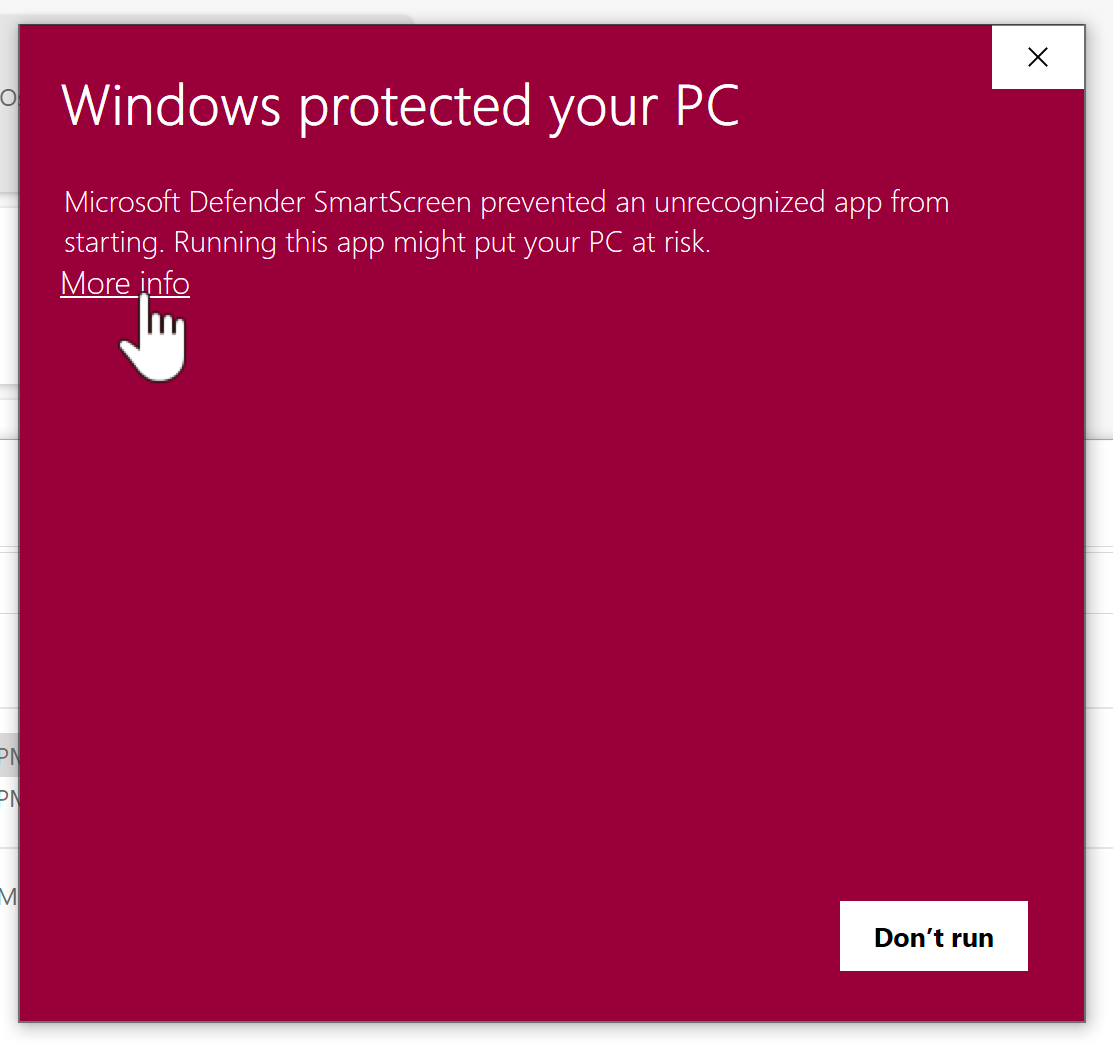
- click the "More Info" text, and you'll see this:
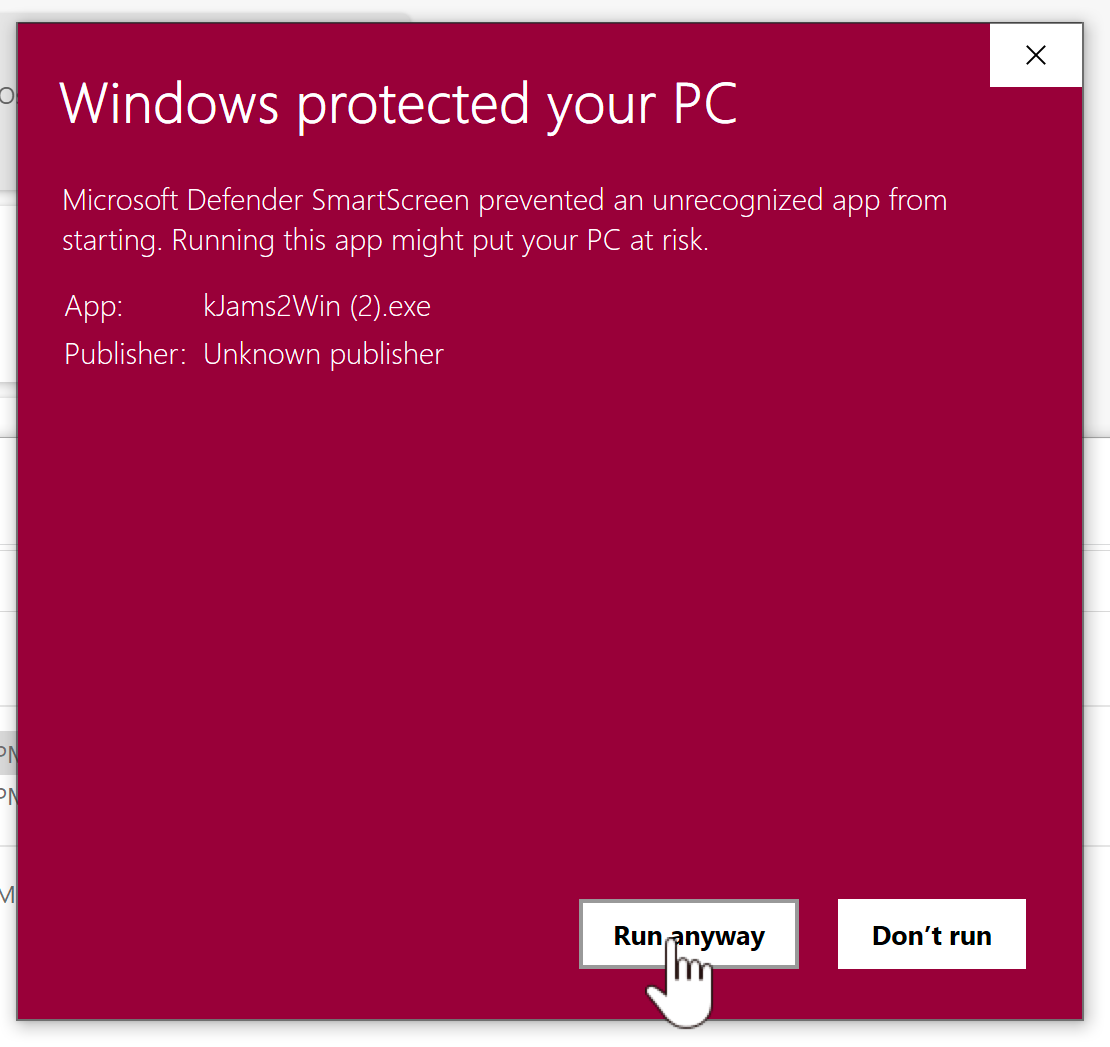
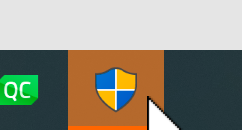
- click the "Run Anyway" button! Now you'll see a User Account Control (UAC) shield blinking in your task bar at the bottom of your screen:
- click that, and you'll now see a "(UAC) Do you want to allow..." dialog:
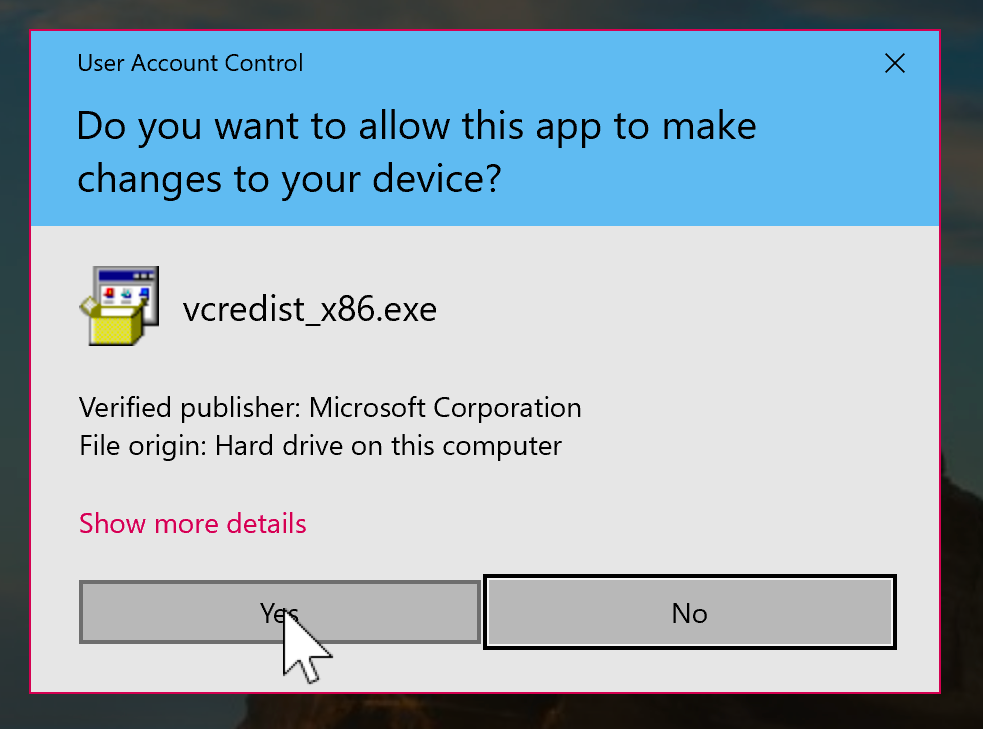
- click the "Yes" button, and FINALLY you can install kJams!
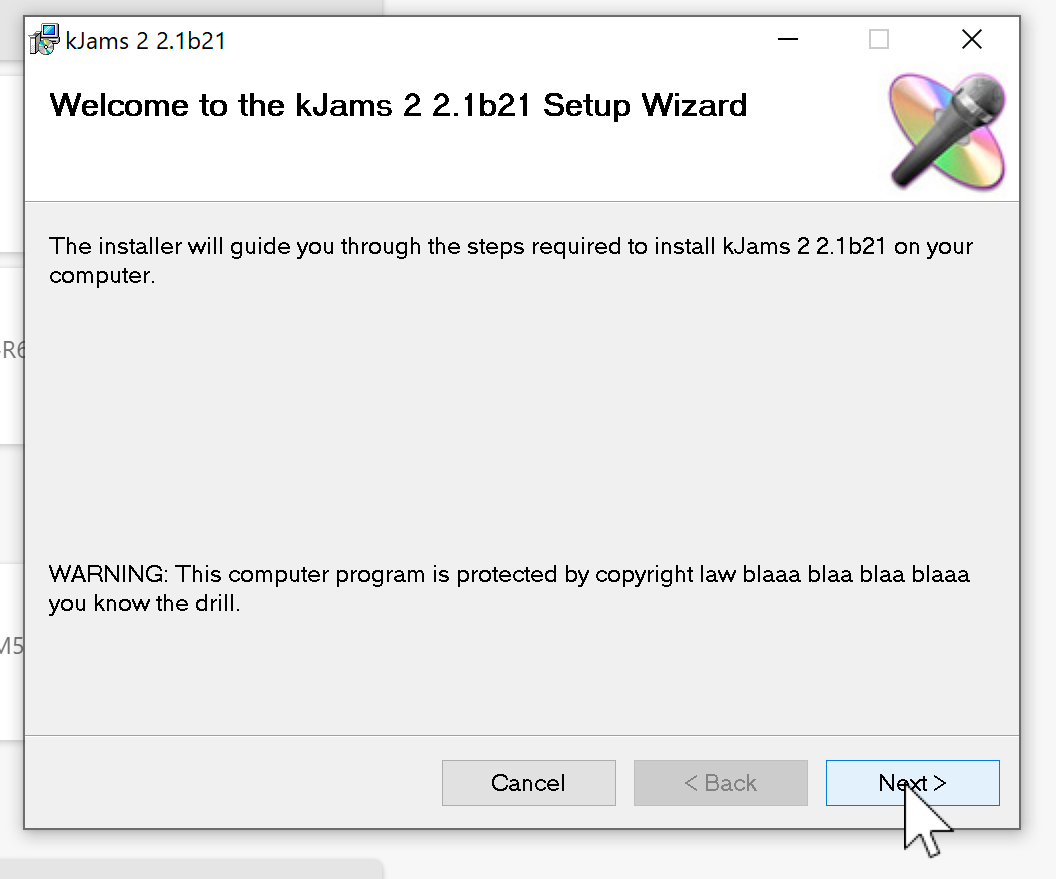
- click the "Next" button a few times, and you'll see another UAC dialog
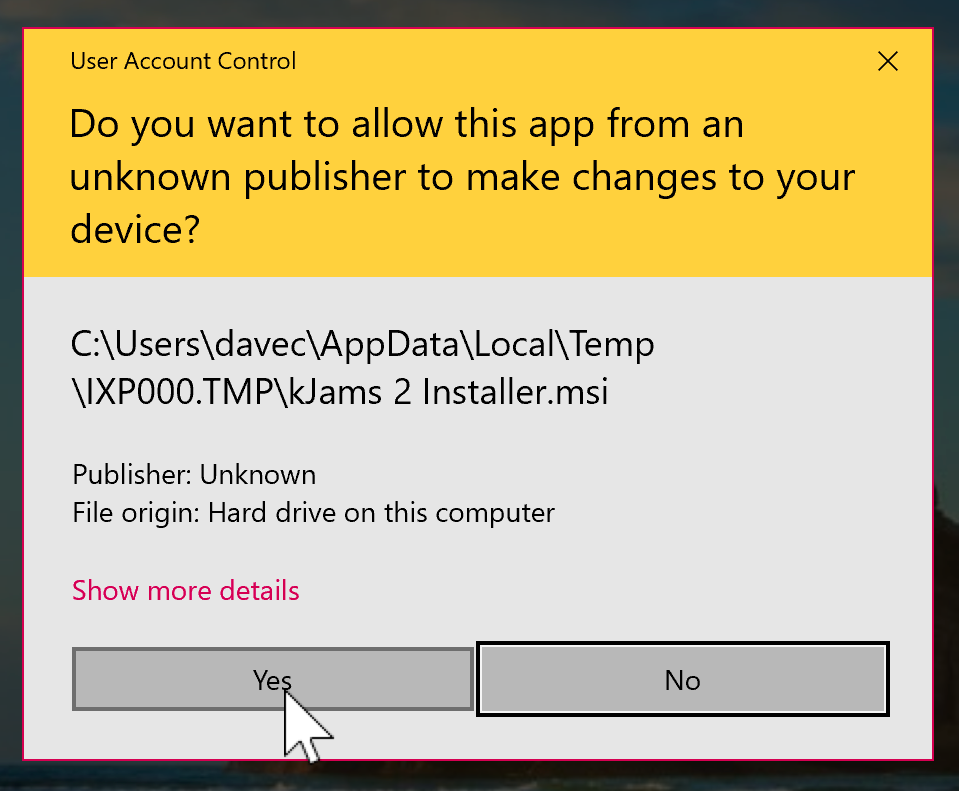
- click the "Yes" button on that, then any other "Next" buttons until you get to the end!
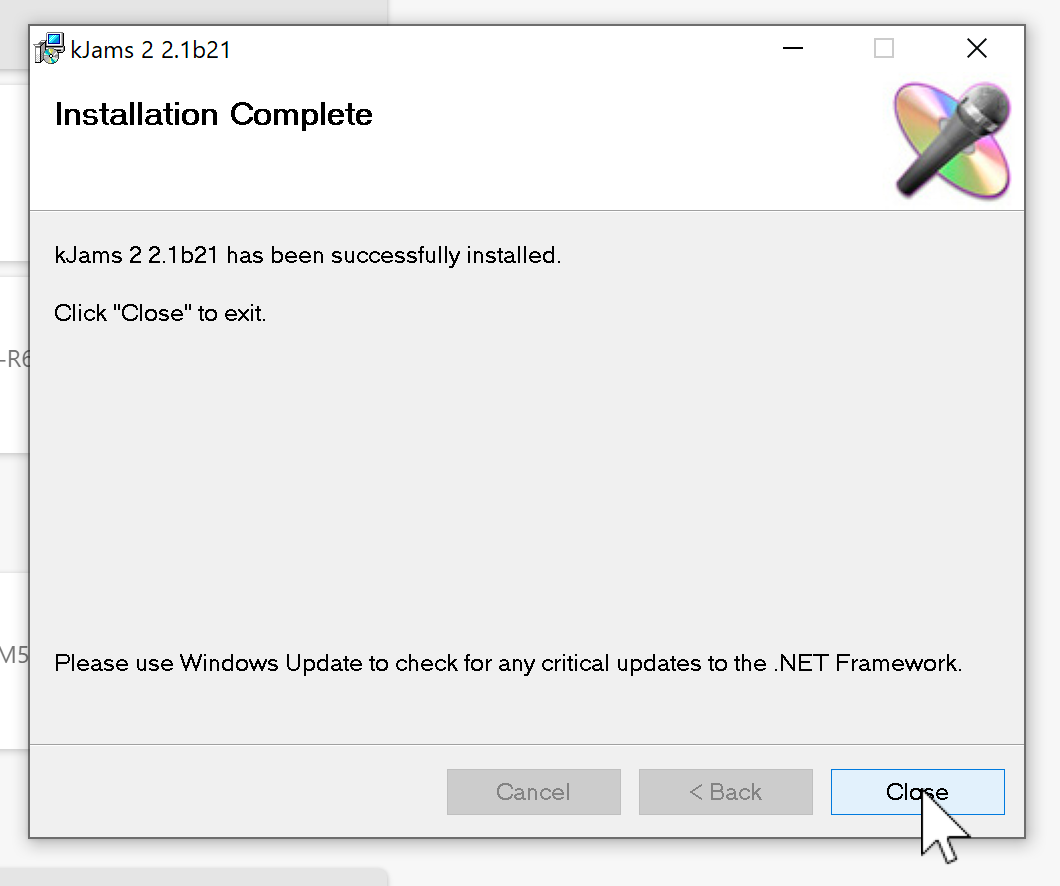
- click the "Close" button
- now launch kJams