64bit/Help/Qt Update: Difference between revisions
Jump to navigation
Jump to search
Created page with "When there is a Kit version update, follow these steps: # run Qt Maintenance Tool, select "add or remove components" # select the new kit version to add, DO NOT deselect the o..." |
No edit summary |
||
| Line 6: | Line 6: | ||
# go to Kit Settings | # go to Kit Settings | ||
# rename the old kit to "64_old", rename the new kit to "64" | # rename the old kit to "64_old", rename the new kit to "64" | ||
# click "make default" for the new kit "64" | |||
# Open the CFTest project and do these steps: | # Open the CFTest project and do these steps: | ||
## copy the kit settings for debug / release from the old kit (right click->copy steps from another kit->64_old) | ## copy the kit settings for debug / release from the old kit (right click->copy steps from another kit->64_old) | ||
Revision as of 17:13, 15 April 2020
When there is a Kit version update, follow these steps:
- run Qt Maintenance Tool, select "add or remove components"
- select the new kit version to add, DO NOT deselect the old kit version to uninstall. Select only "macOS", "Sources", and "Qt Debug Information Files"
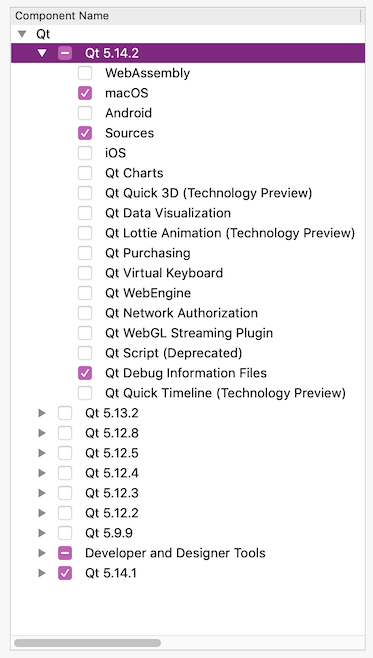
- complete the install
- Run Qt Creator
- go to Kit Settings
- rename the old kit to "64_old", rename the new kit to "64"
- click "make default" for the new kit "64"
- Open the CFTest project and do these steps:
- copy the kit settings for debug / release from the old kit (right click->copy steps from another kit->64_old)
- build and run with new kit, ensure it works
- delete the auto-created build configs (debug, profile, release), and default deployment method
- delete the reference to the old kit settings under "Build & Run"
- open the kJams project, and do the same steps
- run Qt Maintenance Tool, select "add or remove components"
- now deselect (uncheck) the old kit, and uninstall it