Installing/Mac: Difference between revisions
Jump to navigation
Jump to search
Created page with "# You should see a window in the Finder, like this?<br>https://karaoke.kjams.com/screenshots/install.png # You will see the kJams icon on the left, and a shortcut on the right..." |
No edit summary |
||
| Line 1: | Line 1: | ||
The auto-updater for Mac used to just try to install the new update and launch it for you. However, Apple made this much more difficult with the new OS update, “El Capitan”. Henceforth, the update is not automated, and requires you do do something. That thing, however, is easy. Ready? Here are the steps: | |||
# You should see a window in the Finder, like this?<br>https://karaoke.kjams.com/screenshots/install.png | # You should see a window in the Finder, like this?<br>https://karaoke.kjams.com/screenshots/install.png | ||
# You will see the kJams icon on the left, and a shortcut on the right which points to your own Applications folder on your Mac | # You will see the kJams icon on the left, and a shortcut on the right which points to your own Applications folder on your Mac | ||
# In keeping with the big purple arrow, drag the kJams icon on to the Applications folder (shortcut) icon, then let go. | # In keeping with the big purple arrow, drag the kJams icon on to the Applications folder (shortcut) icon, then let go. | ||
# If the Finder asks "do you want to replace the old one", answer "hey yeah ya betcha". kJams will be installed. | |||
# Go to the File menu and pick "Eject", or drag the "Install kJams" disk image to the trash | # Go to the File menu and pick "Eject", or drag the "Install kJams" disk image to the trash | ||
# Go to your Applications folder (see the "Go" menu if you don't know how) and scroll to where the kJams icon is showing | # Go to your Applications folder (see the "Go" menu if you don't know how) and scroll to where the kJams icon is showing | ||
# Drag it from your Applications folder to your Dock. Now you can launch it from your Dock with a single click. | # Drag it from your Applications folder to your Dock. Now you can launch it from your Dock with a single click. | ||
# Extra credit: trash the kJams.dmg file in your Downloads folder | |||
Revision as of 06:45, 11 November 2015
The auto-updater for Mac used to just try to install the new update and launch it for you. However, Apple made this much more difficult with the new OS update, “El Capitan”. Henceforth, the update is not automated, and requires you do do something. That thing, however, is easy. Ready? Here are the steps:
- You should see a window in the Finder, like this?
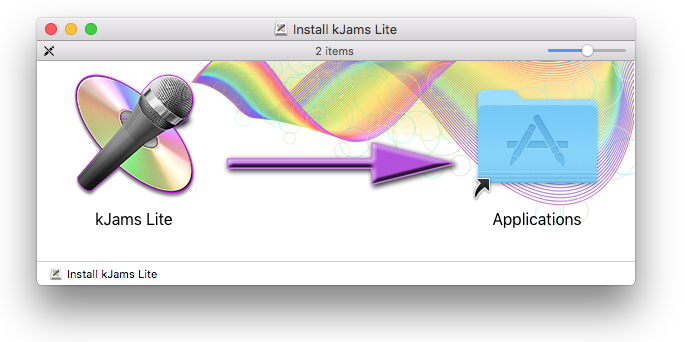
- You will see the kJams icon on the left, and a shortcut on the right which points to your own Applications folder on your Mac
- In keeping with the big purple arrow, drag the kJams icon on to the Applications folder (shortcut) icon, then let go.
- If the Finder asks "do you want to replace the old one", answer "hey yeah ya betcha". kJams will be installed.
- Go to the File menu and pick "Eject", or drag the "Install kJams" disk image to the trash
- Go to your Applications folder (see the "Go" menu if you don't know how) and scroll to where the kJams icon is showing
- Drag it from your Applications folder to your Dock. Now you can launch it from your Dock with a single click.
- Extra credit: trash the kJams.dmg file in your Downloads folder