Coupon/Mac: Difference between revisions
Jump to navigation
Jump to search
No edit summary |
No edit summary |
||
| (7 intermediate revisions by the same user not shown) | |||
| Line 1: | Line 1: | ||
# If you haven't already, | # If you haven't already, [https://karaoke.kjams.com/product_downloads/ download the edition of kJams] that you purchased (Lite, Pro, or 2) | ||
# Install it | # Install it | ||
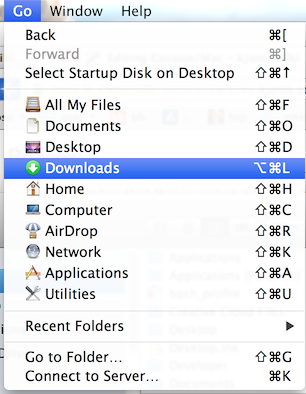
## In the Finder, Go to the Downloads folder<br> | ## In the Finder, Go to the Downloads folder<br>{{SERVER}}/screenshots/coupons/mac/go_to_dl.png | ||
## | ## sort this folder by "Date" so the most recent download is at the top | ||
## You should see a "kJams XYZ.dmg" file, with XYZ being the edition of kJams | |||
## | ## [[Update_Mac|go here for the rest]] of the installation instructions | ||
## | |||
# Run kJams from the Applications folder | # Run kJams from the Applications folder | ||
# If it | # To activate the Application | ||
## Go to the "kJams" application menu (Lite or Pro) in the menu bar and pick "Preferences…"<br> | ## Go to the "Help" menu and pick "Purchase…" (this is NOT a purchase, it is an activation, you will NOT be charged) | ||
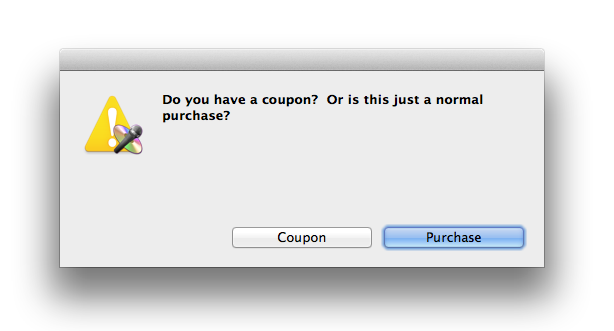
## kJams will ask if you have a coupon, click "Coupon"<br>{{SERVER}}/screenshots/coupons/mac/is_coupon.png | |||
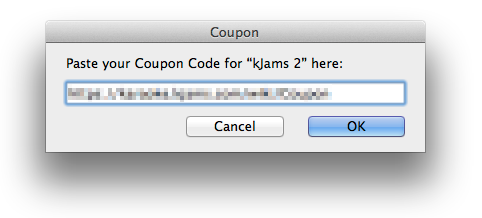
## paste the coupon code<br>{{SERVER}}/screenshots/coupons/mac/paste_coupon.png | |||
## click "OK" button | |||
## The "Software Delivery Wizard" will come up, start going thru the steps | |||
## when you get to the "Shopping Cart" screen you should see your coupon entered, and you should see the negative price in red text, canceling out the positive price in black text. If you do NOT see this, something went wrong. If you can't figure it out, [{{SERVER}}/contact/ contact me] and i'll help. | |||
## complete the steps until you see the Receipt window<br>{{SERVER}}/screenshots/coupons/mac/receipt.png<br><br> | |||
## close the receipt window (click the little red dot in the top left) (do NOT hide it, do not minimize it, but CLOSE it) | |||
# To Activate the Plugin: | |||
## Go to the "kJams" application menu (Lite or Pro) in the menu bar and pick "Preferences…"<br>{{SERVER}}/screenshots/coupons/mac/prefs.png | |||
## Click on the "Burning" icon | ## Click on the "Burning" icon | ||
## Click the "Purchase" button (this is NOT a purchase, it is an activation, you will NOT be charged) | ## Click the "Purchase" button (this is NOT a purchase, it is an activation, you will NOT be charged) | ||
## When it asks "Are you sure?" click the "Yes" button, because you're sure. | ## When it asks "Are you sure?" click the "Yes" button, because you're sure. | ||
# | ## follow the rest of the steps above from step 4.2 | ||
# | |||
# you're all set! | # you're all set! | ||
Latest revision as of 23:16, 31 October 2018
- If you haven't already, download the edition of kJams that you purchased (Lite, Pro, or 2)
- Install it
- In the Finder, Go to the Downloads folder
- sort this folder by "Date" so the most recent download is at the top
- You should see a "kJams XYZ.dmg" file, with XYZ being the edition of kJams
- go here for the rest of the installation instructions
- In the Finder, Go to the Downloads folder
- Run kJams from the Applications folder
- To activate the Application
- Go to the "Help" menu and pick "Purchase…" (this is NOT a purchase, it is an activation, you will NOT be charged)
- kJams will ask if you have a coupon, click "Coupon"
- paste the coupon code
- click "OK" button
- The "Software Delivery Wizard" will come up, start going thru the steps
- when you get to the "Shopping Cart" screen you should see your coupon entered, and you should see the negative price in red text, canceling out the positive price in black text. If you do NOT see this, something went wrong. If you can't figure it out, contact me and i'll help.
- complete the steps until you see the Receipt window
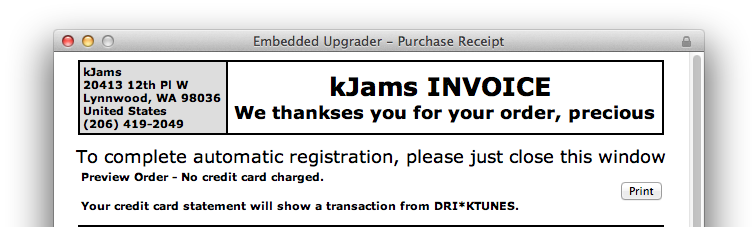
- close the receipt window (click the little red dot in the top left) (do NOT hide it, do not minimize it, but CLOSE it)
- To Activate the Plugin:
- Go to the "kJams" application menu (Lite or Pro) in the menu bar and pick "Preferences…"
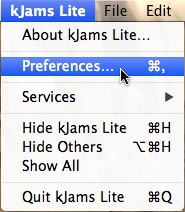
- Click on the "Burning" icon
- Click the "Purchase" button (this is NOT a purchase, it is an activation, you will NOT be charged)
- When it asks "Are you sure?" click the "Yes" button, because you're sure.
- follow the rest of the steps above from step 4.2
- Go to the "kJams" application menu (Lite or Pro) in the menu bar and pick "Preferences…"
- you're all set!