Coupon/Win: Difference between revisions
Jump to navigation
Jump to search
Created page with "# If you bought the "Burning Plugin", there is no separate installer, you only need to install the application because the tryout plugin automatically comes with it. # If you ..." |
No edit summary |
||
| (10 intermediate revisions by the same user not shown) | |||
| Line 1: | Line 1: | ||
Just [http://youtu.be/euRHkww6tVw watch the Tutorial Video], which is worth all the words below and then some. | |||
# If you bought the "Burning Plugin", there is no separate installer, you only need to install the application because the tryout plugin automatically comes with it. | # If you bought the "Burning Plugin", there is no separate installer, you only need to install the application because the tryout plugin automatically comes with it. | ||
# If you haven't already, | # If you haven't already installed kJams, do this: | ||
# | ## [https://karaoke.kjams.com/product_downloads/ download the edition of kJams] that you purchased | ||
# | ## when your web browser asks what do do with the the download, click "Open" | ||
## Double click the | ## Double click the MSI file that has been downloaded. | ||
## | ## ignore the security warning if one pops up, just click "Run". (I swear i'm a nice guy, and you know where I live anyway.) | ||
## go thru the installer process until the end | |||
## | # Run kJams from the Start menu (it may be under "All Programs") | ||
## If it | # To activate the Application | ||
## | ## In kJams, go to the "Help" menu and pick "Purchase…" | ||
## | ## it will ask if you have a coupon, click "Coupon" | ||
# | ## paste your coupon code there | ||
## if it gives an error at this point, just hit OK and try again, and it will work | |||
## Go to the " | ## Continue (if necessary) until you get to the "Shopping Cart" page | ||
## you should see the "Sub Total" go to ZERO. If you do not, something went wrong. If you can't figure it out, [{{SERVER}}/contact/ contact me] and i'll help. | |||
## complete the steps until you see the Receipt window<br>{{SERVER}}/screenshots/coupons/win/receipt.png<br><br> | |||
## close the receipt window (click the red "X" in the top right) (do NOT hide it, do not minimize it, but CLOSE it) | |||
# To activate the Plugin: | |||
## Go to the "Edit" menu in the menu bar and pick "Preferences…"<br>{{SERVER}}/screenshots/coupons/win/prefs.png | |||
## Click on the "Burning" icon | ## Click on the "Burning" icon | ||
## Click the "Purchase" button (this is NOT a purchase, it is an activation | ## Click the "Purchase" button (this is NOT a purchase, it is an activation. If you bought from a third party you will NOT be charged) | ||
## | ## do similar steps to the above, but paste the coupon for the Plugin instead | ||
## finish just like above (close the receipt window) | |||
# | |||
# close the receipt window | |||
# you're all set! | # you're all set! | ||
Latest revision as of 23:11, 31 October 2018
Just watch the Tutorial Video, which is worth all the words below and then some.
- If you bought the "Burning Plugin", there is no separate installer, you only need to install the application because the tryout plugin automatically comes with it.
- If you haven't already installed kJams, do this:
- download the edition of kJams that you purchased
- when your web browser asks what do do with the the download, click "Open"
- Double click the MSI file that has been downloaded.
- ignore the security warning if one pops up, just click "Run". (I swear i'm a nice guy, and you know where I live anyway.)
- go thru the installer process until the end
- Run kJams from the Start menu (it may be under "All Programs")
- To activate the Application
- In kJams, go to the "Help" menu and pick "Purchase…"
- it will ask if you have a coupon, click "Coupon"
- paste your coupon code there
- if it gives an error at this point, just hit OK and try again, and it will work
- Continue (if necessary) until you get to the "Shopping Cart" page
- you should see the "Sub Total" go to ZERO. If you do not, something went wrong. If you can't figure it out, contact me and i'll help.
- complete the steps until you see the Receipt window
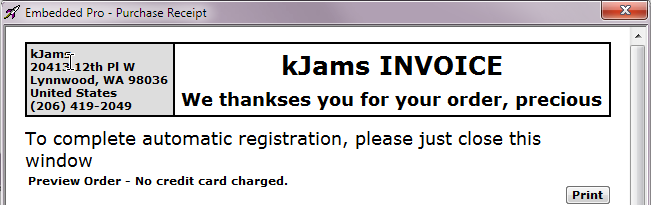
- close the receipt window (click the red "X" in the top right) (do NOT hide it, do not minimize it, but CLOSE it)
- To activate the Plugin:
- Go to the "Edit" menu in the menu bar and pick "Preferences…"
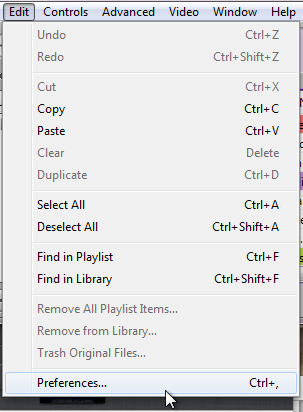
- Click on the "Burning" icon
- Click the "Purchase" button (this is NOT a purchase, it is an activation. If you bought from a third party you will NOT be charged)
- do similar steps to the above, but paste the coupon for the Plugin instead
- finish just like above (close the receipt window)
- Go to the "Edit" menu in the menu bar and pick "Preferences…"
- you're all set!