Turn off AutoPlay: Difference between revisions
Jump to navigation
Jump to search
Created page with "* If you're on a Mac (of course you are!) # Go to Apple->System Preferences->CDs and DVDs # Change "When you insert a music CD" so it says "ignore". Alternately make it run kJam..." |
No edit summary |
||
| (2 intermediate revisions by the same user not shown) | |||
| Line 2: | Line 2: | ||
# Go to Apple->System Preferences->CDs and DVDs | # Go to Apple->System Preferences->CDs and DVDs | ||
# Change "When you insert a music CD" so it says "ignore". Alternately make it run kJams. | # Change "When you insert a music CD" so it says "ignore". Alternately make it run kJams. | ||
https://karaoke.kjams.com/screenshots/autoplay_mac.png | |||
* If you're on Windows | * If you're on Windows | ||
# go to Start->Control Panels->AutoPlay | # go to Start->Control Panels->AutoPlay | ||
# Change "Audio CD" so it says "Take No Action". I do not know how to get it to run kJams. | # Change "Audio CD" so it says "Take No Action". I do not know how to get it to run kJams.<br>https://karaoke.kjams.com/screenshots/autoplay_win.png | ||
# change "Blank CD" also so it says "Take No Action" | |||
* if you have iTunes, run it (if you do not, ignore this) | * if you have iTunes, run it (if you do not, ignore this) | ||
| Line 13: | Line 13: | ||
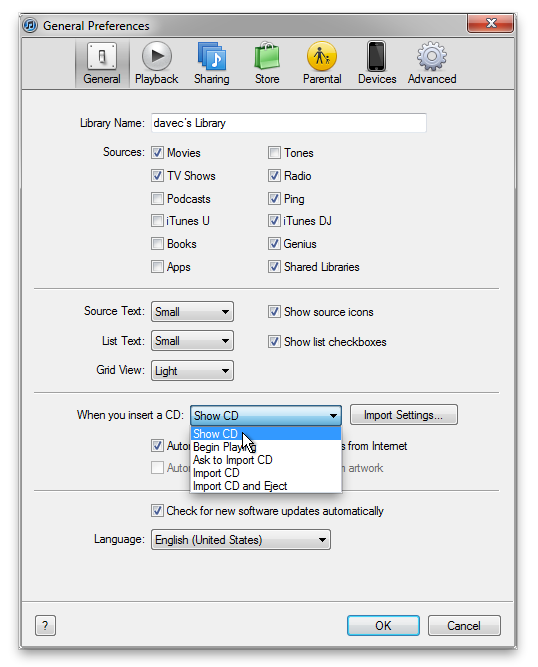
# under "General", change "When you insert a CD" to "Show CD". (it is the same for both mac and windows) | # under "General", change "When you insert a CD" to "Show CD". (it is the same for both mac and windows) | ||
# now Quit / Exit iTunes | # now Quit / Exit iTunes | ||
https://karaoke.kjams.com/screenshots/win_itunes.png | |||
Latest revision as of 19:56, 18 June 2014
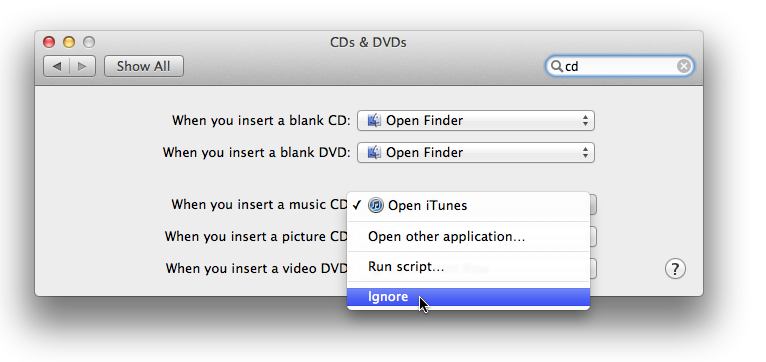
- If you're on a Mac (of course you are!)
- Go to Apple->System Preferences->CDs and DVDs
- Change "When you insert a music CD" so it says "ignore". Alternately make it run kJams.
- If you're on Windows
- go to Start->Control Panels->AutoPlay
- Change "Audio CD" so it says "Take No Action". I do not know how to get it to run kJams.
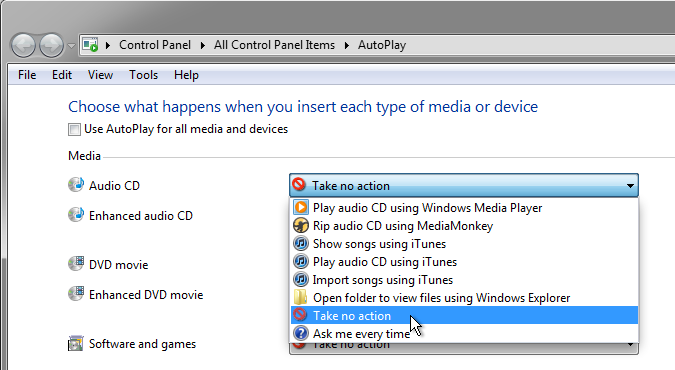
- change "Blank CD" also so it says "Take No Action"
- if you have iTunes, run it (if you do not, ignore this)
- go to iTunes preferences
- under "General", change "When you insert a CD" to "Show CD". (it is the same for both mac and windows)
- now Quit / Exit iTunes