IChat/Mac: Difference between revisions
Jump to navigation
Jump to search
| (14 intermediate revisions by the same user not shown) | |||
| Line 1: | Line 1: | ||
{{lowercase}} | {{lowercase}} | ||
==Note the new name== | |||
Apple changed the name of iChat to Messages in MacOS 10.8. So, below, when you see "iChat", think "Messages". | |||
==What version of the OS do you have?== | ==What version of the OS do you have?== | ||
If you are *absolutely sure* you have MacOS 10.4, then use the [[ | If you are *absolutely sure* you have MacOS 10.4, then use the [[Remote|ARD + VPN login.]]<br> | ||
If you are on 10.5 or greater, then see below. | If you are on 10.5 or greater, then see below. | ||
==If you have an iChat account== | |||
If you have " | ==If you use Google Talk== | ||
Add me as "karaoke.kjams@gmail.com" | |||
==If you have an iCloud account== | |||
* iCloud for some reason does not allow screen sharing, so see below about "[[IChat/Mac#If_you_do_NOT_have_an_iChat_.2F_Messages_account|If you do NOT have an iChat / Messages account]]" | |||
==If you have an iChat / Messages account== | |||
If you have "dotMac" or "mobileMe" or have signed up for "AOL Instant Messaging" then you're already all set! Just add me as a buddy!<br> | |||
# log in | # log in | ||
# click the "add buddy" button at the bottom, looks like a plus sign "+" | # click the "add buddy" button at the bottom, looks like a plus sign "+" | ||
| Line 11: | Line 18: | ||
# account type (if it asks): mac.com | # account type (if it asks): mac.com | ||
# Add to group: whatever you want | # Add to group: whatever you want | ||
# First name / last name: whatever you want<br> | # First name / last name: whatever you want<br>https://karaoke.kjams.com/screenshots/ichat/ichat_dotmac.png | ||
# now you should see me in your list. Double click my name, then type me a message and press Return. | # now you should see me in your list. Double click my name, then type me a message and press Return. | ||
==If you do NOT have an iChat account== | ==If you do NOT have an iChat / Messages account== | ||
If you don't have the above, you can temporarily use my own iChat server. Only use it to talk to me, and log out when we're done, so someone else can use the line. | If you don't have the above, you can temporarily use my own iChat server. Only use it to talk to me, and log out when we're done, so someone else can use the line. | ||
# run iChat in your Applications folder or in the Dock | # run iChat in your Applications folder or in the Dock | ||
| Line 22: | Line 29: | ||
## Press the "+" button in the lower left | ## Press the "+" button in the lower left | ||
# enter this info: | # enter this info: | ||
## if it asks what type of message account, pick "Other message account" | |||
## Account Type: Jabber | ## Account Type: Jabber | ||
## Account: kjams@kjams.com | ## Account: kjams@kjams.com | ||
## Password (lower case): kjams | ## Password (lower case): kjams | ||
## | ## If there is a little triangle next to "server options", click it so it is twirled open | ||
## in the server, type "ichat.kjams.com" | ## in the server, type "ichat.kjams.com" | ||
## check the box "Use SSL", Looks something like this:<br> | ## check the box "Use SSL", Looks something like this:<br>https://karaoke.kjams.com/screenshots/ichat/ichat_setup.png | ||
## click Done | ## click Done | ||
## at this point it may ask you about a Certificate. If so, skip to the next step (see step 9 below) | ## at this point it may ask you about a Certificate. If so, skip to the next step (see step 9 below) | ||
### do you see a little window that says "Jabber List" or "kjams@kjams"?<br> | ### do you see a little window that says "Jabber List" or "kjams@kjams"?<br>https://karaoke.kjams.com/screenshots/ichat/jabber_window.png | ||
### if not, pick that from the "Window" menu in the menu bar. Note it might say "kjams@kjams" instead of "Jabber List".<br> | ### if not, pick that from the "Window" menu in the menu bar. Note it might say "kjams@kjams" instead of "Jabber List".<br>https://karaoke.kjams.com/screenshots/ichat/menu.png | ||
### click on the word "offline" (with the little triangle next to it) and pick "Available"<br> | ### click on the word "offline" (with the little triangle next to it) and pick "Available"<br>https://karaoke.kjams.com/screenshots/ichat/pick_avail.png | ||
## If it asks you about a certificate, it's asking if you believe you are really connected to '''my''' kJams iChat server and not to some phisher or to some other fraudulent scheme. Since your web browser has no record of my certificate, it will ask you to question the certificate's authenticity.<br> | ## If it asks you about a certificate, it's asking if you believe you are really connected to '''my''' kJams iChat server and not to some phisher or to some other fraudulent scheme. Since your web browser has no record of my certificate, it will ask you to question the certificate's authenticity.<br>https://karaoke.kjams.com/screenshots/ichat/ichat_cert.png | ||
## Presuming you believe this is actually me, click the "Show Certificate" button | ## Presuming you believe this is actually me, click the "Show Certificate" button | ||
## Check the box that says '''Always trust "Default" when connecting to "ichat.kjams.com"'''<br> | ## Check the box that says '''Always trust "Default" when connecting to "ichat.kjams.com"'''<br>https://karaoke.kjams.com/screenshots/ichat/ichat_accept_cert.png | ||
## then click "Continue" | ## then click "Continue" | ||
## You should now see me "David M. Cotter" with my icon with the awesome big hair. if you see me listed under "Offline", just send me an email and tell me to get online | ## You should now see me "David M. Cotter" with my icon with the awesome big hair. if you see me listed under "Offline", just send me an email and tell me to get online | ||
## If you see me under "Buddies" with a little green light, then double click me, and type a message!<br> | ## Go to the "Video" menu (or perhaps it says "Audio"), and look for "Audio Chat Enabled". If it HAS a check next to it, pick it so that it does NOT have a check next to it | ||
## If you see me under "Buddies" with a little green light, then double click me, and type a message!<br>https://karaoke.kjams.com/screenshots/ichat/message_me.png | |||
## Remember when you're done talking to me, [[IChat/Dont_stay_logged_in|don't stay logged in]]. | ## Remember when you're done talking to me, [[IChat/Dont_stay_logged_in|don't stay logged in]]. | ||
Latest revision as of 18:33, 5 March 2014
Note the new name
Apple changed the name of iChat to Messages in MacOS 10.8. So, below, when you see "iChat", think "Messages".
What version of the OS do you have?
If you are *absolutely sure* you have MacOS 10.4, then use the ARD + VPN login.
If you are on 10.5 or greater, then see below.
If you use Google Talk
Add me as "karaoke.kjams@gmail.com"
If you have an iCloud account
- iCloud for some reason does not allow screen sharing, so see below about "If you do NOT have an iChat / Messages account"
If you have an iChat / Messages account
If you have "dotMac" or "mobileMe" or have signed up for "AOL Instant Messaging" then you're already all set! Just add me as a buddy!
- log in
- click the "add buddy" button at the bottom, looks like a plus sign "+"
- Account name: davecotter@mac.com
- account type (if it asks): mac.com
- Add to group: whatever you want
- First name / last name: whatever you want
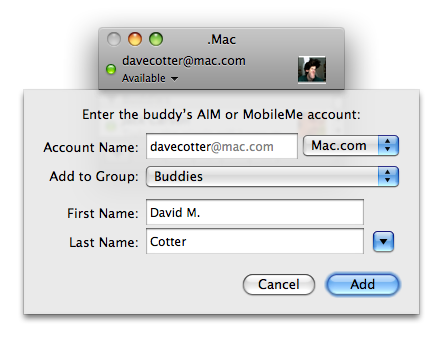
- now you should see me in your list. Double click my name, then type me a message and press Return.
If you do NOT have an iChat / Messages account
If you don't have the above, you can temporarily use my own iChat server. Only use it to talk to me, and log out when we're done, so someone else can use the line.
- run iChat in your Applications folder or in the Dock
- It may ask you for settings automatically (first time run). If it's not first time do these steps:
- Go to iChat->Preferences (in the menu bar)
- Select the "Accounts" tab
- Press the "+" button in the lower left
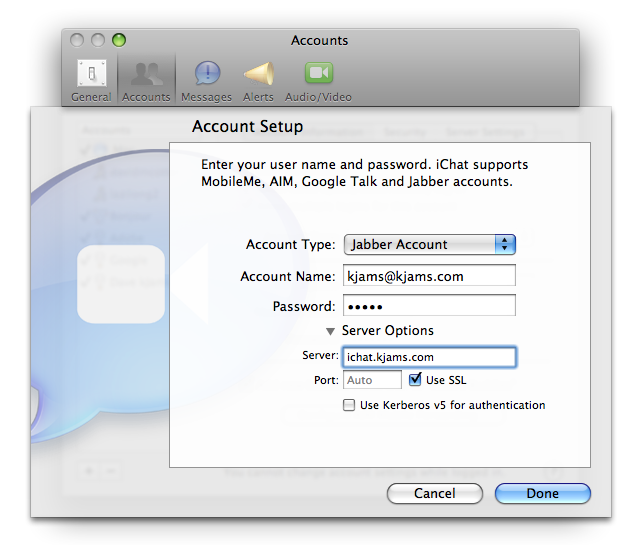
- enter this info:
- if it asks what type of message account, pick "Other message account"
- Account Type: Jabber
- Account: kjams@kjams.com
- Password (lower case): kjams
- If there is a little triangle next to "server options", click it so it is twirled open
- in the server, type "ichat.kjams.com"
- check the box "Use SSL", Looks something like this:
- click Done
- at this point it may ask you about a Certificate. If so, skip to the next step (see step 9 below)
- do you see a little window that says "Jabber List" or "kjams@kjams"?
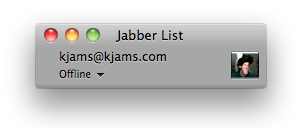
- if not, pick that from the "Window" menu in the menu bar. Note it might say "kjams@kjams" instead of "Jabber List".
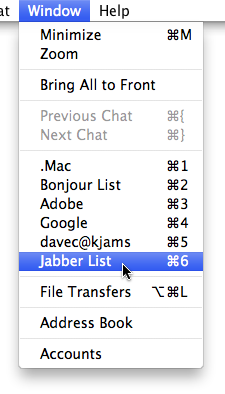
- click on the word "offline" (with the little triangle next to it) and pick "Available"
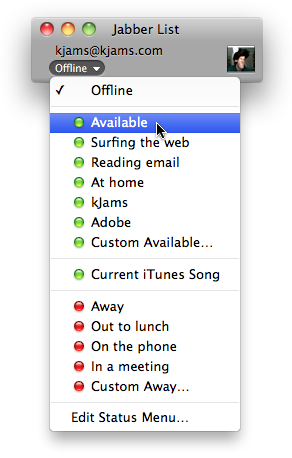
- do you see a little window that says "Jabber List" or "kjams@kjams"?
- If it asks you about a certificate, it's asking if you believe you are really connected to my kJams iChat server and not to some phisher or to some other fraudulent scheme. Since your web browser has no record of my certificate, it will ask you to question the certificate's authenticity.
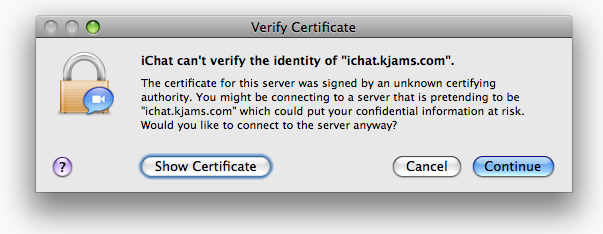
- Presuming you believe this is actually me, click the "Show Certificate" button
- Check the box that says Always trust "Default" when connecting to "ichat.kjams.com"
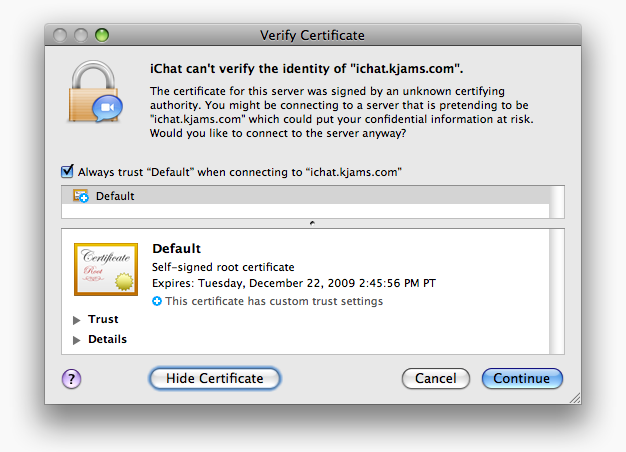
- then click "Continue"
- You should now see me "David M. Cotter" with my icon with the awesome big hair. if you see me listed under "Offline", just send me an email and tell me to get online
- Go to the "Video" menu (or perhaps it says "Audio"), and look for "Audio Chat Enabled". If it HAS a check next to it, pick it so that it does NOT have a check next to it
- If you see me under "Buddies" with a little green light, then double click me, and type a message!
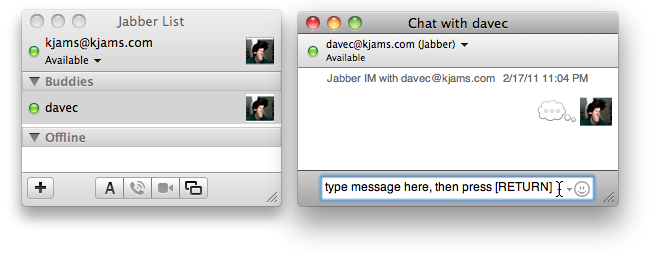
- Remember when you're done talking to me, don't stay logged in.