ShowScreens: Difference between revisions
No edit summary |
|||
| (29 intermediate revisions by 3 users not shown) | |||
| Line 1: | Line 1: | ||
During a live show, it is important to be able to communicate with the audience. Traditionally, this has meant that a good KJ would spend a lot of time on the microphone, making announcements, | During a live show, it is important to be able to communicate with the audience. Traditionally, this has meant that a good KJ would spend a lot of time on the microphone, making announcements, announcing the lineup of the rotation, etc.. While it is still important for a KJ to build rapport with the audience over the microphone, kJams allows you to do much more to get your announcements across. Most obvious is the "Who's Up Next" rotation screen that you can opt to display between songs, or any time by using the "Video->Toggle Rotation" command. In the Pro version, with ShowScreens there are many more options to display a message to your audience (even if they're out of earshot, on a back smoking patio (if there's a video screen out there), or sitting at the bar ignoring you (but otherwise staring at the screen)). | ||
== | ==Messenger== | ||
One option is to simply scroll some text along the bottom of the Video screen. To do this, select Video from the menu bar, option Messenger Message. Type your text in the dialog box, click OK, and watch what you just typed scroll across the bottom of your Video screen. You can use this to announce Last Call, drink specials, or anything else you'd like - without interrupting the singer or the flow of your show. | One option is to simply scroll some text along the bottom of the Video screen. To do this, select Video from the menu bar, option Messenger Message. Type your text in the dialog box, click OK, and watch what you just typed scroll across the bottom of your Video screen. You can use this to announce Last Call, drink specials, or anything else you'd like - without interrupting the singer or the flow of your show. | ||
A specialized form of this type of messaging is scrolling the current Rotation along the bottom of the screen. To do this, select Video from the menu bar, option Messenger Rotation. This will scroll the next three singers/songs across the bottom of your Video screen. | A specialized form of this type of messaging is scrolling the current Rotation along the bottom of the screen. To do this, select Video from the menu bar, option Messenger Rotation. This will scroll the next three singers/songs across the bottom of your Video screen. [[Messenger|More Info Here]].<br> | ||
<small>Note: For any of these messages to work, the option "Show Messages in Video Window" must be enabled in your Preferences.</small> | <small>Note: For any of these messages to work, the option "Show Messages in Video Window" must be enabled in your Preferences.</small> | ||
== ShowScreens == | |||
So the deal is, in the Video menu, there's a list of screens you can show. Also, using [[Producer]], you can create your own screens or modify the existing ones. The main ShowScreens you will want to be familiar with are the '''Message''' and '''Rotation''' screens, as these are the actual templates used by kJams to display Screen Messages and the "Who's Up Next" rotation screen between each song. You also may find yourself using the iJams, Tip Your Waitress, and Next Singer screens quite a bit during shows. Note that each ShowScreen included is just a starting point for what you could envision for visual display between (or during) songs. Some are just sample pieces that you will use to build customized ShowScreens. If you find you want to hide some of these options that you won't be using during your show, you can find the actual files in your user Library/Preferences/kJams/Producer Templates, and prefix a tilde (~) to any ShowScreen you want hidden. (ex. ~Big Text.xml) | |||
To learn how to create your own, go to the [[Producer/Tutorials]] page, then watch the videos called: | |||
# Composing Text and Pictures, and Fading to Black | |||
# Creating and Editing Comp Templates | |||
# Intro and Outro, and Rotation Templates | |||
In addition to the song meta templates (described in the [[Xattr]] page), you can also use [venu] to substitute the current venue name, or [SNGR] to substitute the current singer. | |||
=== | === "ShowScreen Messages" or "Producer Templates" === | ||
Similar to | Under the Video menu, you can select "ShowScreen Message…". Type your message in the dialog box, click '''Show''', and watch your message appear in the “Message” ShowScreen template. It will stay on the screen until you clear it, either by showing another ShowScreen, toggling the Rotation, starting a song, or selecting "Hide ShowScreen" from the Video menu. When you use the "Show" button, he message is not saved, so each time you want to display a message, you will need to re-type it in the dialog box. | ||
=== Custom Screen Message (for "Later") === | |||
Similar to "ShowScreen Message", you can opt to enter custom a message for later. After entering your message in the dialog, press the "Later" button. Nothing happens until you select the from the Video Menu either "Display Recent ShowScreen" or a particular show screen that shows the custom message. The message you typed is saved, so for example if you wanted to announce a drink special between the next three songs, all you would do is type in your message and press "Later", wait for the song to end, and select the "Drink Specials" showscreen. Then, after the next song plays and ends, you would just need to re-select the "Drink Specials" again for your same message to re-appear. As this system works separately from the "show it now" option, even entering a regular ShowScreen Message (and pressing the "Show" button) will not change your saved "Later" message. | |||
===QR Code Messages=== | |||
You can show a QR Code for the [[Server|web server]] IP address, that way Android users can just snap a pic of the screen and go to your Server. Just pick "QR Code-Web Server" from the Video menu | |||
You can also show a custom message. Enter a custom message "for later", then pick "QR Code-Message" from the Video menu. | |||
==Examples== | |||
{|border="1" | |||
| https://karaoke.kjams.com/screenshots/tip_waitress.png | |||
| https://karaoke.kjams.com/screenshots/drink_specials.png | |||
|- | |||
| align="center" | '''Tip Your Waitress | |||
| align="center" | '''Customizable "Drink Specials"''' | |||
|- | |||
| | |||
| | |||
|- | |||
| https://karaoke.kjams.com/screenshots/vid_rotation.png | |||
| https://karaoke.kjams.com/screenshots/UltraStar.png | |||
|- | |||
| align="center" | '''Rotation''' | |||
| align="center" | '''Intro Screen''' | |||
|} | |||
Click this link to see a bunch [https://karaoke.kjams.com/forum/viewtopic.php?f=1&t=1350 More ShowScreens] | |||
== Advanced - Custom ShowScreens For Messaging: == | == Advanced - Custom ShowScreens For Messaging: == | ||
Once you master using [[Producer/Tutorials]] to create custom [[Video#ShowScreens]], creating your own Custom Screen Message ShowScreens is easy - just use the [msg] meta tag to insert the contents of your Custom Screen Message into any Producer template you would like. You could easily have a different Custom Message screen for each [[ | Once you master using the [[Producer/Tutorials|Producer Tutorials]] to create custom [[Video#ShowScreens|ShowScreens]], creating your own Custom Screen Message ShowScreens is easy - just use the [msg ] meta tag (note the trailing space) to insert the contents of your Custom Screen Message into any Producer template you would like. You could easily have a different Custom Message screen for each of your [[Venues]], complete with the Venue's logo. You could add enough meta data to the ShowScreen to also include the Next Singer along with your Custom Message. The [[Producer]] plug-in is free to be used in this way, so go ahead and try it out! <small>(tip: make a duplicate of a song and rename it to something memorable (like 'template sample'), then use this duplicated song to practice making ShowScreens with - Producer requires a song to act on, although you are only creating ShowScreen templates, not timed and animated lyric files.)</small> | ||
==Changing the background picture of the Rotation Showscreen== | |||
[[Rotation#Changing_the_Background_Picture_of_the_Rotation_ShowScreen|See separate section]]. | |||
==Changing the background picture of the "Custom Picture" ShowsSreen== | |||
# run kJams | |||
# in the menu bar, pick Help->reveal preferences | |||
# quit kJams | |||
# in the prefs folder that is revealed, go into the "Producer Templates" folder | |||
# in there, find the "Pix" folder | |||
# Find the picture "custom_picture.png", as above | |||
# edit the picture to your liking (using Photoshop or whatever you use to edit pictures) | |||
# save it back in place (specifically, the name of the file must be "custom_picture.png", and it must have the same dimensions) | |||
# run kjams | |||
# pick the "Custom Picture" showscreen from the Video menu | |||
--> now your picture shows up! | |||
If you want a different picture PER VENUE: | |||
# Find the "Pix" folder as above | |||
# copy it into each venue folder, so it looks like this:<br><pre>/Users/<you>/Music/kJams/kJams Library/Venues/<each venue>/pix/custom_picture.png</pre> | |||
# edit the picture that is now inside that venue folder | |||
--> each venue has it's own pic! | |||
==Meta Tags== | |||
You can use meta tags in a Rotation showscreen to show meta data for each song and singer. [[Rotation#Meta_Tags|Click here]] to learn how. | |||
Latest revision as of 19:50, 3 May 2022
During a live show, it is important to be able to communicate with the audience. Traditionally, this has meant that a good KJ would spend a lot of time on the microphone, making announcements, announcing the lineup of the rotation, etc.. While it is still important for a KJ to build rapport with the audience over the microphone, kJams allows you to do much more to get your announcements across. Most obvious is the "Who's Up Next" rotation screen that you can opt to display between songs, or any time by using the "Video->Toggle Rotation" command. In the Pro version, with ShowScreens there are many more options to display a message to your audience (even if they're out of earshot, on a back smoking patio (if there's a video screen out there), or sitting at the bar ignoring you (but otherwise staring at the screen)).
Messenger
One option is to simply scroll some text along the bottom of the Video screen. To do this, select Video from the menu bar, option Messenger Message. Type your text in the dialog box, click OK, and watch what you just typed scroll across the bottom of your Video screen. You can use this to announce Last Call, drink specials, or anything else you'd like - without interrupting the singer or the flow of your show.
A specialized form of this type of messaging is scrolling the current Rotation along the bottom of the screen. To do this, select Video from the menu bar, option Messenger Rotation. This will scroll the next three singers/songs across the bottom of your Video screen. More Info Here.
Note: For any of these messages to work, the option "Show Messages in Video Window" must be enabled in your Preferences.
ShowScreens
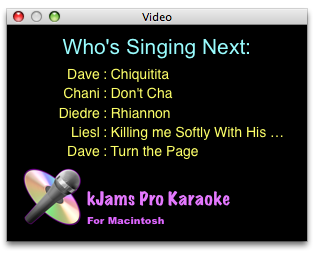
So the deal is, in the Video menu, there's a list of screens you can show. Also, using Producer, you can create your own screens or modify the existing ones. The main ShowScreens you will want to be familiar with are the Message and Rotation screens, as these are the actual templates used by kJams to display Screen Messages and the "Who's Up Next" rotation screen between each song. You also may find yourself using the iJams, Tip Your Waitress, and Next Singer screens quite a bit during shows. Note that each ShowScreen included is just a starting point for what you could envision for visual display between (or during) songs. Some are just sample pieces that you will use to build customized ShowScreens. If you find you want to hide some of these options that you won't be using during your show, you can find the actual files in your user Library/Preferences/kJams/Producer Templates, and prefix a tilde (~) to any ShowScreen you want hidden. (ex. ~Big Text.xml)
To learn how to create your own, go to the Producer/Tutorials page, then watch the videos called:
- Composing Text and Pictures, and Fading to Black
- Creating and Editing Comp Templates
- Intro and Outro, and Rotation Templates
In addition to the song meta templates (described in the Xattr page), you can also use [venu] to substitute the current venue name, or [SNGR] to substitute the current singer.
"ShowScreen Messages" or "Producer Templates"
Under the Video menu, you can select "ShowScreen Message…". Type your message in the dialog box, click Show, and watch your message appear in the “Message” ShowScreen template. It will stay on the screen until you clear it, either by showing another ShowScreen, toggling the Rotation, starting a song, or selecting "Hide ShowScreen" from the Video menu. When you use the "Show" button, he message is not saved, so each time you want to display a message, you will need to re-type it in the dialog box.
Custom Screen Message (for "Later")
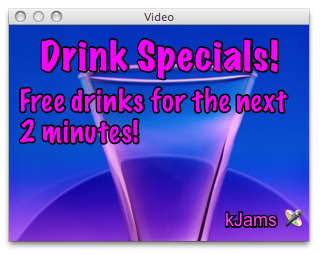
Similar to "ShowScreen Message", you can opt to enter custom a message for later. After entering your message in the dialog, press the "Later" button. Nothing happens until you select the from the Video Menu either "Display Recent ShowScreen" or a particular show screen that shows the custom message. The message you typed is saved, so for example if you wanted to announce a drink special between the next three songs, all you would do is type in your message and press "Later", wait for the song to end, and select the "Drink Specials" showscreen. Then, after the next song plays and ends, you would just need to re-select the "Drink Specials" again for your same message to re-appear. As this system works separately from the "show it now" option, even entering a regular ShowScreen Message (and pressing the "Show" button) will not change your saved "Later" message.
QR Code Messages
You can show a QR Code for the web server IP address, that way Android users can just snap a pic of the screen and go to your Server. Just pick "QR Code-Web Server" from the Video menu
You can also show a custom message. Enter a custom message "for later", then pick "QR Code-Message" from the Video menu.
Examples
|
|
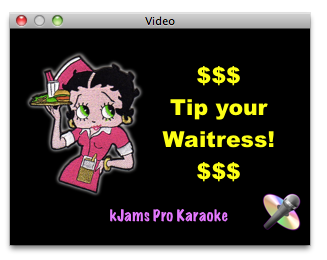
| Tip Your Waitress | Customizable "Drink Specials" |
|
|
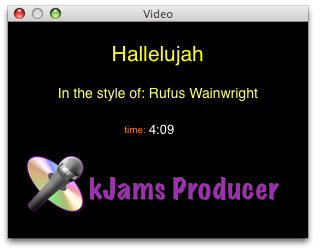
| Rotation | Intro Screen |
Click this link to see a bunch More ShowScreens
Advanced - Custom ShowScreens For Messaging:
Once you master using the Producer Tutorials to create custom ShowScreens, creating your own Custom Screen Message ShowScreens is easy - just use the [msg ] meta tag (note the trailing space) to insert the contents of your Custom Screen Message into any Producer template you would like. You could easily have a different Custom Message screen for each of your Venues, complete with the Venue's logo. You could add enough meta data to the ShowScreen to also include the Next Singer along with your Custom Message. The Producer plug-in is free to be used in this way, so go ahead and try it out! (tip: make a duplicate of a song and rename it to something memorable (like 'template sample'), then use this duplicated song to practice making ShowScreens with - Producer requires a song to act on, although you are only creating ShowScreen templates, not timed and animated lyric files.)
Changing the background picture of the Rotation Showscreen
Changing the background picture of the "Custom Picture" ShowsSreen
- run kJams
- in the menu bar, pick Help->reveal preferences
- quit kJams
- in the prefs folder that is revealed, go into the "Producer Templates" folder
- in there, find the "Pix" folder
- Find the picture "custom_picture.png", as above
- edit the picture to your liking (using Photoshop or whatever you use to edit pictures)
- save it back in place (specifically, the name of the file must be "custom_picture.png", and it must have the same dimensions)
- run kjams
- pick the "Custom Picture" showscreen from the Video menu
--> now your picture shows up!
If you want a different picture PER VENUE:
- Find the "Pix" folder as above
- copy it into each venue folder, so it looks like this:
/Users/<you>/Music/kJams/kJams Library/Venues/<each venue>/pix/custom_picture.png
- edit the picture that is now inside that venue folder
--> each venue has it's own pic!
Meta Tags
You can use meta tags in a Rotation showscreen to show meta data for each song and singer. Click here to learn how.