Video: Difference between revisions
Jump to navigation
Jump to search
No edit summary |
No edit summary |
||
| (13 intermediate revisions by 2 users not shown) | |||
| Line 1: | Line 1: | ||
https://karaoke.kjams.com/screenshots/graphics.gif | |||
* you can resize the window | * you can resize the window | ||
* you can put it on | * you can put it on an [[External_Monitor_%28Mac%29|External Monitor]] or TV | ||
* you can make it full screen (command zero, or double click it) | * you can make it full screen (command zero, or double click it) | ||
* | * Pro Only: You can see the video in three places at once: [[Artwork|Artwork Panel]], and "Video Window 2" (Window menu) | ||
* Will play | * Will play MPEG4 (h.264) and Audio+G (eg: MP3+G), possibly other formats, YMMV | ||
== | * You can show your web cam video under the lyrics screen! (Video->Web Cam Video Underlay) | ||
https://karaoke.kjams.com/screenshots/video/transparent.png | |||
* You can also make the video window "Transparent", so you can put pictures or even movies behind the video window. There's even [[Code/new_Video_Backdrop_Generator|a script to automate it]]! | |||
==Using iTunes for Video Underlay== | |||
# on Mac: apple->system preferences->mission control | |||
## turn OFF "displays have separate spaces" (this will get rid of the menu bar on the TV) | |||
# set your TV monitor's "desktop picture" to pure black | |||
# open a video in iTunes, right click it and pick "[show / play video] in separate window" | |||
# drag the video window over to the TV | |||
# mac: hold down the option key and click the green "zoom" button | |||
## this will "full screen" it WITHOUT making it totally take over the display (which would otherwise lock out all other apps from using it) | |||
# windows: right click and pick "play video full screen" | |||
# NOW you can move the kJams Video window over it, and go full screen with that | |||
# Optional: in kJams->prefs->General, turn ON "Hide Video Window when Paused" | |||
## this will cause the video window to disappear when paused, or when there is no song playing | |||
# Optional: in kJams->prefs->General, turn ON "Transparent Video" | |||
## this makes the background of karaoke songs get transparent, so you can see the video behind it! | |||
# when it hides (or gets transparent) you'll see the iTunes video window underneath it | |||
==Showing Messages== | |||
Both Lite and Pro users can use the [[Messenger]] to show messages in the Video window.<br> | |||
Pro users can also use [[ShowScreens]]<br> | |||
Latest revision as of 20:47, 16 December 2021
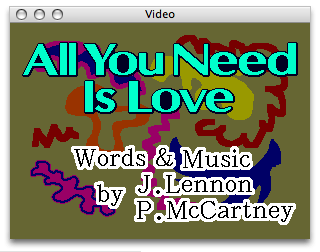
- you can resize the window
- you can put it on an External Monitor or TV
- you can make it full screen (command zero, or double click it)
- Pro Only: You can see the video in three places at once: Artwork Panel, and "Video Window 2" (Window menu)
- Will play MPEG4 (h.264) and Audio+G (eg: MP3+G), possibly other formats, YMMV
- You can show your web cam video under the lyrics screen! (Video->Web Cam Video Underlay)
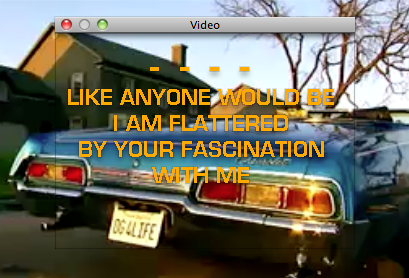
- You can also make the video window "Transparent", so you can put pictures or even movies behind the video window. There's even a script to automate it!
Using iTunes for Video Underlay
- on Mac: apple->system preferences->mission control
- turn OFF "displays have separate spaces" (this will get rid of the menu bar on the TV)
- set your TV monitor's "desktop picture" to pure black
- open a video in iTunes, right click it and pick "[show / play video] in separate window"
- drag the video window over to the TV
- mac: hold down the option key and click the green "zoom" button
- this will "full screen" it WITHOUT making it totally take over the display (which would otherwise lock out all other apps from using it)
- windows: right click and pick "play video full screen"
- NOW you can move the kJams Video window over it, and go full screen with that
- Optional: in kJams->prefs->General, turn ON "Hide Video Window when Paused"
- this will cause the video window to disappear when paused, or when there is no song playing
- Optional: in kJams->prefs->General, turn ON "Transparent Video"
- this makes the background of karaoke songs get transparent, so you can see the video behind it!
- when it hides (or gets transparent) you'll see the iTunes video window underneath it
Showing Messages
Both Lite and Pro users can use the Messenger to show messages in the Video window.
Pro users can also use ShowScreens