CFLite old: Difference between revisions
Jump to navigation
Jump to search
No edit summary |
m Dave moved page CFLite to CFLite old without leaving a redirect |
||
| (28 intermediate revisions by 2 users not shown) | |||
| Line 1: | Line 1: | ||
This page documents how to build CFLite 476. | This page documents how to build CFLite 476.17 such that you can then link to it in your Windows projects, and then blissfully use CFStrings, CFDictionaries, and all the other CFGoodness that CFLite will bring you. For a "quick and dirty" way to just start *using* CFLite on windows (without having to compile it), [[Code/CFLite|click here]]. | ||
'''Huge credit''' for this project goes to '''<email>benjamin.coder.smith@gmail.com|Ben Smith</email>'''. This guy knows what he's doing and is well worth hiring. Here is the [https://www.freelancer.com/projects/PHP-C-Programming/Get-CFLite-running-windows.html original project page]. | |||
On Windows XP or Windows Vista:<br> | On Windows XP or Windows Vista:<br> | ||
* First, install the built binary by following [[Code/CFLite|The "Easy" Way instructions]]. | |||
* Download [http://download.icu-project.org/files/icu4c/4.0/icu4c-4_0-Win32-msvc8.zip ICU4C] | * Download [http://download.icu-project.org/files/icu4c/4.0/icu4c-4_0-Win32-msvc8.zip ICU4C] | ||
* Download [http://www.opensource.apple.com/darwinsource/tarballs/apsl/CF-476. | * Download [http://www.opensource.apple.com/darwinsource/tarballs/apsl/CF-476.17.tar.gz CFLite 476.17]. | ||
* Download <googa>http://kjams.com/cflite/downloads/include.zip|include.zip|/downloads/CFLiteIncludes</googa> (contains /usr/include/*, which includes AvailabilityMacros, AssertMacros and TargetConditionals from 10.5) | |||
* Download | * Download [http://kjams.com/cflite/downloads/patch_and_flsl.zip patch_and_flsl.zip] (contains the patcher and the flsl.c file) | ||
* | * Install [[CFLite/Cygwin|Cygwin]]. Follow the link for detailed instructions. | ||
* Install [[CFLite/Cygwin|Cygwin]] | |||
* Arrange the source files. This layout is the format that the patch understands. | * Arrange the source files. This layout is the format that the patch understands. | ||
** Extract | ** Extract CFLite to a place of your choosing. You'll need to get to the directory easily from cygwin, so make it somewhere simple. It will unzip into a folder called "CF-476.13". | ||
** Open the | ** Rename this folder to be "CFLite" | ||
** The patch does not yet cover | ** Open the "CFLite" folder. | ||
** Delete the following files: The patch does not yet cover these source files and their contained features. The build process for CFLite is... unique, you'll want to move or remove these files. (A suitable Makefile would be superior) '''Update:''' a nice user wrote [http://kjams.com/cflite/downloads/hideUnsupported.sh.zip a shell script] for this, i haven't tried it but feel free. | |||
CFConcreteStreams.c | |||
CFMachPort.c | |||
CFMessagePort.c | |||
CFPlugIn_Instance.c | |||
CFRunLoop.c | |||
CFRunLoopPriv.h | |||
CFSocket.c | |||
CFSocketStream.c | |||
CFStream.c | |||
CFStringDefaultEncoding.h | |||
CFUserNotification.c | |||
CFWindowsMessageQueue.c | |||
CFWindowsMessageQueue.h | |||
** | ** You may also delete these files, as they are already installed (from step 1): | ||
CFCharacterSetBitmaps.bitmap | |||
** | CFUniCharPropertyDatabase.data | ||
CFUnicodeData-B.mapping | |||
CFUnicodeData-L.mapping | |||
** | ** Unzip '''patch_and_flsl.zip''' and place it's 2 files into your CFLite folder. This will place your patcher and the flsl.c file both in that directory. | ||
** Unzip '''Include.zip''' into your CFLite folder (it will be in it's own folder) | |||
** Unzip the '''ICU4C''' package into the Include folder that was just created. It should extract into a folder called '''icu'''. | |||
** | |||
Your include folder should look like this when you're finished. (Ignore the fact that the path does not contain the word "CF-476.13", yours should)<br> | |||
http://kjams.com/cflite/screenshots/cfbuild_include_folder_screenshot.png | |||
* | * at your Cygwin command prompt, navigate IN to the CFLite folder (so you're seeing it's contents) | ||
** Cygwin maps disk drive letters to a mount point in the folder /cygdrive/. For example; /cygdrive/c/ is equivalent to C:\, and /cygdrive/m/ would be M:\ at a DOS prompt or under My Computer. | ** Note: Cygwin will execute regular dos commands like dir, copy, del, or you can use their unix equivalents ls, cp, rm. Change directories with the cd command. | ||
** Note: Cygwin maps disk drive letters to a mount point in the folder /cygdrive/. For example; /cygdrive/c/ is equivalent to C:\, and /cygdrive/m/ would be M:\ at a DOS prompt or under My Computer. | |||
* Apply the patch. The patch is against CFLite '''476.17'', patching will fail with any other version. | |||
** Use this patch command from inside the CFLite directory. Note that is a "Number One" after the '''-p''', it is not a "Letter Ell". | |||
patch -p1 < cf_windows.patch | |||
* Now make the binary | |||
make | |||
** you should get NO warnings or errors. | |||
** Your built .dll and .lib files will be installed into your \WINDOWS\CoreFoundation\ directory after being built. | |||
** Your modified CF headers will be NOT copied into \WINDOWS\CoreFoundation\CoreFoundation\ unless you modify the "BuildCFLite" text file, and un-comment the relevant section (toward the end) | |||
==Using CFLite in your own programs== | |||
* What development Environment are you using? | |||
** GCC | |||
* | |||
** | |||
*** You will need to define the preprocessor directive __WIN32__ in your build. | *** You will need to define the preprocessor directive __WIN32__ in your build. | ||
*** Works just like using a DLL in other GCC apps. | *** Works just like using a DLL in other GCC apps. | ||
*** Make sure you use the -mno-cygwin flag to prevent gcc from linking with the cygwin dll and C runtime. Link with -lmsvcrt instead. | *** Make sure you use the -mno-cygwin flag to prevent gcc from linking with the cygwin dll and C runtime. Link with -lmsvcrt instead. | ||
** Visual Studio 2005 | ** Visual Studio 2005 | ||
*** You | *** You followed the original instructions for "the easy way" right? | ||
*** | ** CodeWarrior | ||
* | *** add the dll to your project | ||
*** add the 2 include paths | |||
*** you can't use the functions "CFAbsoluteTimeGetGregorianDate" and "CFAbsoluteTimeGetDifferenceAsGregorianUnits" because they return structs. Instead, use "CFAbsoluteTimeGetGregorianDate_MW" and "CFAbsoluteTimeGetDifferenceAsGregorianUnits_MW" respectively. See CFTest (below) for an example. | |||
* Download the <googa>http://kjams.com/cflite/downloads/CFTest.zip|CFTest|/downloads/CFTest</googa> source files. This is the test harness sample project and includes some extremely high win factor utilities | |||
** | ** open it up and go to the "win_vs" folder for Visual Studio project, or "win_cw" for the CodeWarrior project | ||
** the "console.txt" is the example output that it '''should''' look like in your console or log file | |||
** the "console.txt" is the example output that it '''should''' look like in your console | |||
Latest revision as of 17:27, 19 July 2017
This page documents how to build CFLite 476.17 such that you can then link to it in your Windows projects, and then blissfully use CFStrings, CFDictionaries, and all the other CFGoodness that CFLite will bring you. For a "quick and dirty" way to just start *using* CFLite on windows (without having to compile it), click here.
Huge credit for this project goes to <email>benjamin.coder.smith@gmail.com|Ben Smith</email>. This guy knows what he's doing and is well worth hiring. Here is the original project page.
On Windows XP or Windows Vista:
- First, install the built binary by following The "Easy" Way instructions.
- Download ICU4C
- Download CFLite 476.17.
- Download include.zip (contains /usr/include/*, which includes AvailabilityMacros, AssertMacros and TargetConditionals from 10.5)
- Download patch_and_flsl.zip (contains the patcher and the flsl.c file)
- Install Cygwin. Follow the link for detailed instructions.
- Arrange the source files. This layout is the format that the patch understands.
- Extract CFLite to a place of your choosing. You'll need to get to the directory easily from cygwin, so make it somewhere simple. It will unzip into a folder called "CF-476.13".
- Rename this folder to be "CFLite"
- Open the "CFLite" folder.
- Delete the following files: The patch does not yet cover these source files and their contained features. The build process for CFLite is... unique, you'll want to move or remove these files. (A suitable Makefile would be superior) Update: a nice user wrote a shell script for this, i haven't tried it but feel free.
CFConcreteStreams.c
CFMachPort.c
CFMessagePort.c
CFPlugIn_Instance.c
CFRunLoop.c
CFRunLoopPriv.h
CFSocket.c
CFSocketStream.c
CFStream.c
CFStringDefaultEncoding.h
CFUserNotification.c
CFWindowsMessageQueue.c
CFWindowsMessageQueue.h
- You may also delete these files, as they are already installed (from step 1):
CFCharacterSetBitmaps.bitmap
CFUniCharPropertyDatabase.data
CFUnicodeData-B.mapping
CFUnicodeData-L.mapping
- Unzip patch_and_flsl.zip and place it's 2 files into your CFLite folder. This will place your patcher and the flsl.c file both in that directory.
- Unzip Include.zip into your CFLite folder (it will be in it's own folder)
- Unzip the ICU4C package into the Include folder that was just created. It should extract into a folder called icu.
Your include folder should look like this when you're finished. (Ignore the fact that the path does not contain the word "CF-476.13", yours should)
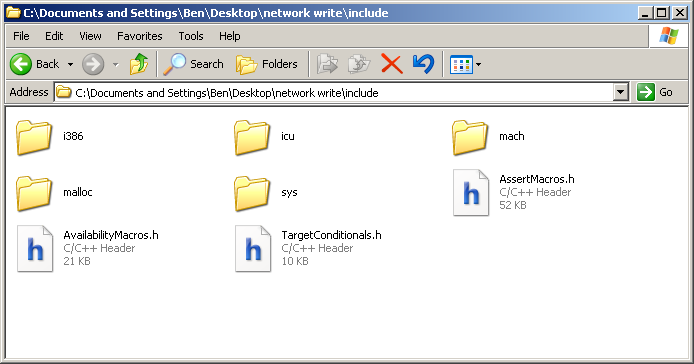
- at your Cygwin command prompt, navigate IN to the CFLite folder (so you're seeing it's contents)
- Note: Cygwin will execute regular dos commands like dir, copy, del, or you can use their unix equivalents ls, cp, rm. Change directories with the cd command.
- Note: Cygwin maps disk drive letters to a mount point in the folder /cygdrive/. For example; /cygdrive/c/ is equivalent to C:\, and /cygdrive/m/ would be M:\ at a DOS prompt or under My Computer.
- Apply the patch. The patch is against CFLite '476.17, patching will fail with any other version.
- Use this patch command from inside the CFLite directory. Note that is a "Number One" after the -p, it is not a "Letter Ell".
patch -p1 < cf_windows.patch
- Now make the binary
make
- you should get NO warnings or errors.
- Your built .dll and .lib files will be installed into your \WINDOWS\CoreFoundation\ directory after being built.
- Your modified CF headers will be NOT copied into \WINDOWS\CoreFoundation\CoreFoundation\ unless you modify the "BuildCFLite" text file, and un-comment the relevant section (toward the end)
Using CFLite in your own programs
- What development Environment are you using?
- GCC
- You will need to define the preprocessor directive __WIN32__ in your build.
- Works just like using a DLL in other GCC apps.
- Make sure you use the -mno-cygwin flag to prevent gcc from linking with the cygwin dll and C runtime. Link with -lmsvcrt instead.
- Visual Studio 2005
- You followed the original instructions for "the easy way" right?
- CodeWarrior
- add the dll to your project
- add the 2 include paths
- you can't use the functions "CFAbsoluteTimeGetGregorianDate" and "CFAbsoluteTimeGetDifferenceAsGregorianUnits" because they return structs. Instead, use "CFAbsoluteTimeGetGregorianDate_MW" and "CFAbsoluteTimeGetDifferenceAsGregorianUnits_MW" respectively. See CFTest (below) for an example.
- GCC
- Download the CFTest source files. This is the test harness sample project and includes some extremely high win factor utilities
- open it up and go to the "win_vs" folder for Visual Studio project, or "win_cw" for the CodeWarrior project
- the "console.txt" is the example output that it should look like in your console or log file