Web Purchase: Difference between revisions
Jump to navigation
Jump to search
Created page with "You have been sent here to purchase kJams or one of its plugins. In another open web browser tab, you should see the purchase window, it looks like this: <img src="https://kar..." |
No edit summary |
||
| (5 intermediate revisions by the same user not shown) | |||
| Line 1: | Line 1: | ||
You have been sent here to purchase kJams or one of its plugins. | You have been sent here to purchase kJams or one of its plugins. | ||
In another open web browser tab, you should see the purchase window, it looks like this: | |||
In another open web browser tab, with the title "'''Paddle Checkout'''", you should see the purchase window, it looks like this:<br> | |||
<img src="https://karaoke.kjams.com/screenshots/web-purchase/web-screen.png" width="884pix"><br> | <img src="https://karaoke.kjams.com/screenshots/web-purchase/web-screen.png" width="884pix"><br> | ||
You can change the language of the user interface by clicking the button (link) at the lower left. | You can change the language of the user interface by clicking the button (link) at the lower left. | ||
Follow these steps: | |||
# | # if you do NOT have a coupon, skip to the next step. Else, [[Web Purchase/Coupon|click here]]. | ||
# | # complete the purchase, then you can close the web browser tab | ||
# | # go to your email and find your serial number (it was automatically sent to you) | ||
# select it, then right click it or go to the Edit menu, and pick Copy | |||
# select it, then | # go back to kJams, you should see a dialog asking you to copy your serial number (which you just did) | ||
# go back to kJams, you should see a dialog asking you to copy your serial number | |||
# Press OK | # Press OK | ||
# the "Enter Serial Number" dialog will come up, with your SN already applied. | # the "Enter Serial Number" dialog will come up, with your SN already applied. | ||
Latest revision as of 22:09, 27 August 2023
You have been sent here to purchase kJams or one of its plugins.
In another open web browser tab, with the title "Paddle Checkout", you should see the purchase window, it looks like this:
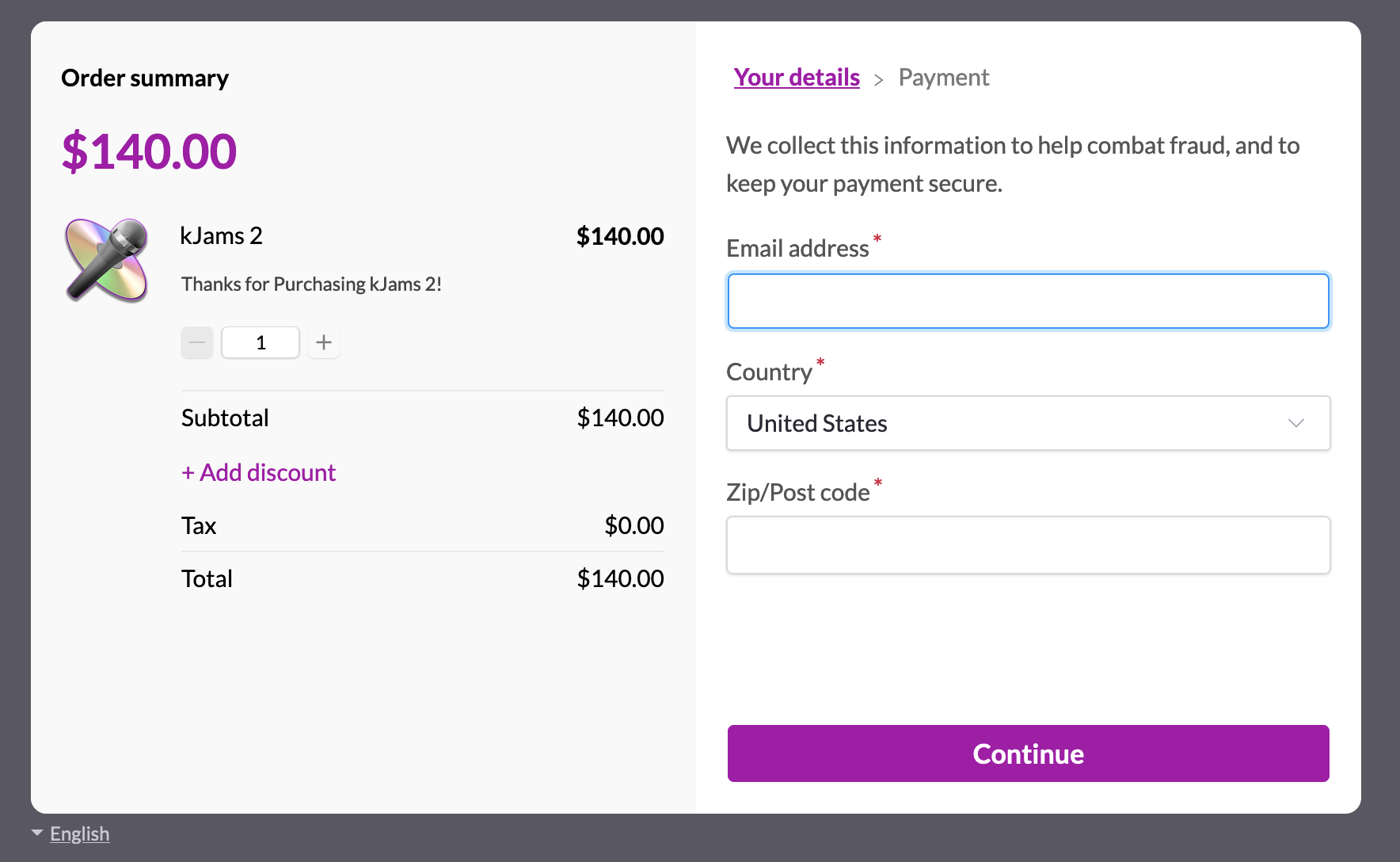
You can change the language of the user interface by clicking the button (link) at the lower left.
Follow these steps:
- if you do NOT have a coupon, skip to the next step. Else, click here.
- complete the purchase, then you can close the web browser tab
- go to your email and find your serial number (it was automatically sent to you)
- select it, then right click it or go to the Edit menu, and pick Copy
- go back to kJams, you should see a dialog asking you to copy your serial number (which you just did)
- Press OK
- the "Enter Serial Number" dialog will come up, with your SN already applied.
- check that it is good, and hit OK!
You should be good to go!
If you have trouble, see this article.