Defender: Difference between revisions
Jump to navigation
Jump to search
No edit summary |
|||
| (9 intermediate revisions by the same user not shown) | |||
| Line 1: | Line 1: | ||
When you run kJams for the first time, '''Windows Defender''' may | __TOC__ | ||
When you run kJams for the first time, '''Windows Defender''' may post a virus notification. Then again it may not, but the problem is still detected. | |||
Here is the | The symptom is that kJams seems to run for a minute, but then it crashes (exits unexpectedly).<br> | ||
https://karaoke.kjams.com/screenshots/defender/shot1.png<br> | |||
==How to Fix this== | |||
Click the banner to get details, you'll see this:<br> | # go to start menu->settings | ||
https://karaoke.kjams.com/screenshots/defender/shot2.png<br> | # go to "Windows Updates" (Win 10) or "Updates & Security" (Win 11) | ||
This is known to be a "[https://en.wikipedia.org/wiki/False_positives_and_false_negatives false positive]". See the word "Severe" there on the right? See the little downward pointing chevron under it? Click that. "User account control" may (or may not) now show a dialog that asks "Do you want to allow this app to make changes to your device", specifying that the app is "Windows Security". If you see this dialog, click "Yes". | # if there are updates to do, do them, else you're done | ||
Now you should see this:<br> | # restart your computer if it asks you to | ||
https://karaoke.kjams.com/screenshots/defender/shot3.png | # go to step 1 and DO IT ALL AGAIN | ||
Now click on the "Actions" button and pick "Allow", like this:<br> | |||
https://karaoke.kjams.com/screenshots/defender/shot4.png<br> | AFTER all the updates have been installed and you've restarted, then try running kJams. If THAT still fails, please notify me because I will have to notify Microsoft that their virus definitions are broken (again!). | ||
Now run kJams again, and you'll have no problems. | |||
But if it fails, then do the below procedure: | |||
==Windows 10== | |||
# Here is the notification you may see:<br>https://karaoke.kjams.com/screenshots/defender/shot1.png<br> | |||
# Click the banner to get details, you'll see this:<br>________________________________________________<br>https://karaoke.kjams.com/screenshots/defender/shot2.png<br>________________________________________________ | |||
# This is known to be a "[https://en.wikipedia.org/wiki/False_positives_and_false_negatives false positive]". See the word "Severe" there on the right? See the little downward pointing chevron under it? Click that. | |||
# "User account control" may (or may not) now show a dialog that asks "Do you want to allow this app to make changes to your device", specifying that the app is "Windows Security". If you see this dialog, click "Yes". | |||
# Now you should see this:<br>https://karaoke.kjams.com/screenshots/defender/shot3.png | |||
# Now click on the "Actions" button and pick "Allow", like this:<br>https://karaoke.kjams.com/screenshots/defender/shot4.png | |||
# Now run kJams again, and you'll have no problems. | |||
==Windows 11== | |||
You may not even SEE a notification on windows 11 | |||
# Here is the notification you may see:<br><img src="http://karaoke.kjams.com/screenshots/defender/11_shot1.png" width="50%"/><br> | |||
# go to the task bar and search for "defender", then open that | |||
# you will see a tile for "Virus & Threat protection", click that<br><img src="http://karaoke.kjams.com/screenshots/defender/11_shot2.png" width="50%"/><br> | |||
# scroll 'till you see "Virus & threat protection settings", click that<br><img src="http://karaoke.kjams.com/screenshots/defender/11_shot3.png" width="50%"/><br> | |||
# scroll down to "exclusions", click "add or remove exclusions"<br><img src="http://karaoke.kjams.com/screenshots/defender/11_shot4.png" width="50%"/><br> | |||
# click the "+ add exclusion" button and pick "folder"<br><img src="http://karaoke.kjams.com/screenshots/defender/11_shot6.png" width="50%"/><br> | |||
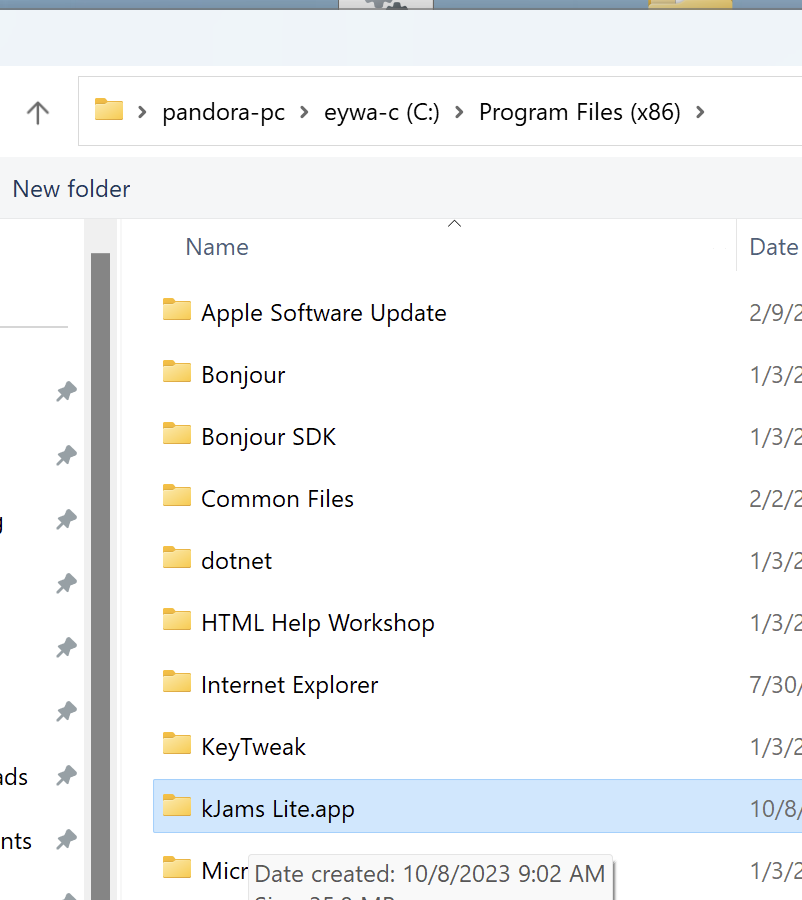
# navigate to "C:\Program Files (x86)", and scroll down to "kJams XYZ.app", and select it (xyz is Lite, Pro, or 2)<br><img src="http://karaoke.kjams.com/screenshots/defender/11_shot7.png" width="50%"/><br> | |||
# then click "select folder" at the bottom right<br><img src="http://karaoke.kjams.com/screenshots/defender/11_shot8.png" width="50%"/><br> | |||
# Now run kJams again, and you'll have no problems. | |||
Latest revision as of 15:08, 25 September 2025
When you run kJams for the first time, Windows Defender may post a virus notification. Then again it may not, but the problem is still detected.
The symptom is that kJams seems to run for a minute, but then it crashes (exits unexpectedly).
How to Fix this
- go to start menu->settings
- go to "Windows Updates" (Win 10) or "Updates & Security" (Win 11)
- if there are updates to do, do them, else you're done
- restart your computer if it asks you to
- go to step 1 and DO IT ALL AGAIN
AFTER all the updates have been installed and you've restarted, then try running kJams. If THAT still fails, please notify me because I will have to notify Microsoft that their virus definitions are broken (again!).
But if it fails, then do the below procedure:
Windows 10
- Here is the notification you may see:
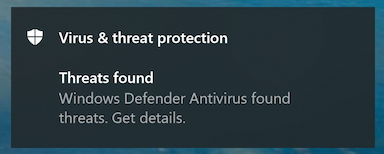
- Click the banner to get details, you'll see this:
________________________________________________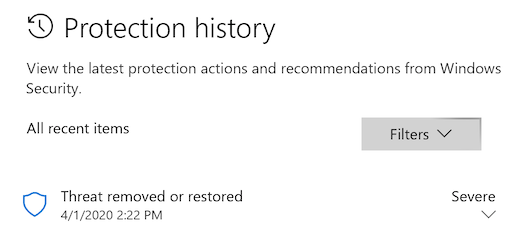
________________________________________________ - This is known to be a "false positive". See the word "Severe" there on the right? See the little downward pointing chevron under it? Click that.
- "User account control" may (or may not) now show a dialog that asks "Do you want to allow this app to make changes to your device", specifying that the app is "Windows Security". If you see this dialog, click "Yes".
- Now you should see this:
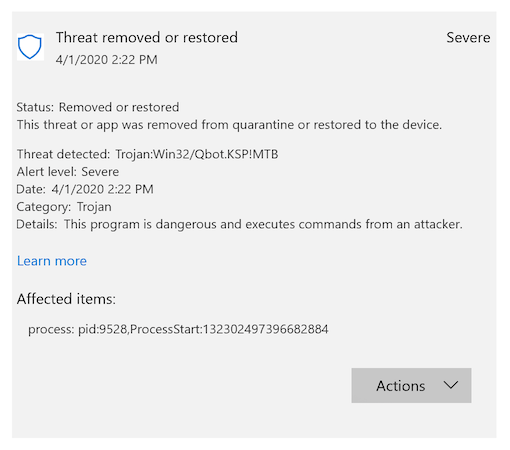
- Now click on the "Actions" button and pick "Allow", like this:
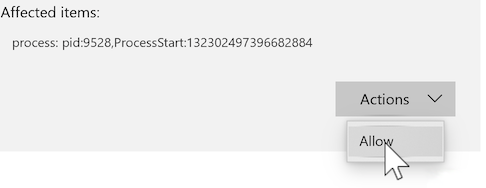
- Now run kJams again, and you'll have no problems.
Windows 11
You may not even SEE a notification on windows 11
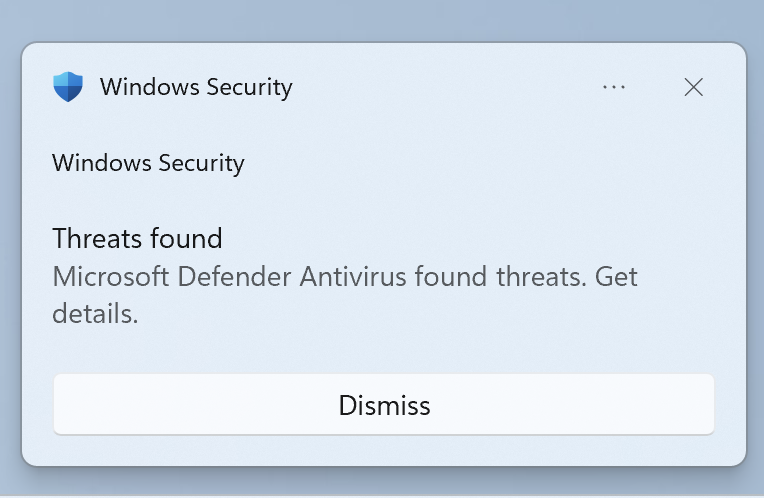
- Here is the notification you may see:
- go to the task bar and search for "defender", then open that
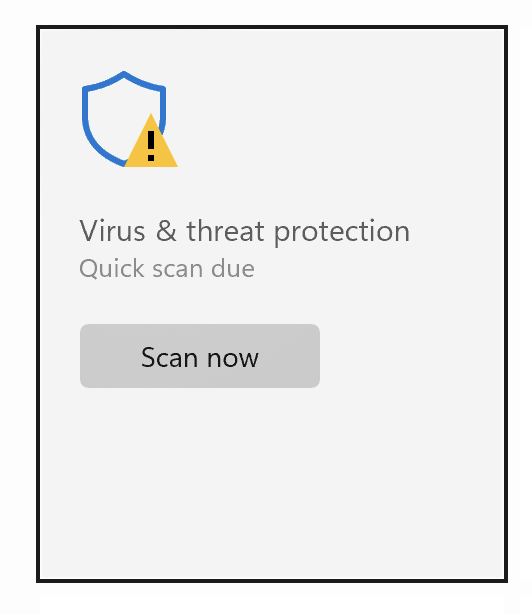
- you will see a tile for "Virus & Threat protection", click that
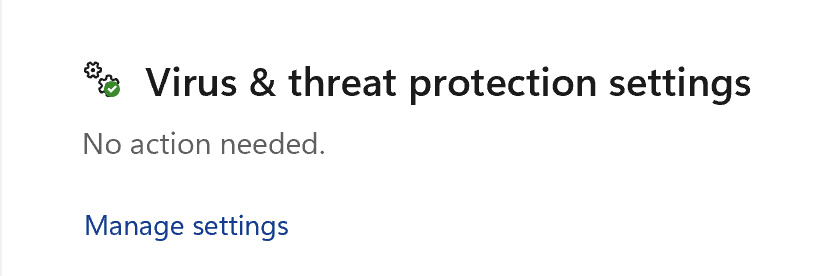
- scroll 'till you see "Virus & threat protection settings", click that
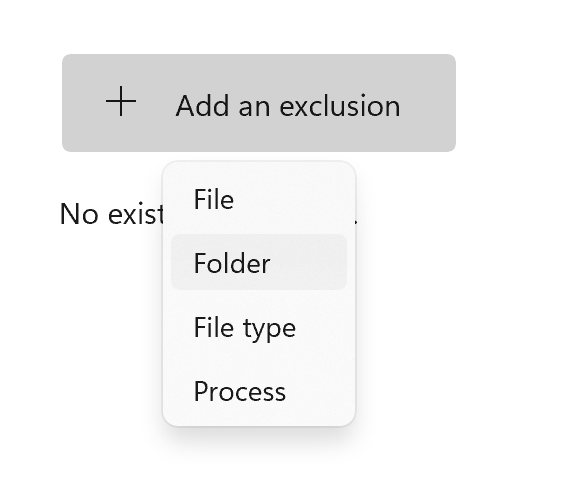
- scroll down to "exclusions", click "add or remove exclusions"

- click the "+ add exclusion" button and pick "folder"
- navigate to "C:\Program Files (x86)", and scroll down to "kJams XYZ.app", and select it (xyz is Lite, Pro, or 2)
- then click "select folder" at the bottom right
- Now run kJams again, and you'll have no problems.