Music Store: Difference between revisions
| (40 intermediate revisions by the same user not shown) | |||
| Line 1: | Line 1: | ||
==Music | ==Music Stores== | ||
<div class="tright"> | <div class="tright"> | ||
{|cellspacing="0" cellpadding="0" | {|cellspacing="0" cellpadding="0" | ||
| | |https://karaoke.kjams.com/resources/drm_mp3_compat.jpg | ||
|- | |- | ||
| | |https://karaoke.kjams.com/resources/drm_unlocked.png | ||
|} | |} | ||
</div> | </div> | ||
Take Note: [[iTunes does not sell karaoke]]! | Take Note: [[iTunes does not sell karaoke]]! | ||
You can purchase individual songs, or you can subscribe to a streaming service (where you can stream any song in their streaming library). | |||
To | To see the available stores, click the "disclosure triangle" (twirly arrow) on the "Music Stores" icon (looks like a little green Shopping Bag). Then click one of the music store icons to see what's in the store. | ||
When viewing a store's playlist, you can search, sort, listen to samples, purchase, or stream. The first time you attempt to purchase or stream, kJams will have you fill out your "One Click Settings" (see below). To purchase songs you can drag them to your library (you can buy multiple songs at once: select them all and drag them to your library). To hear a sample, double clicking a song. | |||
To stream a song, click "stream song" | |||
The music store will ask you to update it once per month. If you decline to update it, it will wait another month to ask you. You can | The music store will ask you to update it's list approximately once per month. If you decline to update it, it will wait another month to ask you. You can update the store any time however, by [[Context Click|context clicking]] it's playlist icon and picking "Reload Music Store". | ||
https://karaoke.kjams.com/screenshots/music_store.png | https://karaoke.kjams.com/screenshots/music_store.png | ||
| Line 23: | Line 23: | ||
==Your Credit Card will be declined once== | ==Your Credit Card will be declined once== | ||
Take note that your credit card will work perhaps the first couple times, but then will be declined. You will have to call your credit card company and tell them to allow microtransactions at the music store vendor (you may have to call once for each store). For more info, see [[Credit Card Declined]]. | Take note that your credit card will work perhaps the first couple times, but then will be declined. You will have to call your credit card company and tell them to allow microtransactions at the music store vendor (you may have to call once for each store). For more info, see [[Credit Card Declined]]. | ||
==Available Stores== | ==Available Stores and Pricing== | ||
{|border="1" | {|border="1" | ||
| '''Store''' | | '''Store''' | ||
| align="center" | '''Home use only''' | | align="center" | '''Home use only''' | ||
| align="center" | '''Public Performance''' | | align="center" | '''Public Performance''' | ||
| align="center" | '''Purchasing''' | |||
| align="center" | '''Streaming''' | |||
| align="center" | '''Total Songs''' | | align="center" | '''Total Songs''' | ||
| align="center" | '''Streaming Songs''' | | align="center" | '''Streaming Songs''' | ||
| Line 33: | Line 35: | ||
| align="center" | '''Subscription / Year''' | | align="center" | '''Subscription / Year''' | ||
|- | |- | ||
| [[Music_Store/ | | [[Music_Store/Party Tyme Pro|Party Tyme Pro Streaming]] | ||
| | |||
| align="center" | ✓ | | align="center" | ✓ | ||
| | | align="center" | | ||
| align="center" | | | align="center" | ✓ | ||
| align="center" | | | align="center" | 44,184 | ||
| align="center" | | | align="center" | 44,184 | ||
| align="center" | | | align="center" | $99 | ||
| align="center" | $1,188 | |||
|- | |- | ||
| [[Music_Store/ | | [[Music_Store/Party_Tyme_Downloads|Party Tyme Downoads]] | ||
| | | align="center" | | ||
| align="center" | ✓ | | align="center" | ✓ | ||
| align="center" | ✓ | | align="center" | ✓ | ||
| align="center" | | | align="center" | | ||
| align="center" | | | align="center" | 13,675 | ||
| align=" | | align="center" | 0 | ||
| align=" | | align="center" | n/a | ||
| align="center" | n/a | |||
|- | |- | ||
| [[Music_Store/KaraokeCloud|KaraokeCloud]] | | [[Music_Store/KaraokeCloud|KaraokeCloud]] | ||
| align="center" | ✓ | | align="center" | ✓ | ||
| | | align="center" | | ||
| align="center" | 7, | | align="center" | ✓ | ||
| align="center" | 7, | | align="center" | ✓ | ||
| align=" | | align="center" | 7,990 | ||
| align=" | | align="center" | 7,990 | ||
| align="center" | $10 | |||
| align="center" | $120 | |||
|- | |- | ||
| [[Music_Store/KaraokeCloud|KaraokeCloud '''PRO''']] | | [[Music_Store/KaraokeCloud|KaraokeCloud '''PRO''']] | ||
| | | align="center" | | ||
| align="center" | ✓ | |||
| align="center" | ✓ | |||
| align="center" | ✓ | | align="center" | ✓ | ||
| align="center" | 7, | | align="center" | 7,990 | ||
| align="center" | 7, | | align="center" | 7,990 | ||
| align=" | | align="center" | $49 | ||
| align=" | | align="center" | $588 | ||
|} | |} | ||
(Note: figures above are accurate as of | (Note: figures above are accurate as of June, 2022)<br> | ||
==How to sign up== | ==How to sign up== | ||
Go to the Menu bar and pick "kJams->Preferences->Stores". From there, you can enter your Credit Card and e-mail settings. Then click "Edit Music Store Settings" and pick the store you want to sign up for. On that screen, you can sign up!<br> | Go to the Menu bar and pick "kJams->Preferences->Stores". From there, you can enter your Credit Card and e-mail settings. Then click "Edit Music Store Settings" and pick the store you want to sign up for. On that screen, you can sign up!<br> | ||
https://karaoke.kjams.com/screenshots/prefs/store.png<br> | <img src="https://karaoke.kjams.com/screenshots/prefs/store.png" width="50%"><br> | ||
* | * '''Include Store songs in "Library"''': This popup lets you decide what types of music store songs you want to show up in the "Library" playlist. When songs are in the "Library", you can search it to find all songs from both your personal set of songs and any you've included from music stores, at the same time. This is handy for streaming songs, but potentially dangerous for purchase-only songs if you have "Confirm All Purchases" turned off and you play a song '''directly from the "Library" playlist'''. For example, you can scroll to any purchasable music store song (in the '''"Library"''') and press play, and it will happily purchase the song for you without asking. And then without asking will purchase the next one, then the one after that etc. etc. But it can be very useful if you are a KJ and you want singers to be able to search for and submit songs that are in your music stores (which you gladly purchase for them). Another danger when playing from the Library is if you have "Pre-cacheing" turned on in the General prefs, this will not only purchase the song you play, but will also purchase and download the NEXT song in the playlist.<br> | ||
https://karaoke.kjams.com/screenshots/prefs/store_kc.png<br> | |||
https://karaoke.kjams.com/screenshots/prefs/store_kdn.png<br> | |||
==Sync Previous Purchases== | ==Sync Previous Purchases== | ||
Stores allow you to re-sync any previously purchased songs. That way you can go to a new computer, sign into that store and sync. To do so, do this: | |||
# ensure your windows are [[Arrangement|properly arranged]] so you can see activities | |||
# now [[Context Click]] the store name, and pick "Sync Previous Purchases" | |||
This will download and install all previously purchased songs. | |||
Alternately, in the Store Preferences panel, just click "Edit Music Store Settings…" then pick the store you want. If you see the button "Sync Previous Purchases", click it. | |||
Note that if a music store song can't be found or is corrupted, you can [[Music_Store/Corrupted|fix it this way]]. | |||
==How to Reload a store== | |||
Stores should automatically re-load for you periodically, depending on your preferences. If you need to reload a store manually, it is easy to do. | |||
# Ensure you can see the Activity window, by [[Arrangement|arranging your windows]] properly | |||
# Find the music store playlist in the list of sources (panel on the left) | |||
# [[Context Click|context click]] on the store, and pick "Reload Music Store" | |||
# Watch the activity window, and wait for activities to complete | |||
# Select the music store playlist again, so you can browse the updated store! | |||
==Always make backups!== | ==Always make backups!== | ||
Latest revision as of 22:30, 24 February 2026
Music Stores

|

|
Take Note: iTunes does not sell karaoke!
You can purchase individual songs, or you can subscribe to a streaming service (where you can stream any song in their streaming library).
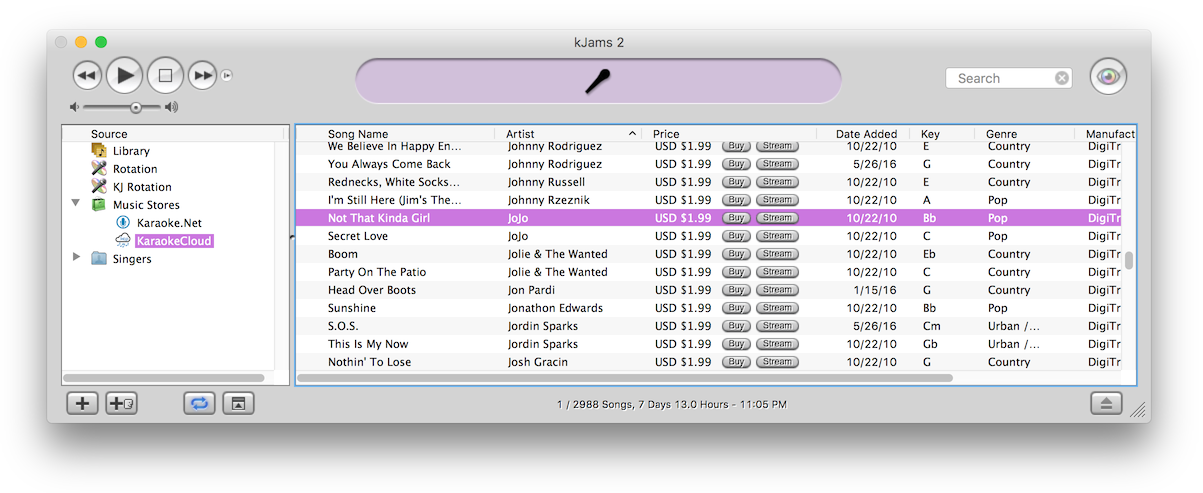
To see the available stores, click the "disclosure triangle" (twirly arrow) on the "Music Stores" icon (looks like a little green Shopping Bag). Then click one of the music store icons to see what's in the store.
When viewing a store's playlist, you can search, sort, listen to samples, purchase, or stream. The first time you attempt to purchase or stream, kJams will have you fill out your "One Click Settings" (see below). To purchase songs you can drag them to your library (you can buy multiple songs at once: select them all and drag them to your library). To hear a sample, double clicking a song.
To stream a song, click "stream song"
The music store will ask you to update it's list approximately once per month. If you decline to update it, it will wait another month to ask you. You can update the store any time however, by context clicking it's playlist icon and picking "Reload Music Store".
Your Credit Card will be declined once
Take note that your credit card will work perhaps the first couple times, but then will be declined. You will have to call your credit card company and tell them to allow microtransactions at the music store vendor (you may have to call once for each store). For more info, see Credit Card Declined.
Available Stores and Pricing
| Store | Home use only | Public Performance | Purchasing | Streaming | Total Songs | Streaming Songs | Subscription / Month | Subscription / Year |
| Party Tyme Pro Streaming | ✓ | ✓ | 44,184 | 44,184 | $99 | $1,188 | ||
| Party Tyme Downoads | ✓ | ✓ | 13,675 | 0 | n/a | n/a | ||
| KaraokeCloud | ✓ | ✓ | ✓ | 7,990 | 7,990 | $10 | $120 | |
| KaraokeCloud PRO | ✓ | ✓ | ✓ | 7,990 | 7,990 | $49 | $588 |
(Note: figures above are accurate as of June, 2022)
How to sign up
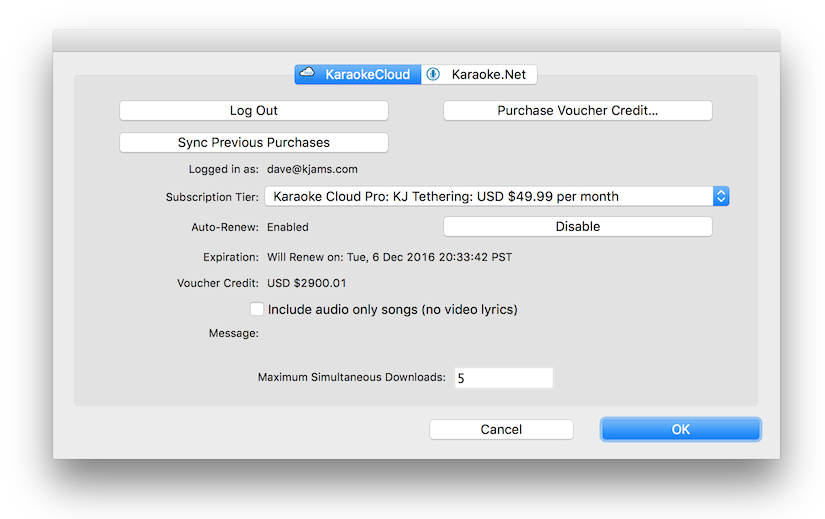
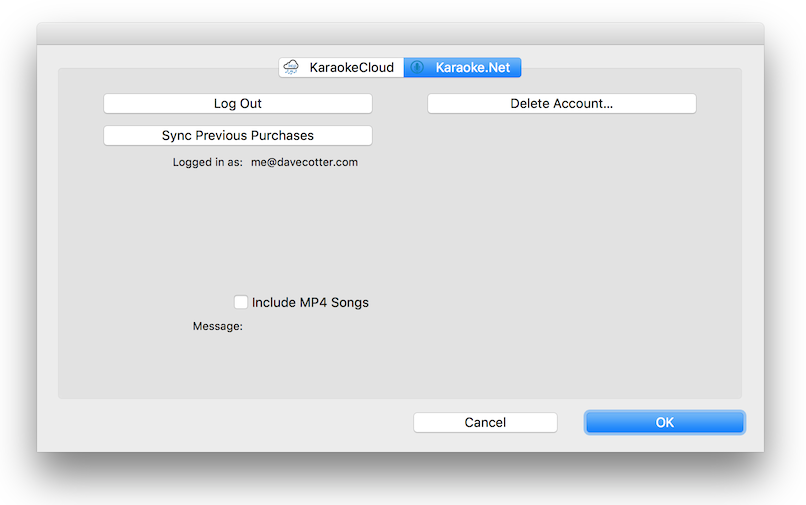
Go to the Menu bar and pick "kJams->Preferences->Stores". From there, you can enter your Credit Card and e-mail settings. Then click "Edit Music Store Settings" and pick the store you want to sign up for. On that screen, you can sign up!
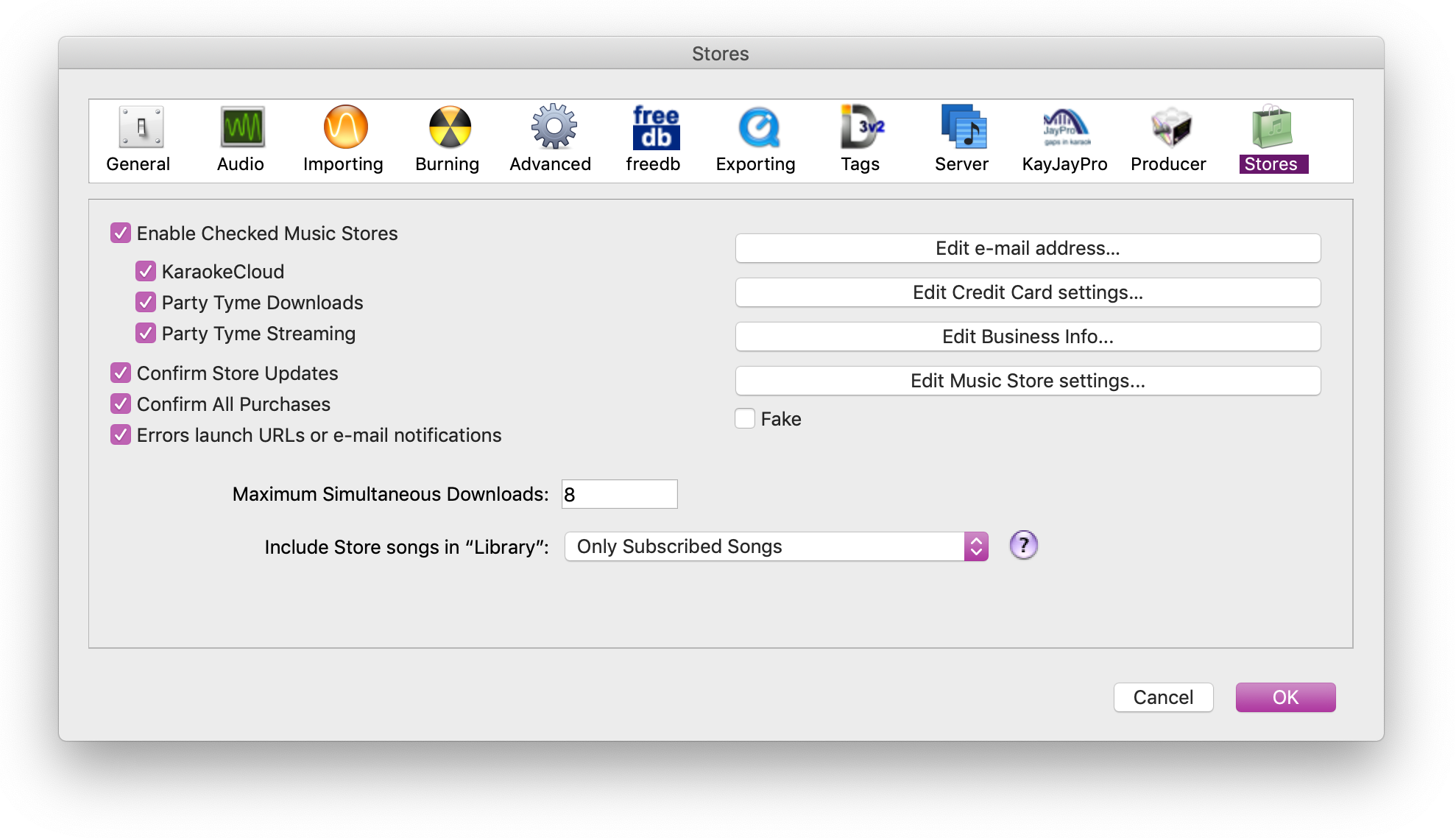
- Include Store songs in "Library": This popup lets you decide what types of music store songs you want to show up in the "Library" playlist. When songs are in the "Library", you can search it to find all songs from both your personal set of songs and any you've included from music stores, at the same time. This is handy for streaming songs, but potentially dangerous for purchase-only songs if you have "Confirm All Purchases" turned off and you play a song directly from the "Library" playlist. For example, you can scroll to any purchasable music store song (in the "Library") and press play, and it will happily purchase the song for you without asking. And then without asking will purchase the next one, then the one after that etc. etc. But it can be very useful if you are a KJ and you want singers to be able to search for and submit songs that are in your music stores (which you gladly purchase for them). Another danger when playing from the Library is if you have "Pre-cacheing" turned on in the General prefs, this will not only purchase the song you play, but will also purchase and download the NEXT song in the playlist.
Sync Previous Purchases
Stores allow you to re-sync any previously purchased songs. That way you can go to a new computer, sign into that store and sync. To do so, do this:
- ensure your windows are properly arranged so you can see activities
- now Context Click the store name, and pick "Sync Previous Purchases"
This will download and install all previously purchased songs.
Alternately, in the Store Preferences panel, just click "Edit Music Store Settings…" then pick the store you want. If you see the button "Sync Previous Purchases", click it.
Note that if a music store song can't be found or is corrupted, you can fix it this way.
How to Reload a store
Stores should automatically re-load for you periodically, depending on your preferences. If you need to reload a store manually, it is easy to do.
- Ensure you can see the Activity window, by arranging your windows properly
- Find the music store playlist in the list of sources (panel on the left)
- context click on the store, and pick "Reload Music Store"
- Watch the activity window, and wait for activities to complete
- Select the music store playlist again, so you can browse the updated store!
Always make backups!
These music stores are at the mercy of the publishers who allow them to publish the songs. At any time, the publishers may (and HAVE) revoke their permission for the stores to publish certain songs. This means a song you see in there today may disappear tomorrow. This has the very unfortunate side effect that syncing previous purchases (See above) will also fail for these songs. Yes, even if you previously purchased and legally own the song, if the song disappears due to it's permission being revoked, you can no longer grab it from the "cloud copy" of all your purchased songs.
What this means is:
- if you see a song you think you may ever want in the future, get it now
- make backups of ALL your songs, so you have it in case of disaster or computer transfer