Logs: Difference between revisions
Jump to navigation
Jump to search
| (13 intermediate revisions by the same user not shown) | |||
| Line 1: | Line 1: | ||
==Automatic== | ==Automatic== | ||
All you have to do is go "Help->Send Crash Report" | All you have to do is go "Help->Send Crash Report", which will send the LAST most recent crash report and log file.<br> | ||
Or pick "Send Log file", which will send the log file from the CURRENT session. | |||
==Manual: Windows== | ==Manual: Windows== | ||
Your log file is located here:<br> | Your log file is located here:<br> | ||
/Users/<you>/AppData/Roaming/kJams Logs/ | /Users/<you>/AppData/Roaming/kJams Logs/ | ||
Be sure to send the one with the right date. Usually this means sort the folder by date and pick the latest one. | Be sure to send the one with the right date. Usually this means sort the folder by date and pick the latest one. | ||
| Line 12: | Line 10: | ||
to send a crash report manually, you have to dig it out of the automatic report. | to send a crash report manually, you have to dig it out of the automatic report. | ||
# you will see this window:<br> | # you will see this window:<br>{{SERVER}}/resources/logs/report1.png<br> | ||
# Click the "What does this report contain?" link button, and you'll get this window:<br> | # Click the "What does this report contain?" link button, and you'll get this window:<br>{{SERVER}}/resources/logs/report2.png<br> | ||
# click the "Export" button. | # click the "Export" button. | ||
# Save the file to the desktop, the name will be a gibberish of letters and numbers, you can rename it to something sane if you like. | # Save the file to the desktop, the name will be a gibberish of letters and numbers, you can rename it to something sane if you like. | ||
| Line 21: | Line 19: | ||
# after it is sent, you may delete the file from the desktop | # after it is sent, you may delete the file from the desktop | ||
==Mac== | ==Manual: Mac== | ||
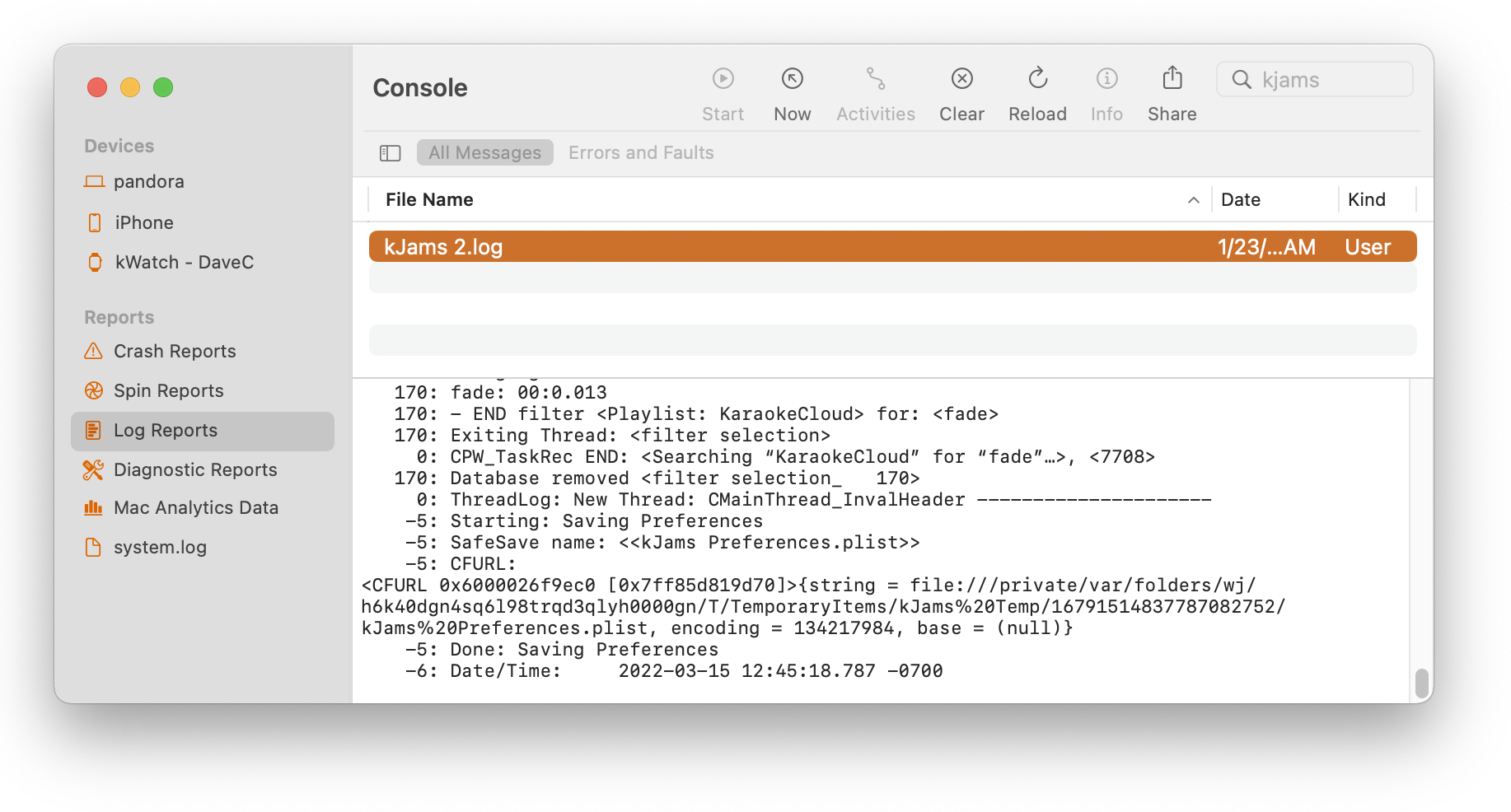
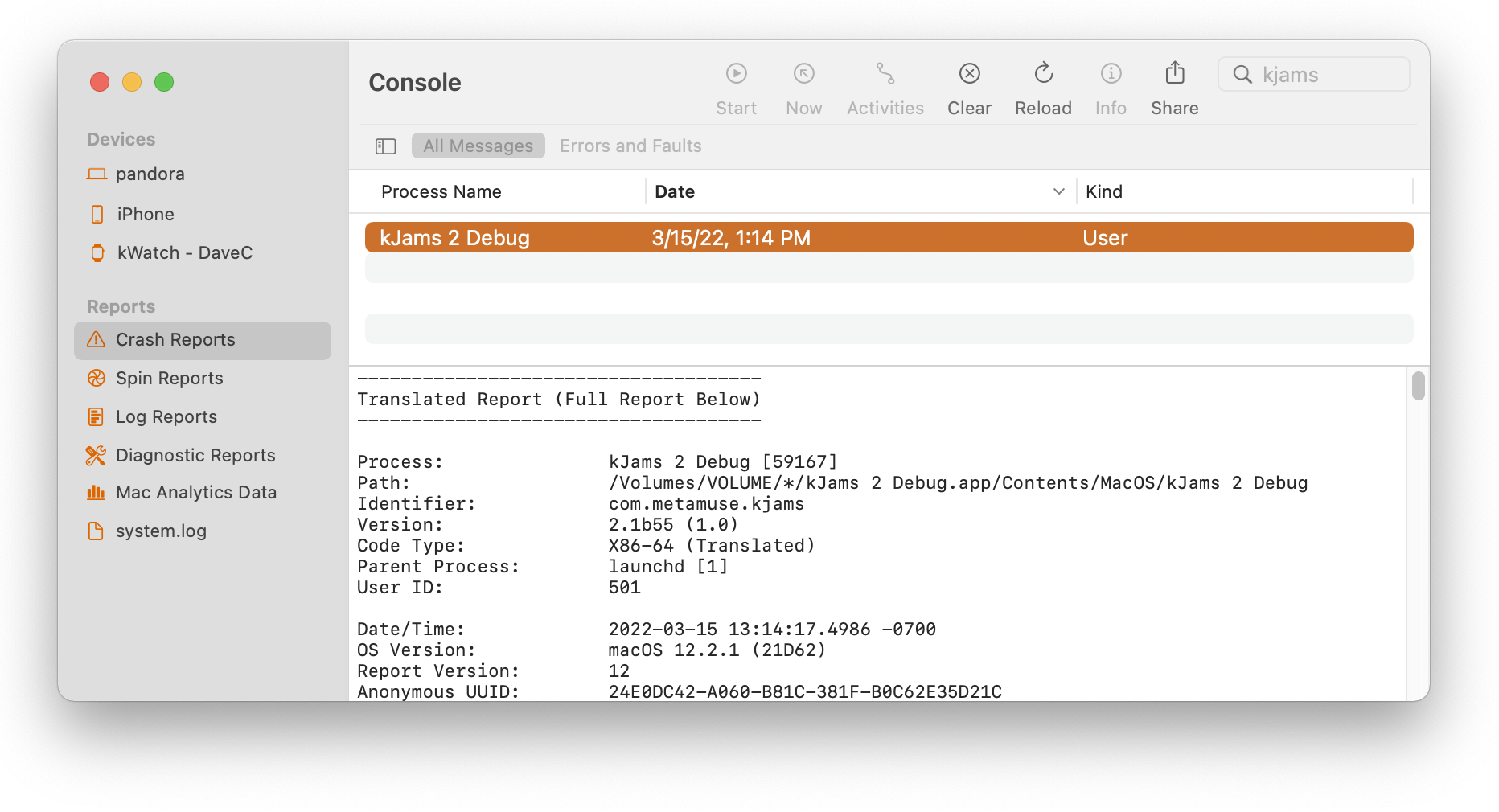
There are two separate files that I need, the "console.log" and the "Crash Report": | # There are two separate files that I need, the "console.log" and the "Crash Report".<br> | ||
# Launch the "Console" app, located here: Launch Console: /Applications/Utilities/Console<br> | |||
# find each of them below, right click it, pick "reveal in finder", then add that as an attachment to an email to me | |||
= | <img src="https://karaoke.kjams.com/resources/logs/monterey-log.png" width="50%"><br> | ||
<img src="https://karaoke.kjams.com/resources/logs/monterey-crash.png" width="50%"><br> | |||
https://karaoke.kjams.com/resources/ | |||
Latest revision as of 03:03, 15 January 2026
Automatic
All you have to do is go "Help->Send Crash Report", which will send the LAST most recent crash report and log file.
Or pick "Send Log file", which will send the log file from the CURRENT session.
Manual: Windows
Your log file is located here:
/Users/<you>/AppData/Roaming/kJams Logs/
Be sure to send the one with the right date. Usually this means sort the folder by date and pick the latest one.
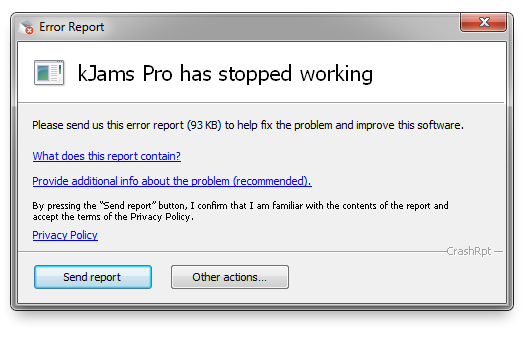
to send a crash report manually, you have to dig it out of the automatic report.
- you will see this window:
- Click the "What does this report contain?" link button, and you'll get this window:
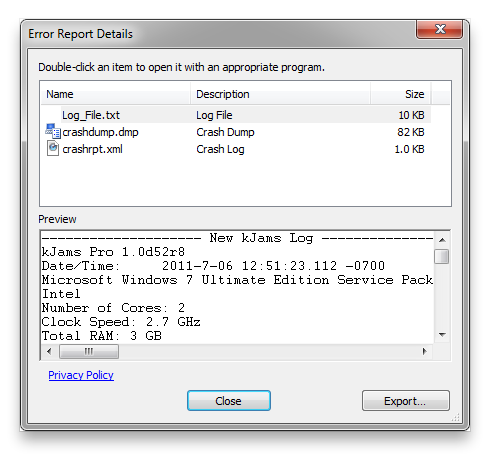
- click the "Export" button.
- Save the file to the desktop, the name will be a gibberish of letters and numbers, you can rename it to something sane if you like.
- Run your mail client, and make a new <email>dave@kjams.com|email to me</email> with the subject "kJams Crash Report"
- add an attachment and pick the file you saved to the desktop
- click send
- after it is sent, you may delete the file from the desktop
Manual: Mac
- There are two separate files that I need, the "console.log" and the "Crash Report".
- Launch the "Console" app, located here: Launch Console: /Applications/Utilities/Console
- find each of them below, right click it, pick "reveal in finder", then add that as an attachment to an email to me