Export Pro: Difference between revisions
No edit summary |
No edit summary |
||
| (32 intermediate revisions by 2 users not shown) | |||
| Line 1: | Line 1: | ||
{| | |||
|bgcolor="red" | <font color="white"> WARNING for 32 Bit </font> | |||
|} | |||
Due to apple being dicks about backward compatibility, I'm not sure that Lite can export any more, only Pro or 2. And then ONLY if you choose These settings: | |||
# '''Movie Encoder''': "QuickTime Movie" | |||
# '''Preset''': "H.264". | |||
You may edit the Preset to your preferences, but I think that's the ONLY one that works now. | |||
Note for 64bit: Lite, Pro, and 2 can export fine, but you ONLY can export one type for encoder and preset, there's nothing to choose. | |||
==Preparation== | ==Preparation== | ||
You must select the output format in the QuickTime Export Preferences pane: | You must select the output format in the QuickTime Export Preferences pane: | ||
https://karaoke.kjams.com/screenshots/prefs/exporting.png | |||
In the Lite version, simply pick the iPod preset that you want. In the Pro version, First pick the encoder you want, then under that, pick the preset you want, or create a new one. You can edit | In the Lite version, simply pick the iPod preset that you want. In the Pro version, First pick the encoder you want, then under that, pick the preset you want, or create a new one. The best one is probably "MPEG-4" and "H.264 Best". You can edit a preset by pressing the "Edit…" button. kJams ships with several presets defined for each encoder, (or just one when only one really makes sense). You can pick the encoder and preset only once if you like, and never worry about it again, until you want to export a different format. The four buttons, "New…", "Duplicate", "Rename…", and "Delete" apply to the preset files. Your presets are stored in the kJams preferences folder (currently ~/Preferences/kJams/Export/). | ||
==Caveats== | ==Caveats== | ||
* You | * You must use the FPS menu in the prefs window, if you use the one INSIDE the QuickTime Settings dialog, it will be ignored.<br> | ||
* Meta info is stored only in QuickTime .mov and MPEG-4 (iPod, AppleTV, iPhone) files. If you export to any other format, currently meta info is set using Xattr tagging. You can optionaly export the XML file which has all the meta data. | |||
* Meta info is stored only in QuickTime .mov ( | |||
* You can only export Audio+G files (ie: you can't export a song who's source is a QuickTime movie, divx file, mpeg file etc, please request that feature if you want it) | * You can only export Audio+G files (ie: you can't export a song who's source is a QuickTime movie, divx file, mpeg file etc, please request that feature if you want it) | ||
* Song Slipping is preserved, but Global Slipping is NOT applied | |||
* Key (pitch) changes ARE preserved, but Tempo changes are NOT preserved | |||
* Transparency will only work for a codec that starts with the name "QuickTime", and a preset that starts with the name "Animation" (regardless of what the codec/preset actually are) | |||
==Export== | ==Export== | ||
| Line 19: | Line 27: | ||
Select the song(s) you want to convert to QuickTime, then go: | Select the song(s) you want to convert to QuickTime, then go: | ||
File->Export->QuickTime... | File->Export->Selection as QuickTime... | ||
If there are songs already currently exporting, the new songs will go to the same folder, else you will be asked to pick a folder for the destination. | If there are songs already currently exporting, the new songs will go to the same folder, else you will be asked to pick a folder for the destination. | ||
| Line 25: | Line 33: | ||
Each song will then be exported using your chosen exporter. | Each song will then be exported using your chosen exporter. | ||
You can then double click the resulting files to open in QuickTime Player. | You can then double click the resulting files to open in QuickTime Player or iTunes, depending on which encoder you chose in the QuickTime Export Preferences pane. | ||
On Mac, watch out for the [[Export_Pro/x264|Gamma Shift]]. | |||
== Special Considerations == | == Special Considerations == | ||
The default is to allow (2 x Cores) exports simultaneously, where Cores is the number of cores on your computer. You can cue up as many as you want, but only that many will export at a time. If you have a high-powered computer, you might want to increase that number. It's one of the "[[Secret Prefs]]" called "Max number of simultaneous QuickTime Exports". | |||
== To get it onto your | If you choose iPhone (Cellular) as the Movie Encoder, the resulting file will be about half the size of the non-cellular one (in MB), but audio quality is greatly reduced. | ||
# Go to Preferences->Export and | |||
== To get it onto your iPhone, iPad, or AppleTV == | |||
# Go to Preferences->Export and pick "iPod", "iPhone" or "AppleTV" as the encoder. (Do NOT pick "iPhone (Cellular)") | |||
# Select the song(s) you want to export | # Select the song(s) you want to export | ||
# File->Export->QuickTime | # File->Export->Selection as QuickTime, save it on your desktop or wherever you like | ||
# | # In the Finder, select the resulting movie(s), right click and pick "Open With->iTunes" | ||
# | # Once you're in iTunes with your video, drag the video to your device, and sync | ||
# | |||
# | == Setting the Export Sample Duration == | ||
# Set "Only export short sample" to true | |||
# hold the OPTION key while you pick export from the menu | |||
# you'll get a dialog where you can specify right there the duration of the export, in seconds. It will then use this number for all future sample exports. | |||
Latest revision as of 21:32, 30 September 2024
| WARNING for 32 Bit |
Due to apple being dicks about backward compatibility, I'm not sure that Lite can export any more, only Pro or 2. And then ONLY if you choose These settings:
- Movie Encoder: "QuickTime Movie"
- Preset: "H.264".
You may edit the Preset to your preferences, but I think that's the ONLY one that works now.
Note for 64bit: Lite, Pro, and 2 can export fine, but you ONLY can export one type for encoder and preset, there's nothing to choose.
Preparation
You must select the output format in the QuickTime Export Preferences pane:
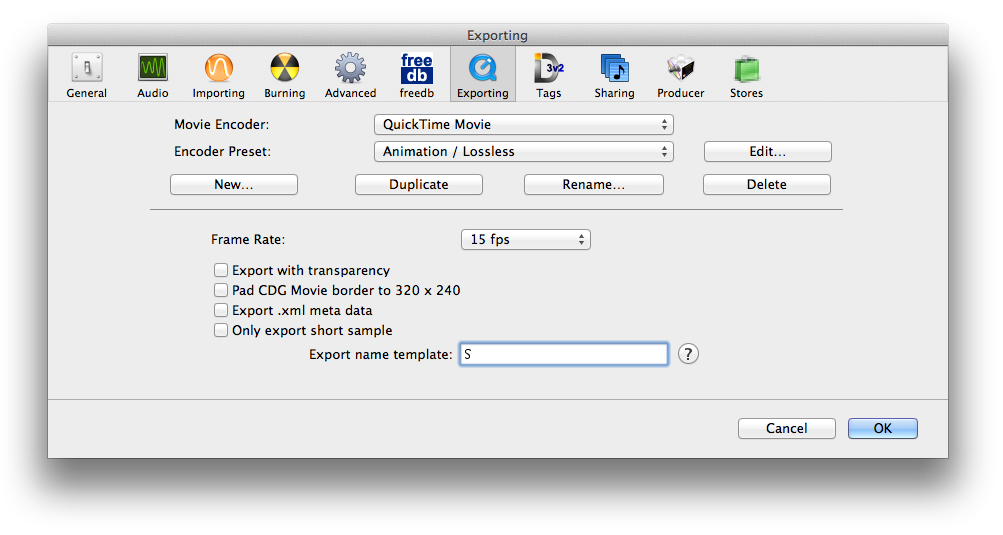
In the Lite version, simply pick the iPod preset that you want. In the Pro version, First pick the encoder you want, then under that, pick the preset you want, or create a new one. The best one is probably "MPEG-4" and "H.264 Best". You can edit a preset by pressing the "Edit…" button. kJams ships with several presets defined for each encoder, (or just one when only one really makes sense). You can pick the encoder and preset only once if you like, and never worry about it again, until you want to export a different format. The four buttons, "New…", "Duplicate", "Rename…", and "Delete" apply to the preset files. Your presets are stored in the kJams preferences folder (currently ~/Preferences/kJams/Export/).
Caveats
- You must use the FPS menu in the prefs window, if you use the one INSIDE the QuickTime Settings dialog, it will be ignored.
- Meta info is stored only in QuickTime .mov and MPEG-4 (iPod, AppleTV, iPhone) files. If you export to any other format, currently meta info is set using Xattr tagging. You can optionaly export the XML file which has all the meta data.
- You can only export Audio+G files (ie: you can't export a song who's source is a QuickTime movie, divx file, mpeg file etc, please request that feature if you want it)
- Song Slipping is preserved, but Global Slipping is NOT applied
- Key (pitch) changes ARE preserved, but Tempo changes are NOT preserved
- Transparency will only work for a codec that starts with the name "QuickTime", and a preset that starts with the name "Animation" (regardless of what the codec/preset actually are)
Export
You can export directly from a CD, or Audio+G Tracks from your library.
Select the song(s) you want to convert to QuickTime, then go:
File->Export->Selection as QuickTime...
If there are songs already currently exporting, the new songs will go to the same folder, else you will be asked to pick a folder for the destination.
Each song will then be exported using your chosen exporter.
You can then double click the resulting files to open in QuickTime Player or iTunes, depending on which encoder you chose in the QuickTime Export Preferences pane.
On Mac, watch out for the Gamma Shift.
Special Considerations
The default is to allow (2 x Cores) exports simultaneously, where Cores is the number of cores on your computer. You can cue up as many as you want, but only that many will export at a time. If you have a high-powered computer, you might want to increase that number. It's one of the "Secret Prefs" called "Max number of simultaneous QuickTime Exports".
If you choose iPhone (Cellular) as the Movie Encoder, the resulting file will be about half the size of the non-cellular one (in MB), but audio quality is greatly reduced.
To get it onto your iPhone, iPad, or AppleTV
- Go to Preferences->Export and pick "iPod", "iPhone" or "AppleTV" as the encoder. (Do NOT pick "iPhone (Cellular)")
- Select the song(s) you want to export
- File->Export->Selection as QuickTime, save it on your desktop or wherever you like
- In the Finder, select the resulting movie(s), right click and pick "Open With->iTunes"
- Once you're in iTunes with your video, drag the video to your device, and sync
Setting the Export Sample Duration
- Set "Only export short sample" to true
- hold the OPTION key while you pick export from the menu
- you'll get a dialog where you can specify right there the duration of the export, in seconds. It will then use this number for all future sample exports.