External Monitor (Mac): Difference between revisions
Jump to navigation
Jump to search
No edit summary |
No edit summary |
||
| (14 intermediate revisions by the same user not shown) | |||
| Line 1: | Line 1: | ||
Note: if you're JUST interested in TV resolution, see step 8! | |||
You want an external monitor (most likely a TV screen) to show the singer and the audience the lyrics screen, while you work away in the Browser window on the main screen. That way, the audience doesn't see your twiddling around, and the singer can focus on the thing they want to see, the karaoke lyrics! | You want an external monitor (most likely a TV screen) to show the singer and the audience the lyrics screen, while you work away in the Browser window on the main screen. That way, the audience doesn't see your twiddling around, and the singer can focus on the thing they want to see, the karaoke lyrics! | ||
if you're looking for instructions for [https://karaoke.kjams.com/w/index.php?title=External_Monitor_(Mac)&oldid=10935 Mojave operating system, click here]! | |||
# [[FAQ#How_do_I_show_the_lyrics_on_a_TV.3F|get your second screen hooked up]] to the computer. | # [[FAQ#How_do_I_show_the_lyrics_on_a_TV.3F|get your second screen hooked up]] to the computer. | ||
# go to the Apple menu and pick "System Preferences" | # go to the Apple menu and pick "System Preferences" | ||
# click the "Displays" icon<br>https://karaoke.kjams.com/screenshots/dual_displays/1_sys_prefs.png | # click the "Displays" icon<br>https://karaoke.kjams.com/screenshots/dual_displays/1_sys_prefs.png | ||
# click on the " | # click on the "Display Settings…" button at the bottom left of the window, to the right of "Add Display" menu<br><img src="https://karaoke.kjams.com/screenshots/dual_displays/2_display_settings.png" width="781pix"> | ||
# | # you should see a list of attached monitors. if you do NOT see your monitor, then your monitor is not properly plugged in or turned on or connected or something. You'll have to figure out that part. | ||
# select the secondary monitor you wish to use as extended display | |||
# | # in the "Use As:" menu, select "Extended Display"<br><img src="https://karaoke.kjams.com/screenshots/dual_displays/3_extended_display.png" width="782pix"> | ||
# hover the mouse over the "using a scaled resolution" tiles, the ones ranging from "larger text" to "more space", as you hover, you'll see the effective resolution of the choice. | |||
## If you're using 32bit kJams, pick "720 x 480" or at most "1280 x 720" (although that takes more horsepower). | |||
## If you're using 64bit kJams, you can pick "1920 x 1080" | |||
# click "Done" | |||
# step back and look at the physical arrangement of your displays<br>https://karaoke.kjams.com/screenshots/dual_displays/4_physical.jpg<br>In this example my main computer monitor (smaller) is physically on the right side and the second (larger) display is physically to the left of it (in your case the one on the left would be your TV screen, and may actually appear to be the smaller one).<br> | # step back and look at the physical arrangement of your displays<br>https://karaoke.kjams.com/screenshots/dual_displays/4_physical.jpg<br>In this example my main computer monitor (smaller) is physically on the right side and the second (larger) display is physically to the left of it (in your case the one on the left would be your TV screen, and may actually appear to be the smaller one).<br> | ||
# now go back and look at your | # now go back and look at your Displays in the preferences window. In my example, you can see that the virtual arrangement is backward, the second (larger) screen is on the wrong side of the main (smaller) screen<br>https://karaoke.kjams.com/screenshots/dual_displays/5_arrangement_before.png | ||
# so i must drag the box representing my second display (the larger on the right), over to the left of the box representing my main display (the smaller one), now it looks like this:<br>https://karaoke.kjams.com/screenshots/dual_displays/6_arrangement_after.png | # so i must drag the box representing my second display (the larger on the right), over to the left of the box representing my main display (the smaller one), now it looks like this:<br>https://karaoke.kjams.com/screenshots/dual_displays/6_arrangement_after.png | ||
# now you should be all set! Close the System Prefs window | # now you should be all set! Close the System Prefs window | ||
# run kJams | # run kJams | ||
# show the Video window | # show the Video window | ||
# drag the video window off the screen in the physical direction of your second display | # drag the video window off the screen in the physical direction of your second display (literally drag the window all the way PAST the edge of the screen) | ||
# you will now see it on your second display | # you will now see it on your second display | ||
# double click inside the video window | # double click inside the video window | ||
# you are now in "Full Screen" mode | # you are now in "Full Screen" mode | ||
# move the mouse pointer back to the main screen | # move the mouse pointer back to the main screen | ||
# if the Video screen still has a menu bar, [[Mavericks|here's how you fix that]]. | |||
# play a song! | # play a song! | ||
# Rejoyce! | # Rejoyce! | ||
Latest revision as of 20:34, 5 December 2022
Note: if you're JUST interested in TV resolution, see step 8!
You want an external monitor (most likely a TV screen) to show the singer and the audience the lyrics screen, while you work away in the Browser window on the main screen. That way, the audience doesn't see your twiddling around, and the singer can focus on the thing they want to see, the karaoke lyrics!
if you're looking for instructions for Mojave operating system, click here!
- get your second screen hooked up to the computer.
- go to the Apple menu and pick "System Preferences"
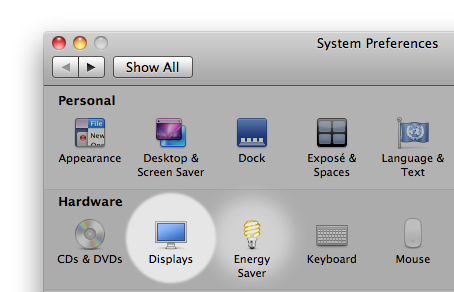
- click the "Displays" icon
- click on the "Display Settings…" button at the bottom left of the window, to the right of "Add Display" menu
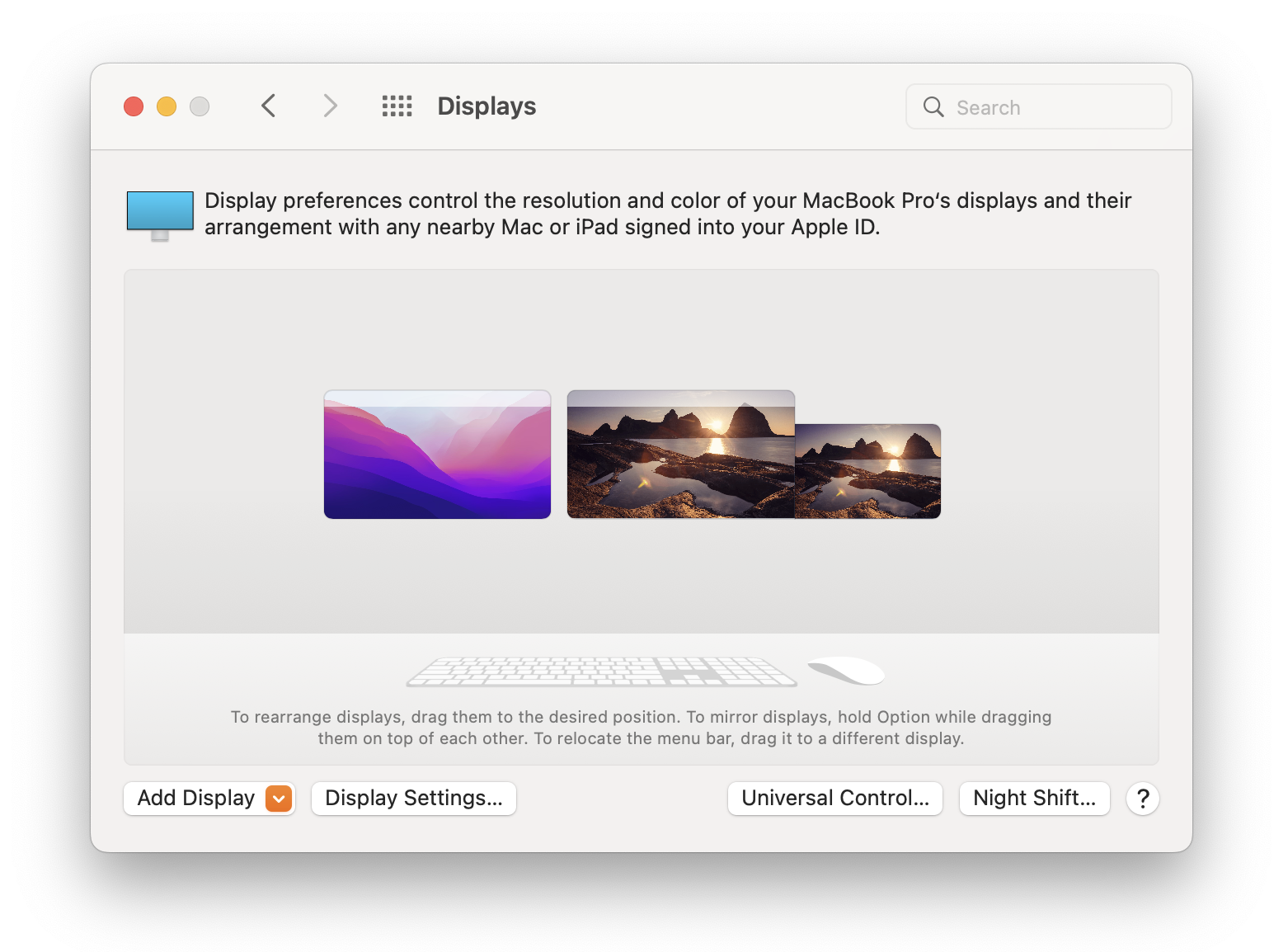
- you should see a list of attached monitors. if you do NOT see your monitor, then your monitor is not properly plugged in or turned on or connected or something. You'll have to figure out that part.
- select the secondary monitor you wish to use as extended display
- in the "Use As:" menu, select "Extended Display"
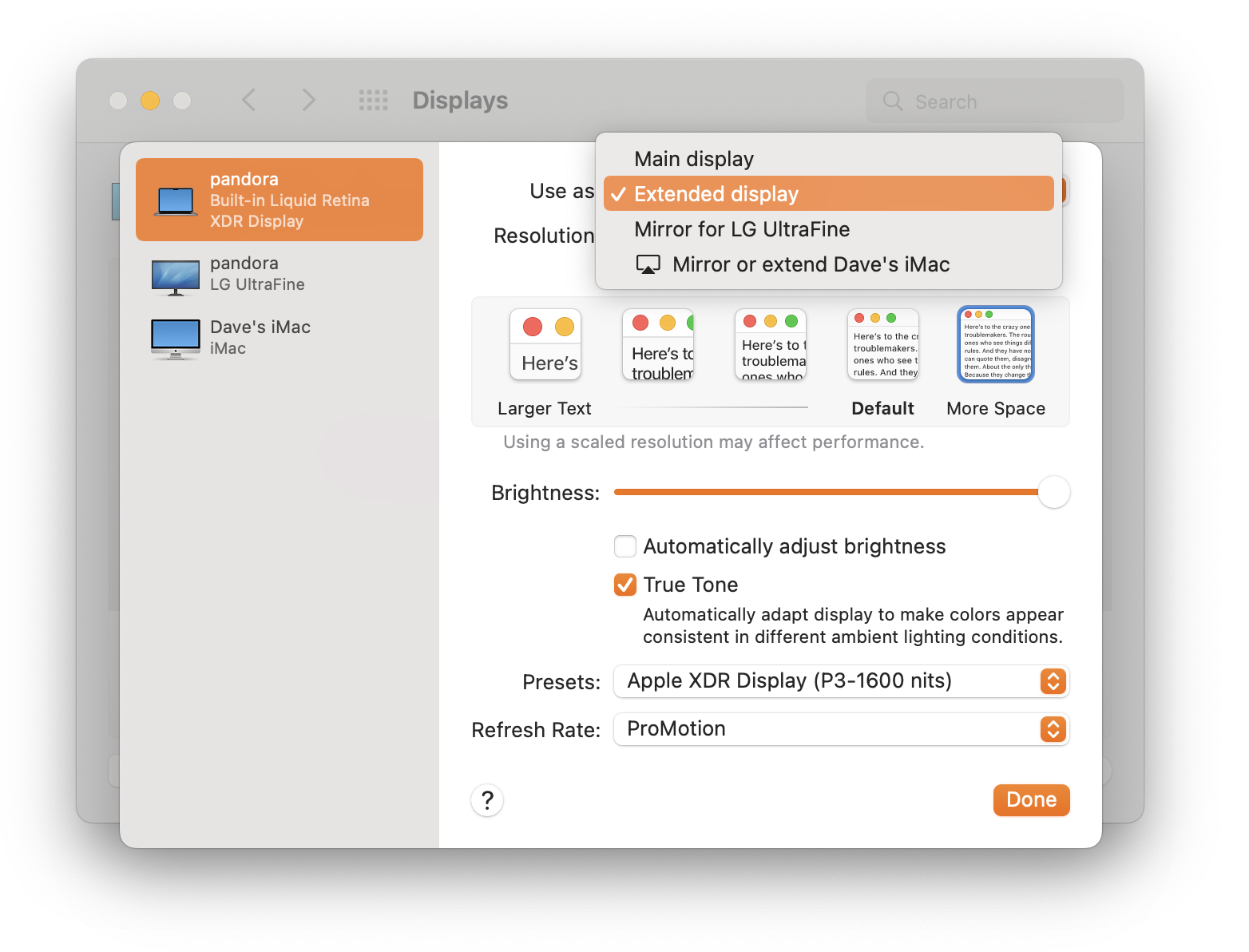
- hover the mouse over the "using a scaled resolution" tiles, the ones ranging from "larger text" to "more space", as you hover, you'll see the effective resolution of the choice.
- If you're using 32bit kJams, pick "720 x 480" or at most "1280 x 720" (although that takes more horsepower).
- If you're using 64bit kJams, you can pick "1920 x 1080"
- click "Done"
- step back and look at the physical arrangement of your displays
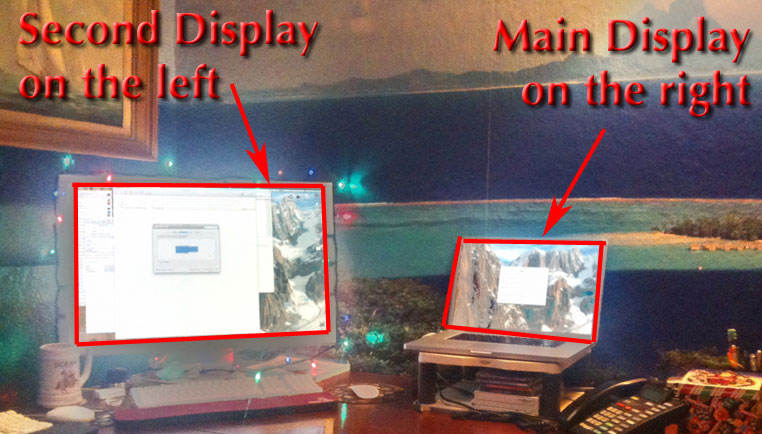
In this example my main computer monitor (smaller) is physically on the right side and the second (larger) display is physically to the left of it (in your case the one on the left would be your TV screen, and may actually appear to be the smaller one). - now go back and look at your Displays in the preferences window. In my example, you can see that the virtual arrangement is backward, the second (larger) screen is on the wrong side of the main (smaller) screen
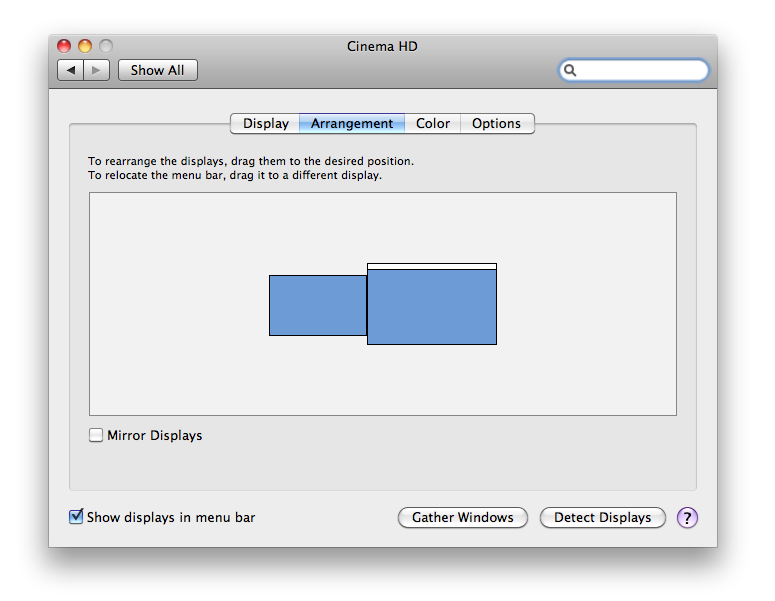
- so i must drag the box representing my second display (the larger on the right), over to the left of the box representing my main display (the smaller one), now it looks like this:
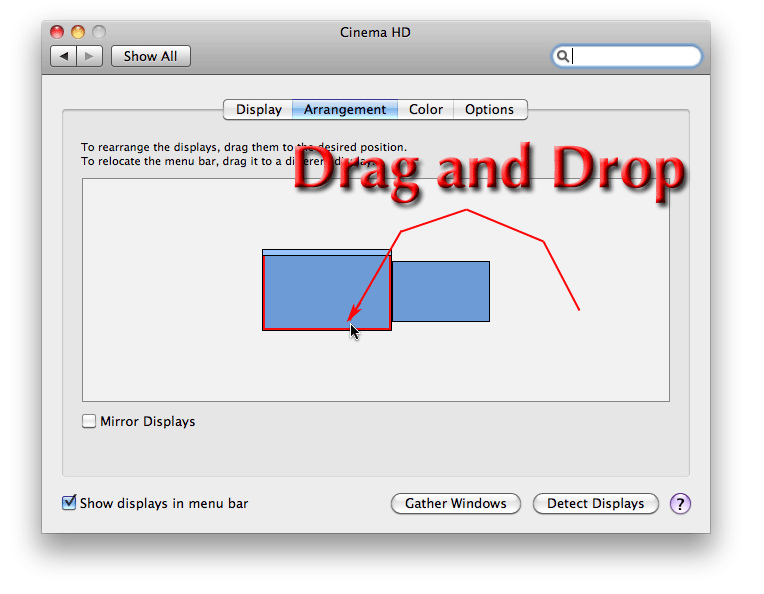
- now you should be all set! Close the System Prefs window
- run kJams
- show the Video window
- drag the video window off the screen in the physical direction of your second display (literally drag the window all the way PAST the edge of the screen)
- you will now see it on your second display
- double click inside the video window
- you are now in "Full Screen" mode
- move the mouse pointer back to the main screen
- if the Video screen still has a menu bar, here's how you fix that.
- play a song!
- Rejoyce!