Ripping: Difference between revisions
No edit summary |
No edit summary |
||
| (67 intermediate revisions by 2 users not shown) | |||
| Line 1: | Line 1: | ||
kJams makes it easy for you to rip karaoke discs you already have. | |||
What is [[Glossary#Rip.2C_Ripping|Ripping]]?<br> | |||
This page is about ripping CD+G discs. There's another page about [[Ripping Other Formats]]. | |||
If you have a library of files already ripped from your discs, located on your internal or external drive, you should go read [[Add To Library]] to find out how to make those available to kJams. | |||
Ripping requires [[Compatible Drives]]. | |||
# | == How to Rip: Hyper Simplified Instructions == | ||
# rip | # first time only: [[Turn off AutoPlay]] in your OS | ||
# run kJams | |||
# stick in your CD+G, NEO+G, SuperCDG, VideoCD, or audio-only CD | |||
# the disc will appear as a playlist in the left pane (the "Sources" list) of the main kJams window, with the tracks in the right pane. If the program was able to match the disc with an online [[Glossary#Metadata|metadata]] library, then the disc title and track titles will be accurate | |||
# | # if you're just testing to see if your drive will rip, then just double click the first song: you should get audio and video | ||
# make sure the tracks you want [[Fetching_Metadata|have at least rudimentary meta data]] (song name, artist name, album name), [[Meta_Info#Editing_Disc_Info|editing them by hand]] if necessary. It's important to [[Why_meta_before_ripping|do this before you rip]]. | |||
# To rip the entire disc: in the Sources list, drag the disc icon and drop it into the Library icon | |||
# To rip selected songs: select the tracks you want in the right pane of the window, and drag them from there to the Library playlist in the left pane | |||
How simple is that? | |||
== Details == | |||
Take Note: [[Compatible_Drives|Some drives]] simply are ''[[Not_Capable|not capable]]'' of reading CD+G discs! | |||
Do not change your "kJams Music" folder in the Advanced prefs. If you think you know what you're doing, [[KJams_Music_Folder|make sure]]. | |||
Also, to Rip to MP3, make sure you've installed the [[Lame|LAME]] encoder, and to rip with Ogg Vorbis, make sure you've installed the [[Vorbis|XiphQT]] package. | |||
Now, you must select the format you want your songs to be converted to when you rip, in the Importing Preferences pane:<br> | |||
https://karaoke.kjams.com/screenshots/prefs/importing.png | |||
First pick the encoder you want, then under that, pick the preset you want, or create a new one. You can edit the preset by pressing the "Edit…" button. kJams ships with several presets defined for each encoder, (or just one when only one really makes sense). You can pick the encoder and preset only once if you like, and never worry about it again, until you want to rip a different format. The four buttons, "New…", "Duplicate", "Rename…", and "Delete" apply to the Preset files. Your presets are stored in the kJams preferences folder (~/Preferences/kJams/Import/). | |||
== Caveats == | |||
* Meta info is stored inside MP3 (ID3v2 tags, Unicode), QuickTime.mov (QT Meta Info, Unicode) and OggVorbis (Vorbis Comments, Unicode) files. If you rip to any other format, currently, no meta info is set inside the files '''that other programs will read'''. I do set [[Xattr]] info for '''all''' files that don't otherwise easily support tagging, and third parties are welcome to read that info if they wish, but those programs must be re-coded to take advantage of my [[Xattr]] format. | |||
* Due to a couple bugs not yet fixed, it is critically important that you set the '''correct''' meta info on the CD itself before you rip. In other words, do NOT rip first and then set meta info. [[Why_meta_before_ripping|Here is why]]. | |||
* If you must play a song from the CD in order to find out meta info (ie: to see the song and artist name in the graphics), then, after you '''do''' set the meta info on the disc, but before you rip, you '''must''' clear your cache (preferences->audio) | |||
== Ripping vs Encoding == | |||
When ripping, if your machine is slow to process the data, the rip can complete before the encoding, EG: stick in a disc, select all, drag to your library. The rip will proceed at full speed, while the encoding goes along two at a time in the background. Shortly you will hear the "Boop-doop-blink!" sound, indicating the rip itself -- the reading of the data from the disc -- is finished. At this point, you can eject the CD. Depending on the speed of your machine and your compression settings, the encoding may still be going on in the background. [[Arrangement|Arrange your windows]] so you can see the "Activity" window, to see what's going on. | |||
If you quit kJams before the encoding is finished, it's a bit risky, because the only full copy of the song is in the cache, it has not yet been encoded and stored in your library. When you next run kJams, it will notice there are songs in the cache that haven't been encoded and it will start converting them, which you can see in the "Activity" window. Although kJams is smart enough to pick up encoding songs that it didin't finish before the previous quit, it's best to let all the encode "Activity" finish before quitting. | |||
==bin / cue ripping== | |||
Ripping to bin/cue files is recommended for experts only. If you need a bin/cue file, you know it, and if you don't know what that is, then you don't need one. | |||
First, please make sure you've set all the meta info, as described above. Then simply select the CD in the sources list (making sure that no songs are selected in the tracks list). Then in the File menu, you'll see the option now reads "Rip to bin/cue…". Easy! You'll get a warning asking if this is what you really mean. If you say you really mean it, then it will ask for a storage location. Please select it's '''permanent''' location, ie: you can't move the file after you rip it, or kJams will lose track of where it is. (Well, if you did move it you ''could'' just re-link every song to that same bin file, but that's a hassle). | |||
kJams will then proceed to rip the bin/cue files and then [[Importing#Bin.2FCue_Pairs|mount the bin/cue disc image]]. You can then [[Ripping#Hyper_Simplified_Instructions|rip them]] to whatever format you want, or [[Burning#Burning_bin.2Fcue_files|burn a copy]] of it. | |||
Latest revision as of 20:47, 13 November 2020
kJams makes it easy for you to rip karaoke discs you already have.
What is Ripping?
This page is about ripping CD+G discs. There's another page about Ripping Other Formats.
If you have a library of files already ripped from your discs, located on your internal or external drive, you should go read Add To Library to find out how to make those available to kJams.
Ripping requires Compatible Drives.
How to Rip: Hyper Simplified Instructions
- first time only: Turn off AutoPlay in your OS
- run kJams
- stick in your CD+G, NEO+G, SuperCDG, VideoCD, or audio-only CD
- the disc will appear as a playlist in the left pane (the "Sources" list) of the main kJams window, with the tracks in the right pane. If the program was able to match the disc with an online metadata library, then the disc title and track titles will be accurate
- if you're just testing to see if your drive will rip, then just double click the first song: you should get audio and video
- make sure the tracks you want have at least rudimentary meta data (song name, artist name, album name), editing them by hand if necessary. It's important to do this before you rip.
- To rip the entire disc: in the Sources list, drag the disc icon and drop it into the Library icon
- To rip selected songs: select the tracks you want in the right pane of the window, and drag them from there to the Library playlist in the left pane
How simple is that?
Details
Take Note: Some drives simply are not capable of reading CD+G discs!
Do not change your "kJams Music" folder in the Advanced prefs. If you think you know what you're doing, make sure.
Also, to Rip to MP3, make sure you've installed the LAME encoder, and to rip with Ogg Vorbis, make sure you've installed the XiphQT package.
Now, you must select the format you want your songs to be converted to when you rip, in the Importing Preferences pane:
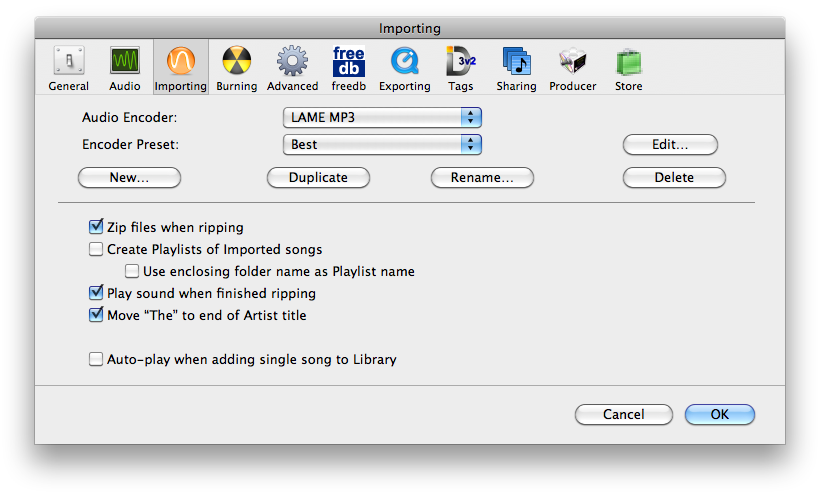
First pick the encoder you want, then under that, pick the preset you want, or create a new one. You can edit the preset by pressing the "Edit…" button. kJams ships with several presets defined for each encoder, (or just one when only one really makes sense). You can pick the encoder and preset only once if you like, and never worry about it again, until you want to rip a different format. The four buttons, "New…", "Duplicate", "Rename…", and "Delete" apply to the Preset files. Your presets are stored in the kJams preferences folder (~/Preferences/kJams/Import/).
Caveats
- Meta info is stored inside MP3 (ID3v2 tags, Unicode), QuickTime.mov (QT Meta Info, Unicode) and OggVorbis (Vorbis Comments, Unicode) files. If you rip to any other format, currently, no meta info is set inside the files that other programs will read. I do set Xattr info for all files that don't otherwise easily support tagging, and third parties are welcome to read that info if they wish, but those programs must be re-coded to take advantage of my Xattr format.
- Due to a couple bugs not yet fixed, it is critically important that you set the correct meta info on the CD itself before you rip. In other words, do NOT rip first and then set meta info. Here is why.
- If you must play a song from the CD in order to find out meta info (ie: to see the song and artist name in the graphics), then, after you do set the meta info on the disc, but before you rip, you must clear your cache (preferences->audio)
Ripping vs Encoding
When ripping, if your machine is slow to process the data, the rip can complete before the encoding, EG: stick in a disc, select all, drag to your library. The rip will proceed at full speed, while the encoding goes along two at a time in the background. Shortly you will hear the "Boop-doop-blink!" sound, indicating the rip itself -- the reading of the data from the disc -- is finished. At this point, you can eject the CD. Depending on the speed of your machine and your compression settings, the encoding may still be going on in the background. Arrange your windows so you can see the "Activity" window, to see what's going on.
If you quit kJams before the encoding is finished, it's a bit risky, because the only full copy of the song is in the cache, it has not yet been encoded and stored in your library. When you next run kJams, it will notice there are songs in the cache that haven't been encoded and it will start converting them, which you can see in the "Activity" window. Although kJams is smart enough to pick up encoding songs that it didin't finish before the previous quit, it's best to let all the encode "Activity" finish before quitting.
bin / cue ripping
Ripping to bin/cue files is recommended for experts only. If you need a bin/cue file, you know it, and if you don't know what that is, then you don't need one.
First, please make sure you've set all the meta info, as described above. Then simply select the CD in the sources list (making sure that no songs are selected in the tracks list). Then in the File menu, you'll see the option now reads "Rip to bin/cue…". Easy! You'll get a warning asking if this is what you really mean. If you say you really mean it, then it will ask for a storage location. Please select it's permanent location, ie: you can't move the file after you rip it, or kJams will lose track of where it is. (Well, if you did move it you could just re-link every song to that same bin file, but that's a hassle).
kJams will then proceed to rip the bin/cue files and then mount the bin/cue disc image. You can then rip them to whatever format you want, or burn a copy of it.